• ×
    Information
    Need Windows 11 help?
    Check documents on compatibility, FAQs, upgrade information and available fixes.
    Windows 11 Support Center.
  • post a message
  • ×
    Information
    Need Windows 11 help?
    Check documents on compatibility, FAQs, upgrade information and available fixes.
    Windows 11 Support Center.
  • post a message
Guidelines
Join the HP Community Solve‑a‑thon | Help Others & Share Your Solutions | Live on Zoom | 2:30 PM to 2:30 AM IST | Every Wednesday Click here to know more
Common problems for Battery
We would like to share some of the most frequently asked questions about: Battery Reports, Hold a charge, Test and Calibrating Battery . Check out this link: Is your notebook plugged in and not charging?
HP Recommended
HP 17-x000 Notebook PC Series (Touch)
Microsoft Windows 10 (64-bit)

My product number is X2E41UA.  After upgrading to Windows 10, I lost the ability to access the camera.  I don't even see it listed in the Device Manager.  The Camera app generates an error that says, "No cameras attached."

1 REPLY 1
HP Recommended

@jm01978

Thank you for posting on HP Support Community.


Don't worry as I'll be glad to help, I have a few troubleshooting steps we could try to fix the issue:  

Firstly, lets perform Hard Reset: Follow steps from the link: https://hp.care/2GnkMa8. (do not skip any troubleshooting steps even if you feel steps are repeating)

BIOS default:

  1. Turn off the computer and wait five seconds.
  2. Press the Power button to start the computer and repeatedly press the F10 key to enter the BIOS setup menu.
  3. On the BIOS Setup screen, press F9 to select and load the BIOS Setup Default settings.
  4. Press F10 to Save and Exit.
  5. Use the arrow keys to select Yes, then press Enter when asked Exit Saving Changes?
  6. Follow the prompts to restart your computer. 

If the issue persists, follow next steps.

  1. Restart your computer.

    If the problem persists, continue using these steps.

  2. In Windows, search for and open Device Manager.

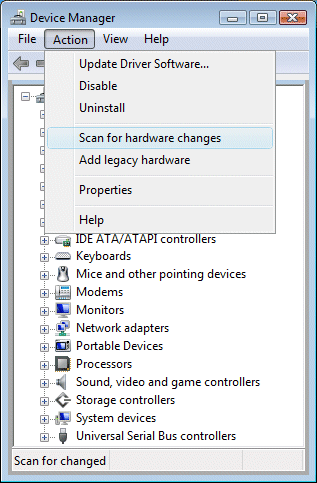
  3. If there is no Imaging devices category listed, select Action, then Scan for hardware changes.

    Image: Scan for hardware changes

  4. If Device Manager does not recognize the webcam after the scan, use Microsoft System Restore to go back to a time when the webcam was working properly. If problems persist, the webcam might have become unplugged internally, and the computer might require service to correct the issue.

Hope this helps! Keep me posted for further assistance.
Please click “
Accept as Solution” if you feel my post solved your issue, it will help others find the solution.

ECHO_LAKE
I am an HP Employee

† The opinions expressed above are the personal opinions of the authors, not of HP. By using this site, you accept the <a href="https://www8.hp.com/us/en/terms-of-use.html" class="udrlinesmall">Terms of Use</a> and <a href="/t5/custom/page/page-id/hp.rulespage" class="udrlinesmall"> Rules of Participation</a>.