• ×
    Information
    Need Windows 11 help?
    Check documents on compatibility, FAQs, upgrade information and available fixes.
    Windows 11 Support Center.
  • post a message
  • ×
    Information
    Need Windows 11 help?
    Check documents on compatibility, FAQs, upgrade information and available fixes.
    Windows 11 Support Center.
  • post a message
Guidelines
Join the HP Community Solve‑a‑thon | Help Others & Share Your Solutions | Live on Zoom | 2:30 PM to 2:30 AM IST | Every Wednesday Click here to know more
Common problems for Battery
We would like to share some of the most frequently asked questions about: Battery Reports, Hold a charge, Test and Calibrating Battery . Check out this link: Is your notebook plugged in and not charging?
HP Recommended
Y3G77UA
Microsoft Windows 10 (64-bit)

Alright, my DVD RW drive has disappeared from my list of available drives. I checked device manager it says it's "working properly" I went into a command prompt and tried to access it, it said "device not ready." I checked the event log and saw this;

Device SCSI\CdRom&Ven_hp&Prod_DVDRW__DU8AESH\4&2057e737&1&010000 was not migrated due to partial or ambiguous match.

IIf ANYone has an answer for me thank you very much. I looked online it said that Windows Update had given me a bad driver, but using HP's site I'm getting nothing trying to find a different driver. Oh, and asking the "virtual assistant" THERE'S a waste of time, kept telling me "I'm having a problem," Yeah, you're sure not SOLVING any for ME anyway. 


Sorry.. I"ve become extremely frustrated trying to fix this. Again any help would be great. I did a BIOS update but nothing has improved.  Additionally, a rollback doesn't work as apparently this happened far enough back that the restore points don't exist to get back there. So I HAVE to fix it, not restore to some point prior to it happening. I don't use it that often but NOW it's unusable, and that's just wrong. 

1 REPLY 1
HP Recommended

@reganwelborn
Thank you for posting on the HP Support Community.


I have a few troubleshooting steps we could try to fix the issue:  

Clear the registry filters for Device Manager error codes 1019313239 or 41.

  1. Unplug all non-essential external plug and play devices, especially cameras.

  2. In Windows, search for and open regedit.

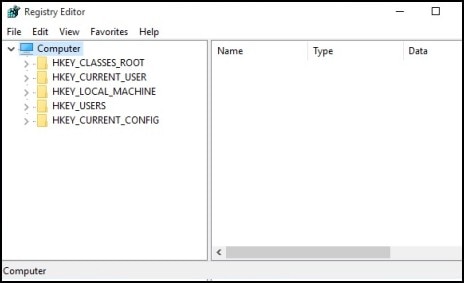
  3. Select Computer in the main window.

    Image of Registry Editor

  4. Click File, click Export, type a filename that is easy for you to remember, then click Save.

    A copy of the registry has been saved for back-up purposes to the Documents folder. If problems occur after using these steps, browse to the file and double-click it to restore the registry.

  5. Click the arrow next to each of the following items in the list:

    • HKEY_LOCAL_MACHINE

    • SYSTEM

    • CurrentControlSet

    • Control

    • Class

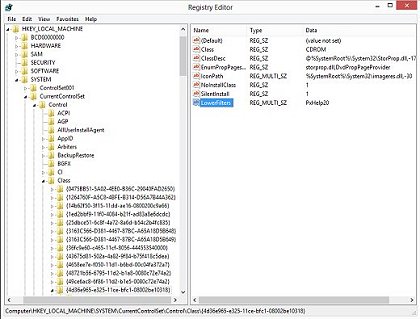
  6. Select 4D36E965-E325-11CE-BFC1-08002BE10318. Make sure you have selected this exact key name.

  7. If a LowerFilters value is listed on the right side of the Registry Editor window, select the LowerFilters value and press the Delete key. Confirm the deletion by clicking Yes.

    The Registry Editor with Lower Filters highlighted

  8. If an UpperFilters value is also listed, select UpperFilters in the right side of the window and press the Delete key.

    Confirm the deletion by clicking Yes.

  9. Delete LowerFiltersall other UpperFilters and values within the 4D36E965-E325-11CE-BFC1-08002BE10318 key if any exist.

  10. Close the Registry Editor, and then restart the computer.

Hope this helps! Keep me posted for further assistance.
Please click “
Accept as Solution” if you feel my post solved your issue, it will help others find the solution.

ECHO_LAKE
I am an HP Employee

† The opinions expressed above are the personal opinions of the authors, not of HP. By using this site, you accept the <a href="https://www8.hp.com/us/en/terms-of-use.html" class="udrlinesmall">Terms of Use</a> and <a href="/t5/custom/page/page-id/hp.rulespage" class="udrlinesmall"> Rules of Participation</a>.
-->