• ×
    Information
    Need Windows 11 help?
    Check documents on compatibility, FAQs, upgrade information and available fixes.
    Windows 11 Support Center.
  • post a message
  • ×
    Information
    Need Windows 11 help?
    Check documents on compatibility, FAQs, upgrade information and available fixes.
    Windows 11 Support Center.
  • post a message
Guidelines
Join the HP Community Solve‑a‑thon | Help Others & Share Your Solutions | Live on Zoom | 2:30 PM to 2:30 AM IST | Every Wednesday Click here to know more
Common problems for Battery
We would like to share some of the most frequently asked questions about: Battery Reports, Hold a charge, Test and Calibrating Battery . Check out this link: Is your notebook plugged in and not charging?
HP Recommended
HP Notebook - 14s-dk0019au

Hi.

My laptop is: HP Notebook - 14s-dk0019au

Two things. One, I'm having issues with my laptops touchpad. It seems like it has a problem with it's right side, where my right-mouse key (physically) doesn't always recognise being pressed, and doesn't always seem to 'bouce back' as it should. Sometimes it works fine, sometimes it seems to get stuck in the down position and has trouble recognising presses, or thinks it is receiving presses when it is not (in the down position).

I can also see that the bottom right corner of the trackpad seems to be more 'indented' then it should be.


Second, i need a larger hard drive. I know some laptops have an option to input a second ssd hd in the smaller 'bar' format of the NVMe. This is without removing the first. What options does this laptop have for upgrading or changing the available internal hard drive options?


Thanks.

3 REPLIES 3
HP Recommended

@Kay21473


Welcome to the HP support community.


I understand that you are getting touchpad issues on your notebook and you want to expand the storage on your notebook, I am glad to assist you.

1)Update the Bios, chipset, and drivers using HP Support Assistant.

Download and run the HP Support Assistant from this Link: Click here


  • HPSA will automatically search for all the latest drivers for your Notebook
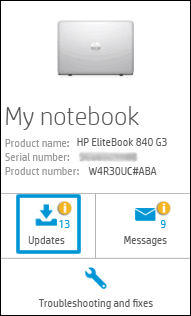
  • Click My devices in the top menu, and then click Updates in the My PC or My notebook pane.
  • Click Updates in the My notebook pane
  • Click Check for updates and messages to scan for new updates.
  •  Updates list in HP Support Center
  • Review the list of updates. Updates with a yellow information icon are recommended. Updates with a blue information icon are optional.
  • Click the update name for a description, version number, and file size.
  • Select the box next to any updates you want to install, and then click Download and install.

Also, ensure Windows is up to date.

  • Select the Start  button, and then go to Settings  > Update & security  > Windows Update , and select Check for updates. If Windows Update says your device is up to date, you have all the updates that are currently available

2) You can expand upto 512GB of SSD.

    Refer to page number 2 in this service manual for more information:- Click here


Let me know how it goes.

To thank me for my efforts to help you, please mark my post as an accepted solution so that it benefits several others.

Cheers.

Sandytechy20
I am an HP Employee

HP Recommended

Hi. Unfortunately, I can't access the manual for my laptop, It doesn't appear to be availabel via the link, and i can't find it online. DO you have one available? It would be useful since i've bought an NVME SSD and will need to install it in a week. Perhaps you can mention (or the manual?) if i need to remove the SATA SSD drive at all to use the M.2 NVME?


As to the sticky mouse issue, I dual boot, and primarily use Linux, so a lot of the steps to make sure i had the best drivers and software weren't applicable. Besides, the is/was definitely a "physical" hardware issue.


None the less, i found this tip online. Get yourself a thin edged business card, perhaps a laminated one. Dip the corner edge in rubbing alcohol. Using the edge of the card, insert it - lightly and only a little - around the edge of the button/trackpad in order to hopefully remove any gunk that may be causing the button to get 'stuck' down. Oils, foods, dead skin. Gunk. I saw the gunk. There was gunk. You can dip multiple times, i even kinda dipped my finger *a bit* and dragged it across the edges, and then ran the corner of the card in between those spaces allowing the *very little* rubbing alcohol to get into the cracks.


It appears to have helped. If not, well i'll be back in contact with HP.

Looking forward to more info on putting my new SSD in.


Thanks!


HP Recommended

@Kay21473 


This might require one on one interaction to fix the issue, I am sending you a private message with the steps to talk to HP support.

Please check the mailbox icon at the top-right corner of this screen.


I hope this helps resolve this issue completely.

If this helps, please mark the public post as an accepted solution so that it benefits several others.

Cheers

Sandytechy20
I am an HP Employee

† The opinions expressed above are the personal opinions of the authors, not of HP. By using this site, you accept the <a href="https://www8.hp.com/us/en/terms-of-use.html" class="udrlinesmall">Terms of Use</a> and <a href="/t5/custom/page/page-id/hp.rulespage" class="udrlinesmall"> Rules of Participation</a>.