• ×
    Information
    Need Windows 11 help?
    Check documents on compatibility, FAQs, upgrade information and available fixes.
    Windows 11 Support Center.
  • post a message
  • ×
    Information
    Need Windows 11 help?
    Check documents on compatibility, FAQs, upgrade information and available fixes.
    Windows 11 Support Center.
  • post a message
Guidelines
Webcam Not Working? Advanced Fixes for HP Notebooks! Click here to view the instructions!
Common problems for Battery
We would like to share some of the most frequently asked questions about: Battery Reports, Hold a charge, Test and Calibrating Battery . Check out this link: Is your notebook plugged in and not charging?
HP Recommended
NOTEBOOK 15-AY503TX
Microsoft Windows 10 (64-bit)

my hp laptop is not booting it shows hard disk is not detecting........i tried removing and attached it again still the same problem.....need help....

1 REPLY 1
HP Recommended

@Yogesh12


Let's restore the BIOS settings to default.

  1. Turn off the Notebook and wait five seconds.

  2. Press the Power button to start the Notebook and repeatedly press the F10 key to enter the BIOS setup menu.

  3. On the BIOS Setup screen, press F9 to select and load the BIOS Setup Default settings.

  4. Press F10 to Save and Exit.

  5. Use the arrow keys to select Yes, then press Enter when asked Exit Saving Changes?

  6. Follow the prompts to restart your Notebook .

If the issue persists run a Hard drive Test to confirm the Hardware Functionality


  1. Plug the AC adapter into the computer.

  2. Press the Power button for at least five seconds to turn off the computer.

  3. Turn on the computer and start pressing Esc repeatedly, about once every second. When the menu appears, press the F2 key.
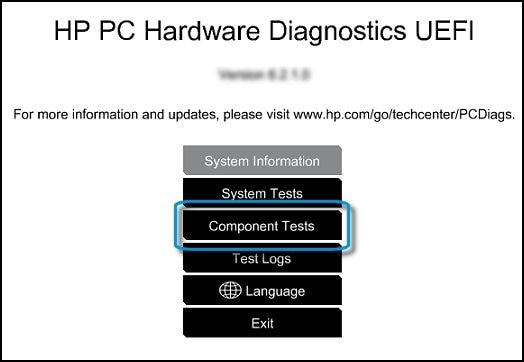
  4. When the HP PC Hardware Diagnostics menu displays, click Component Tests.

    HP PC Hardware Diagnostic UEFI screen

  5. In the Component Tests menu, click Hard Drive.

  6. Click Quick Test.

  7. Click Run once. If the computer has more than one hard drive, click Test All Hard Drives.

    The Quick Test begins.

    Running the Hard Drive Quick Test

  8. If the computer has more than one hard drive, select the drive you want to test. To test all the hard drives, select Test All Hard Drives.

    When a test is complete, the results display on the screen. Test results are also available in the Test Logs on the main menu.

  9. If the hard drive passes the Quick Test, but a problem still exists with the hard drive, run the Extensive Test. This test includes the SMART Check, Short DST, Optimized DST, and Long DST. To run a specific test, select it from the Hard Drive Tests menu.

You can refer to this Link: https://support.hp.com/in-en/document/c01443463


Keep me posted how it goes 😊


If the information I've provided was helpful, give us some reinforcement by clicking the "Solution Accepted" on this Post and it will also help other community members with similar issue.

KrazyToad
I Am An HP Employee

† The opinions expressed above are the personal opinions of the authors, not of HP. By using this site, you accept the <a href="https://www8.hp.com/us/en/terms-of-use.html" class="udrlinesmall">Terms of Use</a> and <a href="/t5/custom/page/page-id/hp.rulespage" class="udrlinesmall"> Rules of Participation</a>.