-
×InformationNeed Windows 11 help?Check documents on compatibility, FAQs, upgrade information and available fixes.
Windows 11 Support Center. -

-
×InformationNeed Windows 11 help?Check documents on compatibility, FAQs, upgrade information and available fixes.
Windows 11 Support Center. -
- HP Community
- Notebooks
- Notebook Hardware and Upgrade Questions
- Re: HD upgrade

Create an account on the HP Community to personalize your profile and ask a question
04-28-2020 06:31 AM
I think I have a 1TB hard drive.
C:/ is almost full. I tend to add my family photos and video memories into D:/
Please can somebody point me in right direction to upgrading to 2TB? Thanks
05-05-2020 02:34 PM
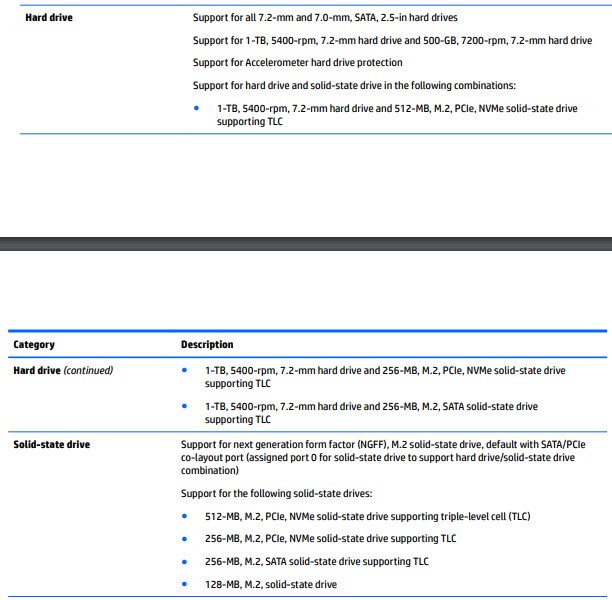
@SMiLEYSMiLE1 Here's a list of parts tested and approved to work on your device (see screenshot below) that said, I must let you know that HP does not recommend upgrades or hardware changes as the device is equipped with parts that perform at its optimal performance by design, that said, the upgradeable parts listed by HP articles are purely for your ease, as the decision to upgrade will be at your own discretion.

For more details on how to remove and replace the hard drive or an SSD: click here and visit page. 30 Chapter 5 Removal and replacement procedures
you may order the parts on the HP Parts Store, If you've already looked for it and couldn't find it on the HP Parts Store, you may want to get it locally at the online store such as Amazon or eBay, etc...as the part numbers are universal.
P.S: Welcome to HP Community 😉
I hope that answers your query,
If it did, simply select "Accept as solution", to help the community grow,
And if you wish to thank us for our efforts, click on the thumbs up for kudos.
Have a great day ahead.
Riddle_Decipher
I am an HP Employee
Learning is a journey, not a destination.
Let's keep asking questions and growing together.
05-05-2020 02:57 PM
@SMiLEYSMiLE1 here's what you can do to gain free space without deleting files on your device:
- Run the Disk Cleanup tool, and then at the bottom of the window that pops up, click on "Clean up system files". Check everything, hit OK, and let it run. You will free up several GB for sure.
- Another thing to do is disable hibernate file. Run CMD as Administrator, and type the following:
- powercfg hibernate off
- Enjoy your extra space!
Let me know how that goes,
If you wish to thank me for my efforts, you could click on "Accept as solution" on my post as the solution should help others too.
Riddle_Decipher
I am an HP Employee
Learning is a journey, not a destination.
Let's keep asking questions and growing together.
05-06-2020 05:03 AM
Okay I have tried this but (C:) is still showing 6.97 GB free of 118 GB.
This is surely strangely low? I don't do gaming on my laptop.
DATA (D:) is showing 428 GB free of 919 GB.
I have 474 GB of music, family photo's and videos in (D:) which I had transferred from (C:) due to exceeding it's capacity.
I have no idea why (C:) is almost full? Thank you for your continuous support 🙂
05-06-2020 04:31 PM
@SMiLEYSMiLE1 The pleasure is mine, that said, I suggest you check the temp folders and delete the contents of the same, followed by using the run command (Windows + R) then type %temp% to access the user data and delete that content as well, them use the run command again but this time type - prefetch - and delete the files inside it, ignore the errors and let me know how that goes.
Keep me posted,
Good luck!
Riddle_Decipher
I am an HP Employee
Learning is a journey, not a destination.
Let's keep asking questions and growing together.