
-
×InformationNeed Windows 11 help?Check documents on compatibility, FAQs, upgrade information and available fixes.
Windows 11 Support Center. -
-
×InformationNeed Windows 11 help?Check documents on compatibility, FAQs, upgrade information and available fixes.
Windows 11 Support Center. -
- HP Community
- Notebooks
- Notebook Hardware and Upgrade Questions
- HP Laptop has stopped loading Windows

Create an account on the HP Community to personalize your profile and ask a question
Your account also allows you to connect with HP support faster, access a personal dashboard to manage all of your devices in one place, view warranty information, case status and more.
Common problems for Battery
We would like to share some of the most frequently asked questions about: Battery Reports, Hold a charge, Test and Calibrating Battery . Check out this link: Is your notebook plugged in and not charging?

It has been a while since anyone has replied. Simply ask a new question if you would like to start the discussion again.

09-10-2025 09:34 AM - edited 09-10-2025 09:36 AM
 HP Recommended
Product: HP Laptop PC 15s-fq2000
My laptop has suddenly stopped loading Windows 11.
Every time, it loads to a page which says ,
'Boot Device Not Found'
'Hard Disk - (3F0)'
Running diagnostics the SSD storage appears to be detected.
When I run BIOS and look into Configuration,
'UEFI HII Configuration'
'Intel (R) Rapid Storage Technology'
'The SSD PCIe is recognised'.
When I look at Boot Options,
'OS Boot Manager Has Arrow head against it'.
When I press enter on this option I get,
'OS Boot Manager is not found'
Does this suggest that the SSD has 'died' or is faulty.
Any ideas would be appreciated.
I have tried the Windows recovery options without any success.
Solved! Go to Solution.
1 ACCEPTED SOLUTION
Accepted Solutions
09-19-2025 11:03 AM
HP Recommended
Hello Garp_senchau
I tried one last time researching the internet and came across an article which recommended downloading Intel Drivers
F6F1py-x64.
Doing this and reloading a clean copy of Windows 11 has worked.
Thanks again for your help.
6 REPLIES 6


09-12-2025 04:43 PM
HP Recommended
@Widnes, Welcome to HP Support Community,
Thank you for posting your query; I’m here to help by guiding you through steps to resolve this issue
Check BIOS Settings
Boot Order: Make sure the SSD is set as the first boot device in the BIOS (press ESC or F10 when starting the laptop).
Secure Boot: Turn off Secure Boot in the BIOS (look under the Security tab).
UEFI/Legacy Boot: If your laptop uses UEFI, try switching to Legacy Boot (or vice versa) in BIOS.
Hard Reset
Power off the laptop, unplug it, then hold the power button for 15-20 seconds.
Reconnect the power and try turning it on again.
Run Diagnostics
Press ESC then F2 during startup to run the HP Diagnostics.
Check if the SSD passes the test (if it fails, the SSD might be faulty).
Try Windows Recovery
Turn on the laptop and press F11 repeatedly to enter HP Recovery Manager.
Select Troubleshoot and try:
Startup Repair (fixes boot problems)
System Restore (if you have restore points)
Reset This PC (reinstalls Windows)
Check SSD Connection
If you're comfortable, power off the laptop, open the back, and reseat the SSD (disconnect and reconnect it).
I hope this helps.
Please feel free to reply here if you have any questions or if you need further clarification on any of the steps.
Take care and have a good day.
Did we resolve the issue? If yes, please consider marking this post as "Accepted Solution" and click "Yes" to give us a helpful vote - your feedback keeps us going!
Regards,
Garp_Senchau
I am an HP Employee
09-13-2025 04:57 AM
HP Recommended
Hello Garp_senchau
Thanks for kindly coming back.
I have followed your suggestions.
The message I get at Boot up is

After running the diagnostics on HDD/SSD, which suggest passed I looked into the BIOS and these are the messages


I changed the Secure Boot to off and got

Checking the Boot Order I got

I cannot open HP Diagnostics with F11, it simply goes to the Boot Device Not Found Screen.
I have tried something similar using Windows Media Installer.
With this I get messages when I run troubleshoot that Diagnosis cannot repair PC.
The annoyance is that I don't know what has caused this in the first place.
It feels more and more that the HP device is a little unstable, only had the machine for 3 maybe 4 years.
Many thanks
Widnes
If you have any further
09-14-2025 08:36 AM
HP Recommended
Hey, thank you for your response.
I recommend following the steps below and referring to the guide to help troubleshoot the issue.
If the Hard Disk Error 3F0 boot device not found is displayed on a black screen, use the following procedures to try to resolve the error.
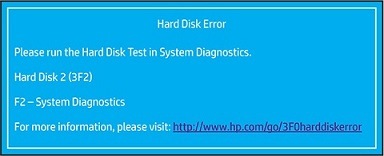
Restore BIOS default settings
To restore the BIOS default setting, open the BIOS Setup screen.
- Turn off the computer and wait five seconds.
- Press the power button to start the computer and repeatedly press the f10 key to enter the BIOS setup menu.
- On the BIOS Setup screen, press f9 to select and load the BIOS Setup Default settings.
- Press f10 to Save and Exit.
- Use the arrow keys to select Yes, and then press Enter when asked Exit Saving Changes?
- Follow the prompts to restart your computer.
Refer this guide for further troubleshooting steps: HP PCs - Hard disk 3F0 boot device not found error | HP® Support
I hope this helps.
Please feel free to reply here if you have any questions or if you need further clarification on any of the steps.
Take care and have a good day.
If my response helped, please mark it as an Accepted Solution! ✅ It helps others and spreads support. 💙 Also, tapping "Yes" on "Was this reply helpful?" makes a big difference! Thanks! 😊
Regards,
Garp_Senchau
I am an HP Employee
09-15-2025 12:25 PM
HP Recommended
Hello Again Garp_senchau.
Thanks for your further suggestion.
Regrettably this hasn't resolved my issue.
I have removed the battery to reset the cmos settings, but this again was to no avail.
Running all the HP Diagnostic tests I have access to, prior to loading Windows, which a lot of tests seem to need and I am unable to get that far, everything seems to be fine.
All tests run show passed.
But it always comes back to the 'Boot Device Not Found'.
In BIOS when checking the OS Boot Manager Boot options I constantly get OS Boot Manager is not found.
Tried an new SSD in the PC and it fails on Boot file not found.
This is when I use Windows 11 Bootable iso.
Any further suggestion please.
Many Thanks
Widnes
Even though in this case, when checking OS Boot Manager it recognises the SSD?
09-17-2025 06:13 AM
HP Recommended
Hey @Widnes,
Thanks for reaching out! Since the issue remains unresolved, I suggest contacting our phone/chat support team for personalized assistance. They can provide one-on-one help and may even be able to work their remote assistance magic to fix the problem.
Note: There might be a nominal charge for the service they provide.
Regards,
Garp_Senchau
I am an HP Employee
09-19-2025 11:03 AM
HP Recommended
Hello Garp_senchau
I tried one last time researching the internet and came across an article which recommended downloading Intel Drivers
F6F1py-x64.
Doing this and reloading a clean copy of Windows 11 has worked.
Thanks again for your help.

Be alert for scammers posting fake support phone numbers and/or email addresses on the community.
If you think you have received a fake HP Support message, please report it to us by clicking on "Flag Post".
† The opinions expressed above are the personal opinions of the authors, not of HP. By using this site, you accept the Terms of Use and Rules of Participation.


Didn't find what you were looking for?
Ask the community
† The opinions expressed above are the personal opinions of the authors, not of HP. By using this site, you accept the <a href="https://www8.hp.com/us/en/terms-of-use.html" class="udrlinesmall">Terms of Use</a> and <a href="/t5/custom/page/page-id/hp.rulespage" class="udrlinesmall"> Rules of Participation</a>.