-
×InformationNeed Windows 11 help?Check documents on compatibility, FAQs, upgrade information and available fixes.
Windows 11 Support Center. -

-
×InformationNeed Windows 11 help?Check documents on compatibility, FAQs, upgrade information and available fixes.
Windows 11 Support Center. -

Create an account on the HP Community to personalize your profile and ask a question
04-29-2020 04:54 PM
Thank you for posting back.
I appreciate your efforts to try and resolve the issue. I would suggest performing system factory reset will put the computer back to the original factory settings in this way all corrupted and outdated software will be removed.
While doing the recovery there is an option to backup your personal files. If you have not previously done one now is a good time.
Restoring Files that were Backed Up Using HP Recovery Manager (Windows )You can also contact HP support for assistance. They can remotely access your system to help alleviate difficulties: www.hp.com/contacthp/
The HP Cloud Recovery Tool allows you to download recovery software to a USB drive. You can use the downloaded recovery image file in order to install the Windows operating system.
- Click here: https://support.hp.com/in-en/document/c04758961#AbT3to perform System Recovery (Windows 10)
- Click here: https://support.hp.com/in-en/document/c06162205 to Use the HP Cloud Recovery Tool (Windows 10)
Hope this helps! Keep me posted for further assistance.
Please click “Accept as Solution” if you feel my post solved your issue, it will help others find the solution.
ECHO_LAKE
I am an HP Employee
04-29-2020 05:15 PM
I appreciate your attention and help. About your recommendations I did a reset of my laptop about two weeks ago and that did not solved the issue with the camera. Maybe it's a hardware problem so I'll try to connect an external camera. Thanks again for your help.
04-30-2020 12:52 PM
I appreciate your attention and help. About your recommendations I did a reset of my laptop about two weeks ago and that did not solved the issue with the camera. Maybe it's a hardware problem so I'll try to connect an external camera. Thanks again for your help.
04-30-2020 06:02 PM - edited 04-30-2020 06:04 PM
Thank you for posting back.
I am glad to know that you managed to resolve the issue. Please reach out again for any further assistance.
And, also try below workaround:
Step 1: Locate and toggle the camera privacy switch or press the camera shutter key
Select HP notebook models to come with a camera privacy switch or a camera shutter key that turns the camera off and on. By default, the camera is turned on.
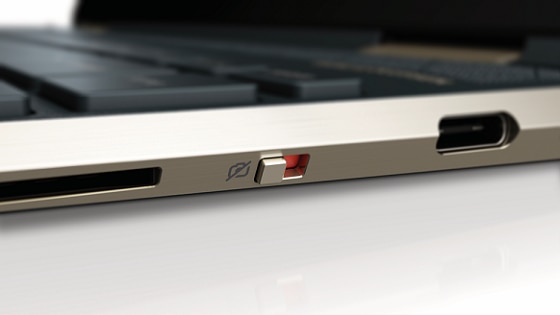
Camera privacy switch
The camera privacy switch is located on the side of your computer. To turn off your camera, slide the camera privacy switch toward the icon next to the switch. To turn the camera back on, slide the switch away from the icon.

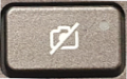
Camera shutter key
The camera shutter key is located on the action key row of your keyboard. To turn off your camera, press the camera shutter key. To turn the camera back on, press the shutter key again.
Camera shutter LED
Camera status

LED on: The camera is off.

LED off: The camera is on.
Figure : Camera shutter key location

Step 2: Troubleshoot the camera
If the error continues, refer to HP PCs - Webcam Troubleshooting (Windows 10, 😎 for additional camera troubleshooting tips.
Step 3: Install a new USB camera
If the camera is still missing, install and connect a new USB camera.
Hope this helps! Keep me posted for further assistance.
Please click “Accept as Solution” if you feel my post solved your issue, it will help others find the solution.
ECHO_LAKE
I am an HP Employee
- « Previous
-
- 1
- 2
- Next »