• ×
    Information
    Need Windows 11 help?
    Check documents on compatibility, FAQs, upgrade information and available fixes.
    Windows 11 Support Center.
  • post a message
  • ×
    Information
    Need Windows 11 help?
    Check documents on compatibility, FAQs, upgrade information and available fixes.
    Windows 11 Support Center.
  • post a message
Guidelines
Join the HP Community Solve‑a‑thon | Help Others & Share Your Solutions | Live on Zoom | 2:30 PM to 2:30 AM IST | Every Wednesday Click here to know more
Common problems for Battery
We would like to share some of the most frequently asked questions about: Battery Reports, Hold a charge, Test and Calibrating Battery . Check out this link: Is your notebook plugged in and not charging?
HP Recommended
Notebook x2

My hp notebook x2  says 3fo bootdevice not found how do I install a hard drive using a flash drive it says no hard drive on my laptop 

1 REPLY 1
HP Recommended

@Alexh_8411

Thank you for posting on HP Support Community.


Don't worry as I'll be glad to help, I have a few troubleshooting steps we could try to fix the issue:  

Use HP PC Hardware Diagnostics even if the computer does not open to Windows. Start with the Quick Test (2 to 3 minutes). If the Quick Test does not find a problem, run the Extensive Test (2 hours or more). The Extensive Test includes a Loop Until Error option.

NOTE: If the test cannot run and the Hard Disk Does Not Exist message displays, contact HP Customer Support for assistance.
  1. Plug the AC adapter into the computer.

  2. Press the Power button for at least five seconds to turn off the computer.

  3. Turn on the computer and start pressing Esc repeatedly, about once every second. When the menu appears, press the F2 key.
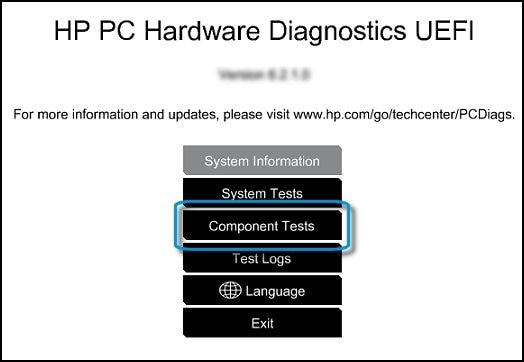
  4. When the HP PC Hardware Diagnostics menu displays, click Component Tests.

    HP PC Hardware Diagnostic UEFI screen

  5. In the Component Tests menu, click Hard Drive, and then click Quick Test.

  6. Click Run once.

    Running the Hard Drive Quick Test

  7. The Hard Drive Quick Test begins. If the computer has more than one hard drive, select the drive you want to test. To test all the hard drives, select Test All Hard Drives.

    When the test is complete, the screen displays the results. Test results are also available in the Test Logs on the main menu.

  8. If the hard drive passes the Quick Test, but a there is still a problem with the hard drive, run the Extensive Test. This test includes the SMART Check, Short DST, Optimized DST, and Long DST. To run these tests individually, select them from the Hard Drive Tests menu.

    If the hard drive fails a test, write down the failure ID (24-digit code) for when you contact HP Customer Support. The information is also available in Test Logs on the main menu.

If the test passes but the error message continues to display, proceed to the next step.

If the Hard Drive Test displays an error message and a warranty ID code, contact HP.


Hope this helps! Keep me posted for further assistance.
Please click “
Accept as Solution” if you feel my post solved your issue, it will help others find the solution.

ECHO_LAKE
I am an HP Employee

† The opinions expressed above are the personal opinions of the authors, not of HP. By using this site, you accept the <a href="https://www8.hp.com/us/en/terms-of-use.html" class="udrlinesmall">Terms of Use</a> and <a href="/t5/custom/page/page-id/hp.rulespage" class="udrlinesmall"> Rules of Participation</a>.