-
×InformationNeed Windows 11 help?Check documents on compatibility, FAQs, upgrade information and available fixes.
Windows 11 Support Center. -

-
×InformationNeed Windows 11 help?Check documents on compatibility, FAQs, upgrade information and available fixes.
Windows 11 Support Center. -
- HP Community
- Notebooks
- Notebook Hardware and Upgrade Questions
- Keyboard doesn't work at all

Create an account on the HP Community to personalize your profile and ask a question
07-31-2019 11:59 PM
I bought a second hand Pavilion laptop at the start of the year and it worked fine then in March right when I started uni a few letters stopped working as in pressing the key once would continue typing that letter, and now the entire keyboard stopped working, none of the keys will even cause a letter to display. Not even esc, ctrl alt del or the function keys. Ive tried updating drivers, uninstalling drivers, updating the system, rebooting the system, feeling like I've tried everything
08-03-2019 04:24 PM
Thank you for posting on the HP Support Community.
I appreciate your efforts to try and resolve the issue.
- Did this happen after a recent window or software update?
- Have you tried using an external keyboard?
While you respond to that, let's try these steps:
Hard Reset: Follow steps from the link: https://hp.care/2GnkMa8.
BIOS default:
- Turn off the computer and wait five seconds.
- Press the Power button to start the computer and repeatedly press the F10 key to enter the BIOS setup menu.
- On the BIOS Setup screen, press F9 to select and load the BIOS Setup Default settings.
- Press F10 to Save and Exit.
- Use the arrow keys to select Yes, then press Enter when asked Exit Saving Changes?
- Follow the prompts to restart your computer.
Use HP PC Hardware Diagnostics to complete functional test of the keyboard and identify any problems with the hardware.
NOTE: Bluetooth devices are not currently supported.
-
Download the latest version of HP PC Hardware Diagnostics.
-
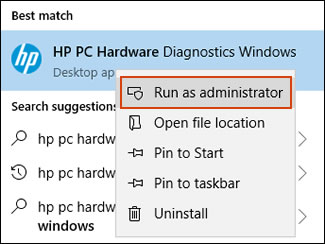
In Windows, search for and right-click HP PC Hardware Diagnostics for Windows, and then select Run as administrator.

-
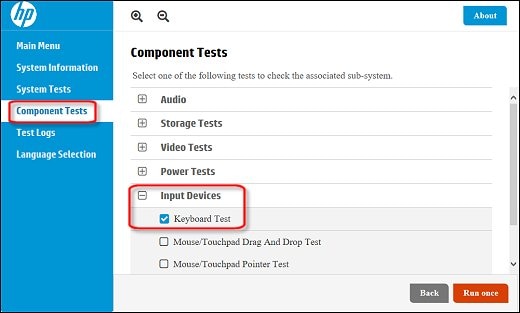
Click Component Tests, click Input Devices, and then select the Keyboard Test.

-
Click Run once to begin the test.
Hope this helps! Keep me posted for further assistance.
Please click “Accept as Solution” if you feel my post solved your issue, it will help others find the solution.
ECHO_LAKE
I am an HP Employee