• ×
    Information
    Need Windows 11 help?
    Check documents on compatibility, FAQs, upgrade information and available fixes.
    Windows 11 Support Center.
  • post a message
  • ×
    Information
    Need Windows 11 help?
    Check documents on compatibility, FAQs, upgrade information and available fixes.
    Windows 11 Support Center.
  • post a message
Guidelines
Join the HP Community Solve‑a‑thon | Help Others & Share Your Solutions | Live on Zoom | 2:30 PM to 2:30 AM IST | Every Wednesday Click here to know more
Common problems for Battery
We would like to share some of the most frequently asked questions about: Battery Reports, Hold a charge, Test and Calibrating Battery . Check out this link: Is your notebook plugged in and not charging?
HP Recommended
Envy 13 x360 ag-0500nd
Microsoft Windows 10 (64-bit)

Hey,


I got problems with my fans, This notebook is less than one month old. The fans are constantly spinning, even though there are no programs running. (After a while, (still without running programs) the notebook gets warm.


It's just very weird that the fans are spinning that hard, even though there's no reason to, because there is no huge program running. 


Is there any solution to this? Already tried everything (Updating BIOS, Using the hardware components test (Passed))


Thank you,

Kun

1 REPLY 1
HP Recommended

@Kun_ENVY

Thank you for joining HP Forums.

It's a pleasure assisting you in finding answers to your technical queries.


To provide you with an accurate solution, I'll need a few more details:

Are you facing this issue after a Windows update?


Use the following steps to open the System Tests menu when Windows won't start.

  1. Hold the power button for at least five seconds to turn off the computer.

  2. Turn on the computer and immediately press Esc repeatedly, about once every second. When the menu appears, press the F2 key.

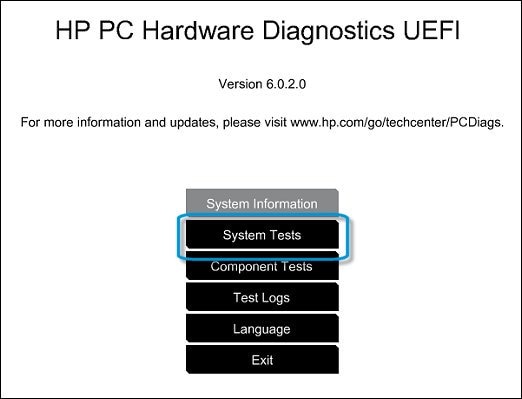
  3. On the main menu, click System Tests.

    Selecting the System Tests from the main menu

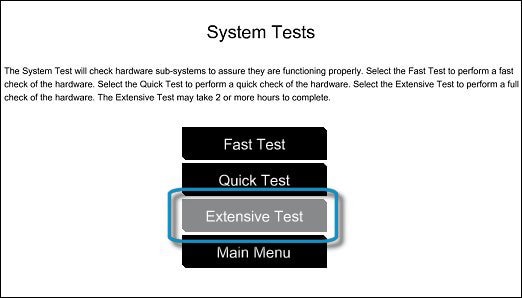
  4. The System Tests menu displays.

  1. Then click Extensive Test.

     Selecting the Extensive Test

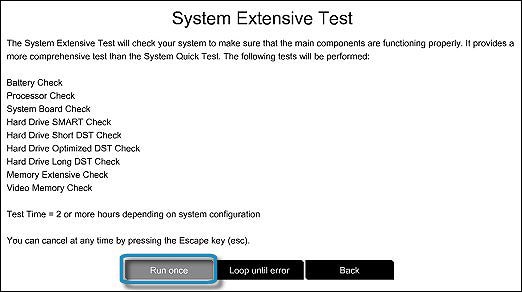
  2. Click Run once, or Loop until error.

    While the test is running, the time remaining and test result for each component are shown on the screen. The test can take 2 or more hours to complete.

    Running the Extensive Test

  3. If a component fails a test, write down the failure ID (24-digit code) so you have it available when you contact HP Customer Support. The information is also available in Test Logs on the main menu.


Use this link: https://support.hp.com/in-en/document/c01657439 for your reference.


Keep me posted, how it goes!

Have a great day!

Cheers:)

Raj1788
I am an HP Employee 

† The opinions expressed above are the personal opinions of the authors, not of HP. By using this site, you accept the <a href="https://www8.hp.com/us/en/terms-of-use.html" class="udrlinesmall">Terms of Use</a> and <a href="/t5/custom/page/page-id/hp.rulespage" class="udrlinesmall"> Rules of Participation</a>.