
-
×InformationNeed Windows 11 help?Check documents on compatibility, FAQs, upgrade information and available fixes.
Windows 11 Support Center. -
-
×InformationNeed Windows 11 help?Check documents on compatibility, FAQs, upgrade information and available fixes.
Windows 11 Support Center. -
- HP Community
- Notebooks
- Notebook Hardware and Upgrade Questions
- SSD WONT WORK HELP

Create an account on the HP Community to personalize your profile and ask a question
Your account also allows you to connect with HP support faster, access a personal dashboard to manage all of your devices in one place, view warranty information, case status and more.
Common problems for Battery
We would like to share some of the most frequently asked questions about: Battery Reports, Hold a charge, Test and Calibrating Battery . Check out this link: Is your notebook plugged in and not charging?

It has been a while since anyone has replied. Simply ask a new question if you would like to start the discussion again.

11-02-2020 08:56 AM
 HP Recommended
Product: HP Notebook - 15-bw069na
Operating System: Microsoft Windows 10 (64-bit)
I have bought a new ssd for my laptop but it just will not work, I have tried everything the internet says, reset to factory, turn on legacy boot. All of it, but nothing has worked. The SSD works and boots to windows on my home pc but when I install the ssd to the laptop all I get is constant restarts and a static discoloured screen. Seriously need some help im all out of options. I tried contacting HP directly but their support options are hopeless
9 REPLIES 9

11-02-2020 12:25 PM
HP Recommended
If your laptop came with Win10 preloaded, then that was configured to use UEFI mode by default; changing your PC to Legacy mode will ensure that it will NOT boot anymore. That is not a working option.
You have a couple of choices at this point.
First, you can install Win10 to your PC using UEFI mode -- and to do that, you need to download the Windows 10 ISO file from Microsoft but do not create boot media with it; instead just download the file. Then use the free RUFUS utility to create boot media that used UEFI mode. This media will automatically format the SSD properly and install Windows on it.
Second, you could CLONE your existing SSD to the new one and when done, you swap drives and will be able to boot without issue.
What I recommend is the following:
1) Download and install Macrium Reflect (MR) from here: https://www.macrium.com/reflectfree
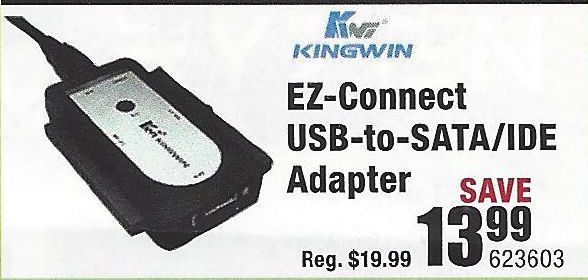
2) Connect the new drive to the PC using a USB-to-SSD drive adapter (like the one illustrated below)
3) Follow the instructions in this link: http://knowledgebase.macrium.com/display/KNOW/Cloning+a+disk
4) Shutdown the PC when done
5) Swap the drives and reboot the PC.
NOTE: To do this easily, the SDD has to be the same capacity as the HDD. IF you get an SDD that is a lot smaller, then before you do the cloning, you have to shrink the largest partition on the HDD (usually the OS partition), to the size such that it, and the other partitions, fit easily on the SSD.
You should boot from the new drive without any problems.
Typical USB-to-SSD adapter:
Good Luck
I am a volunteer and I do not work for, nor represent, HP

11-06-2020 10:36 AM
HP Recommended
Hi, I installed the ISO via RUFUS and did what you said and still no luck. The usb does work as I can boot to the windows install from my home pc. I took some photos of what I'm seeing and hoping you can help me.


11-06-2020 10:59 AM
HP Recommended
Sorry, but your images aren't displaying -- so please provide a textual description.
I have to leave for a while -- so I will check your thread after I get back.
I am a volunteer and I do not work for, nor represent, HP
11-06-2020 11:36 AM
HP Recommended
Hi, the image of what is see is basically if u imagine an old TV when it looses signal and there is just static lines. They are multicoloured horizontal lines and in the centre you can faintly see the HP logo. The second one is just my bios boot settings. I will type out below.
Boot Options
Post Hotkey <0>
CD-ROM Boot <Enabled>
USB Boot <Enabled>
Network Boot <Disabled>
Network Boot Protocol <IPv4+IPv6 (UEFI)>
Legacy Support <Disabled>
Secure Boot <Enabled>
Platform Key <Enrolled>
Pending Action <None>
UEFI Boot Order
-OS boot manager
-Internal CD/DVD ROM Drive
-USB Diskette on Key/USB Hard Drive
-USB CD/DVD ROM Drive
! Network Adapter
Legacy Boot Order
-Notebook Hard Drive
-Internal CD/DVD ROM Drive
-USB Diskette on Key/USB Hard Drive
-USB CD/DVD ROM Drive
! Network Adapter
I have tried literally everything I'm guessing its something to do with the BIOS as the USB UEFI works on my home pc, the SSD works on the home pc. And when i re-install the original HDD the laptop works normal.
11-07-2020 08:42 AM
HP Recommended
You would need to have Secure Boot disabled in order to properly boot from the USB stick -- it looks like it is still enabled in the BIOIS settings. You home PC probably does NOT have Secure Boot enabled or it is an older PC that does not have that option.
Also, the screen image indicates a failing screen. I presume it does not do this all the time or you would not be able to see the BIOS options. But if it is doing this off and on, it will only get worse and eventually, it will look like that all the time. You would need to run diagnostics to check out the screen.
To do that, press F2 repeatedly when rebooting the laptop and select the option to run diagnostics.
I am a volunteer and I do not work for, nor represent, HP
11-07-2020 10:59 AM
HP Recommended
Hi, again I have installed windows onto the SSD via my home PC and it works fine on the home PC. I turned secure boot off and I now just get a message saying preparing automatic repair and it doesn't go away. When I reboot I can press F11 to go into system recovery and I just get a infinite "Please Wait" message. I ran all the test in the F2 menu and they all passed. Sorry to be a pain its just I really need this SSD to work in the laptop I cant afford a new laptop at the moment.
11-07-2020 01:53 PM
HP Recommended
Sorry, should have asked this up front -- is this SSD replacing an HDD in the laptop? OR is it replacing another SSD of the same kind?
Because if the first, and the SSD works in another PC, it is most likely the issue that this SSD simply will not work in this laptop.
I am a volunteer and I do not work for, nor represent, HP

Be alert for scammers posting fake support phone numbers and/or email addresses on the community.
If you think you have received a fake HP Support message, please report it to us by clicking on "Flag Post".
† The opinions expressed above are the personal opinions of the authors, not of HP. By using this site, you accept the Terms of Use and Rules of Participation.


Didn't find what you were looking for?
Ask the community
† The opinions expressed above are the personal opinions of the authors, not of HP. By using this site, you accept the <a href="https://www8.hp.com/us/en/terms-of-use.html" class="udrlinesmall">Terms of Use</a> and <a href="/t5/custom/page/page-id/hp.rulespage" class="udrlinesmall"> Rules of Participation</a>.