
-
×InformationNeed Windows 11 help?Check documents on compatibility, FAQs, upgrade information and available fixes.
Windows 11 Support Center. -
-
×InformationNeed Windows 11 help?Check documents on compatibility, FAQs, upgrade information and available fixes.
Windows 11 Support Center. -
- HP Community
- Notebooks
- Notebook Hardware and Upgrade Questions
- Starting up problems

Create an account on the HP Community to personalize your profile and ask a question
Your account also allows you to connect with HP support faster, access a personal dashboard to manage all of your devices in one place, view warranty information, case status and more.
Common problems for Battery
We would like to share some of the most frequently asked questions about: Battery Reports, Hold a charge, Test and Calibrating Battery . Check out this link: Is your notebook plugged in and not charging?

It has been a while since anyone has replied. Simply ask a new question if you would like to start the discussion again.

11-19-2018 11:13 AM
 HP Recommended
Product: HP pavilion 14-n020ed
Operating System: Microsoft Windows 8 (32-bit)

Hello!
I have some issues with starting up my laptop. I get this message everytime when I start it up and don't know how to fix this. I have tried the instructions at the website already but it doesn't help to get my laptop working again.. what do I have to do?! Please
6 REPLIES 6


11-20-2018 03:21 PM - edited 11-20-2018 03:27 PM
HP Recommended
@Joyce94
Welcome to HP Forums,
This is a great place to get support, find answers and tips,
Thank you for posting your query, I'll be more than glad to help you out 🙂
The 3f0 error code indicates an issue with the HDD-Hard Drive.
I’d like additional information in order to troubleshoot:
What is the product number of your device? Use this link to find it: http://support.hp.com/us-en/document/c03754824
Have you attempted any steps on your own before posting on the HP Forums?
Did this happen after a recent window or software update?
While you respond to that, I recommend you perform the following steps to isolate the issue and arrive at a fix:
Firstly, let's perform a hard reset:
Removable Battery:
1) Shutdown the computer.
2) Unplug all the Adapter and peripherals connected.
3) Remove the Battery.
4) Press and hold down the power button for 15 to 20 seconds.
5) Plug-in the Adapter and put the Battery back into the computer.
6) Try to turn on the computer.
Built-in Battery:
1) Shutdown the computer.
2) Unplug all the Adapter and peripherals connected.
3) Press and hold down the power button for 15 to 20 seconds.
4) Plug-in the Adapter.
5) Try to turn on the computer.
Next: Restore BIOS default settings.
- Turn off the computer and wait five seconds.
- Press the Power button to start the computer and repeatedly press the F10 key to enter the BIOS setup menu.
- On the BIOS Setup screen, press F9 to select and load the BIOS Setup Default settings.
- Press F10 to Save and Exit.
- Use the arrow keys to select Yes, then press Enter when asked Exit Saving Changes?
- Follow the prompts to restart your computer. (If the error message displays proceed to the next step)
Next: Test the hard drive using HP PC Hardware Diagnostics
- Plug the AC adapter into the computer.
- Press the Power button for at least five seconds to turn off the computer.
- Turn on the computer and start pressing Esc repeatedly, about once every second. When the menu appears, press the F2 key.
- When the HP PC Hardware Diagnostics menu displays, click Component Tests.
- In the Component Tests menu, click Hard Drive.
- Click Quick Test.
- Click Run once. If the computer has more than one hard drive, click Test All Hard Drives. The Quick Test begins.
- If the computer has more than one hard drive, select the drive you want to test. To test all the hard drives, select Test All Hard Drives.
When a test is complete, the results display on the screen. Test results are also available in the Test Logs on the main menu.
If the hard drive passes the Quick Test, but a problem still exists with the hard drive, run the Extensive Test. This test includes the SMART Check, Short DST, Optimized DST, and Long DST. To run a specific test, select it from the Hard Drive Tests menu.
Keep me posted for further assistance.
If I have helped you resolve the issue, feel free to give me a virtual high-five by clicking the 'Thumbs Up' icon below,
Followed by clicking on "Accept as solution" from the drop-down menu on the upper right corner,
Thank you for posting in the HP Support Forum. Have a great day!
ECHO_LAKE
I am an HP Employee
11-25-2018 02:39 PM
HP Recommended
Hello,
Thanks for the advice! I just did the quick test, where nothing came in the screen what could be the problem, so after I did the long test and i get back to the normal screen after (see photo enclosed). I don't know what to do now?
Please help me further. Thanks in advance!

11-27-2018 08:50 AM
HP Recommended
Thank you for posting back.
I appreciate your efforts to try and resolve the issue.
Let's restart the computer normally and try to log in to windows. If the notebook fails to start up then perform below troubleshooting steps.
Firstly, let's perform a system restore and check. System Restore automatically creates restore points, a memory of the system files and settings on the computer at a particular point in time. System Restore returns your computer to the files and settings from the restore point. Your personal files and documents are not affected. Click here to run Microsoft System Restore refer to the steps (Restore your computer when Windows cannot start normally )
-
Use one of the following methods to open Windows Recovery Environment:
-
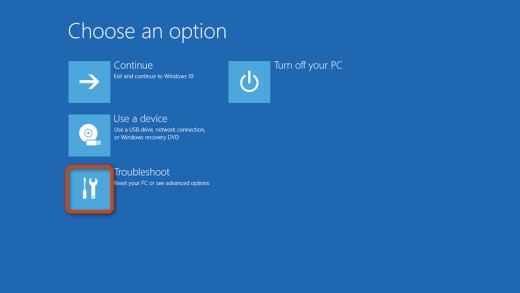
Restart your computer and immediately press the F11 key repeatedly. The Choose an option screen opens.
-
Click Start
 . While holding down the Shift key, click Power, then select Restart. Continue holding down the Shift key as the computer restarts, until the Choose an option screen opens.
-
-
On the Choose an Option screen, click Troubleshoot.
-
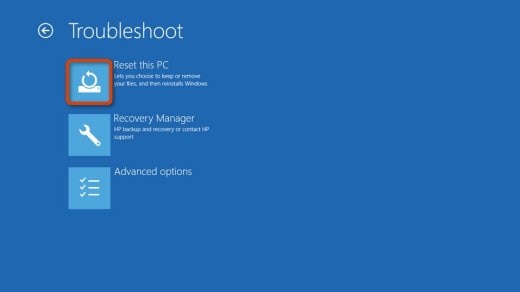
Click Reset this PC.
-
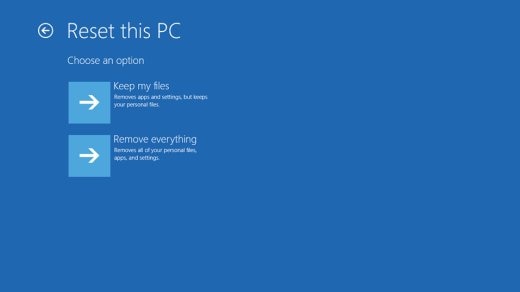
A prompt displays.
-
If you want to keep your personal files and customizations, click Keep my files, then click Reset. Your computer reinstalls the operating system and your computer restarts. You are done.
Selecting keep my files:
-
Keeps your personal files intact when reinstalling Windows 10.
-
Deletes all apps and drivers you installed.
-
Removes all changes to settings.
-
Deletes all HP apps that came preinstalled on your computer. HP apps are reinstalled if your PC came with Windows 10.
-
-
If you want to remove all files, click Remove everything and continue to the next step.
Selecting remove everything:
-
Removes all personal files when reinstalling Windows 10.
-
Deletes all apps and drivers you installed.
-
Removes all changes to settings.
-
Deletes all HP apps that came preinstalled on your computer. HP apps are reinstalled if your PC came with Windows 10.
NOTE: Select this option if you plan to donate, sell, or recycle your PC.
-
-
-
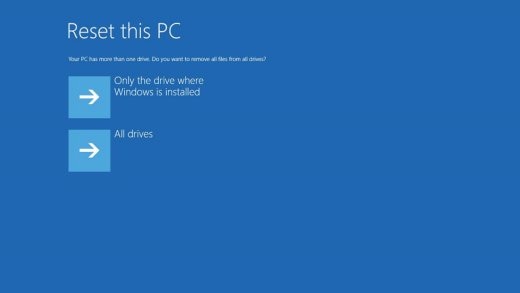
If you only want to remove everything from the drive where Windows is installed, click Only the drive where Windows is installed. If you want to remove all files from the computer, click All drives.
-
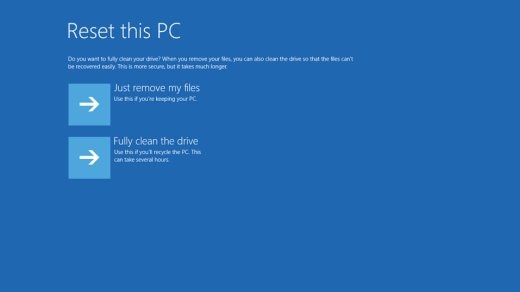
You can fully clean the drive, so that no files are recoverable, or you can delete your files.
-
If you want to delete your files, click Just remove my files.
-
If you want to clean the drive, click Fully clean the drive.
NOTE: If you plan to donate, sell, or recycle your PC, select the option to fully clean the drive. This can take several hours but makes it harder for another person to recover files you have removed.
-
-
Click Reset.
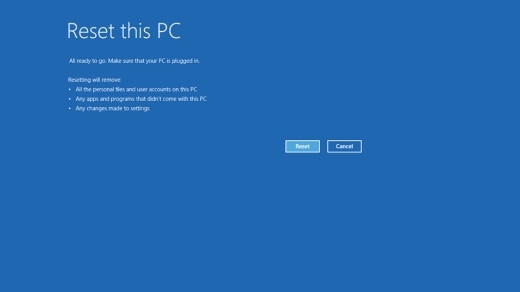
Windows reinstalls the operating system and the computer restarts.
Hope this helps! Keep me posted for further assistance.
If I have helped you resolve the issue, feel free to give me a virtual high-five by clicking the 'Thumbs Up’ icon below,
Followed by clicking on "Accept as solution" from the drop-down menu on the upper right corner,
Thank you for posting in the HP Support Forum. Have a great day!
ECHO_LAKE
I am an HP Employee
11-27-2018 03:26 PM
HP Recommended
Hi there,
Thanks for your suggestion, unfortunately it didn't work. For a couple times I started up my laptop and press F11 repeatingly.. the laptop didn't response, only while starting up in the corner of my screen it said 'F11... System recovery' then nothing happened and the same screen as the picture before showed up. It only says 'boot device not found' but the screen is still black.
What to do now?
Thank you so much in advance!
11-27-2018 04:00 PM
HP Recommended
I'm sending out a Private message to assist you with the next course of action.
Please check your Private message icon on the upper right corner of your HP Forums profile
Next, to your profile Name, you should see a little blue envelope, please click on it or simply click on this link: https://h30434.www3.hp.com/t5/notes/privatenotespage
ECHO_LAKE
I am an HP Employee

Be alert for scammers posting fake support phone numbers and/or email addresses on the community.
If you think you have received a fake HP Support message, please report it to us by clicking on "Flag Post".
† The opinions expressed above are the personal opinions of the authors, not of HP. By using this site, you accept the Terms of Use and Rules of Participation.


Didn't find what you were looking for?
Ask the community
† The opinions expressed above are the personal opinions of the authors, not of HP. By using this site, you accept the <a href="https://www8.hp.com/us/en/terms-of-use.html" class="udrlinesmall">Terms of Use</a> and <a href="/t5/custom/page/page-id/hp.rulespage" class="udrlinesmall"> Rules of Participation</a>.