
-
×InformationNeed Windows 11 help?Check documents on compatibility, FAQs, upgrade information and available fixes.
Windows 11 Support Center. -
-
×InformationNeed Windows 11 help?Check documents on compatibility, FAQs, upgrade information and available fixes.
Windows 11 Support Center. -
- HP Community
- Notebooks
- Notebook Hardware and Upgrade Questions
- Touchscreen Not Working After Troubleshooting

Create an account on the HP Community to personalize your profile and ask a question
Your account also allows you to connect with HP support faster, access a personal dashboard to manage all of your devices in one place, view warranty information, case status and more.
Common problems for Battery
We would like to share some of the most frequently asked questions about: Battery Reports, Hold a charge, Test and Calibrating Battery . Check out this link: Is your notebook plugged in and not charging?

It has been a while since anyone has replied. Simply ask a new question if you would like to start the discussion again.

11-05-2018 04:14 PM
 HP Recommended
Product: HP Spectre x360 Convertible
Operating System: Microsoft Windows 10 (64-bit)
I've owned this laptop for a few years now. After one particular windows update, the touchscreen stopped working (can use mouse, but not touch). After performing all the steps on troubleshooting (update bios, etc.) it is still not responding. When I try to perform a component test in Diagnostics, I don't have an option to test the touchscreen. Just lists all other devices (mouse, video, etc.). Any suggestions would be appreciated.
6 REPLIES 6


11-06-2018 02:31 PM
HP Recommended
Welcome to HP Support Forums. A really great platform for posting all your questions and finding solutions.
I would like to help
Try updating the Touchpad driver from device manager
- Select the Start button, type Device Manager, and select it from the list of results.
- Look for Mice And Other Pointing Devices and expand the List
- Look for Touchpad driver then right-click it, and select Update Driver.
- Select Search automatically for updated driver software.
- If these steps don't work, try reinstalling the driver: Open Device Manager, right-click the Touchpad driver and select Uninstall. Restart your PC and Windows will attempt to reinstall the driver.
Also ensure you have all the latest Windows updates
If the issue persists we can check if you have any Restoration points on the Notebook and we can try a System Restore
- Select the Start button, type control panel and then choose it from the list of results.
- Search Control Panel for Recovery.
- Select Recovery > Open System Restore > Next.
- Choose the restore point before the start of this issue and then select Next > Finish.
Keep me posted how it goes
Thank you and have a wonderful day 😊
If the information I've provided was helpful, give us some reinforcement by clicking the "Solution Accepted" on this Post and it will also help other community members with similar issue.
KrazyToad
I Am An HP Employee

11-07-2018 01:29 PM
HP Recommended
It looks like you were interacting with @KrazyToad, but he is out for the day & I'll be glad to help you out.
Let's try re-installing the touch screen driver in Device Manager. Here is how to do it:
1.) In Windows, search for and open Device Manager.
2.) Expand the Human Interface Devices list.
3.) Right-click the touch screen device, and then click Enable, if possible. If the Enable option does not display, continue to the next step.

4.) Tap the screen to see if it responds. If it does not, continue with these steps.
5.) Right-click the touch screen device, and then click Uninstall.
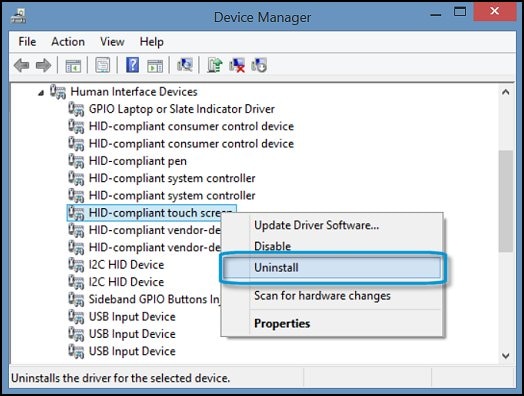
6.) Restart the computer to reinstall the touch screen driver.
7.) Tap the screen to see if it responds.
If the touchscreen is still not working then use the steps below and configure the touch display:
1.) In Windows, search for and open Calibrate the screen for pen and touch input.
2.) On the Display tab, click Setup.

3.) Click Touch input.
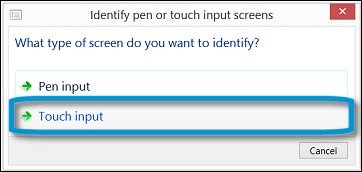
4.) Follow the on-screen directions to identify your screen as a touch screen.
Let me know how it goes!
Senan6806
I am an HP Employee

11-08-2018 12:57 PM
HP Recommended
The best way to identify if this is either a hardware or a software issue is by checking if the Touch is working on BIOS screen. Turn on the PC and tap F10 to access BIOS.
Senan6806
I am an HP Employee

Be alert for scammers posting fake support phone numbers and/or email addresses on the community.
If you think you have received a fake HP Support message, please report it to us by clicking on "Flag Post".
† The opinions expressed above are the personal opinions of the authors, not of HP. By using this site, you accept the Terms of Use and Rules of Participation.


Didn't find what you were looking for?
Ask the community
† The opinions expressed above are the personal opinions of the authors, not of HP. By using this site, you accept the <a href="https://www8.hp.com/us/en/terms-of-use.html" class="udrlinesmall">Terms of Use</a> and <a href="/t5/custom/page/page-id/hp.rulespage" class="udrlinesmall"> Rules of Participation</a>.