-
×InformationNeed Windows 11 help?Check documents on compatibility, FAQs, upgrade information and available fixes.
Windows 11 Support Center. -
-
×InformationNeed Windows 11 help?Check documents on compatibility, FAQs, upgrade information and available fixes.
Windows 11 Support Center. -
- HP Community
- Notebooks
- Notebook Hardware and Upgrade Questions
- USB not recognized

Create an account on the HP Community to personalize your profile and ask a question
01-07-2018 09:20 AM
Hello,
I purchased this laptop in Decemeber 2017 and to my recollection the wireless mouse I used appeared to be functioning on this laptop but at some point in time whenever I input a usb 2.0 wireless mouse receiver or a usb 2.0 thumb drive into the "1 USB 3.1 Type A" port, I began receiving the "USB Not Recognized" error prompt along with the "Unknown USB Device (Device Descriptor Request Failed) error in Device Manager.
Please see below for a screenshot of the issue.
However, if I input a usb 3.0 hub (but the mouse receiver intermittently disconnects when connected to the hub) or usb 3.0 thumb drive into the port, the devices and the port function normally (the USB not recognized error does not prompt).
Both the wireless mouse and thumb drive used have been tested on two other computers and are fully functional.
I attempted to trouble this issue by executing some (cannot remove battery) fixes posted online (usb not recognized and usb not recognized). These fixes were not successful. I also pressed F2 during boot up to test the USB port and it passes when a USB 3.0 is plugged in but not when a USB 2.0 device is plugged in.
This port should be backwards compatible?
01-11-2018 04:20 AM
Let me take a moment to thank you for posting on the HP Support Forums.
I understand that you have an HP Spectre 13-ae000 x360 Convertible series laptop. I read that USB 2.0 devices do not work correctly on this laptop. However, USB 3.0 devices work absolutely fine. I appreciate the steps you have performed and have certainly done a good job.
I recommend you to perform the following steps to isolate the issue and arrive at a fix:
USB 2.0 Device Does Not Work When Connected to a USB 3.0 Port:
-
In Windows, search for and open Device Manager.
-
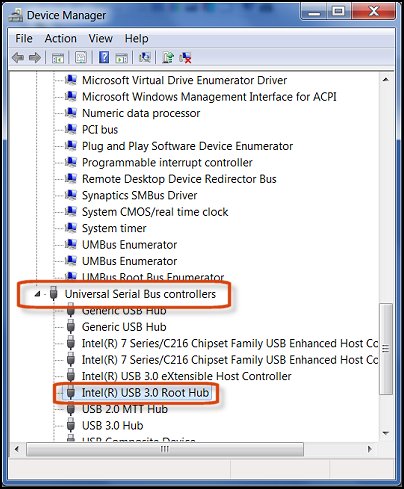
Locate the USB 3.0 Root Hubs under Universal Serial Bus Controllers.
Figure : Locating the USB Root Hub

Right-click the USB 3.0 Root Hub, and click Uninstall.
If the issue still persists then you may continue with the below steps:
-
Disconnect the USB 2.0 device and perform the following steps until the device is detected:
-
Restart the computer.
-
Connect the device and wait 5 seconds. If the device is not recognized, disconnect it and go to the next step.
-
In Windows, search for and open Device Manager.
The Device Manager window opens.
-
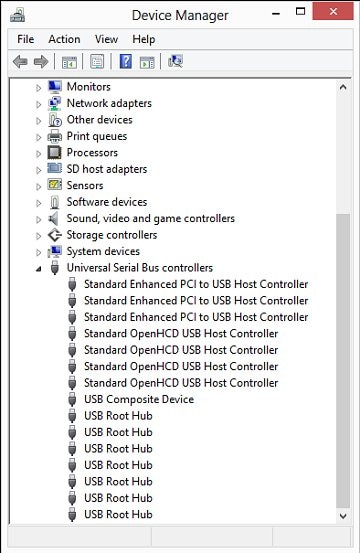
Double-click Universal Serial Bus Controllers to expand the list.
Figure : Universal Serial Bus controllers list in Device Manager window

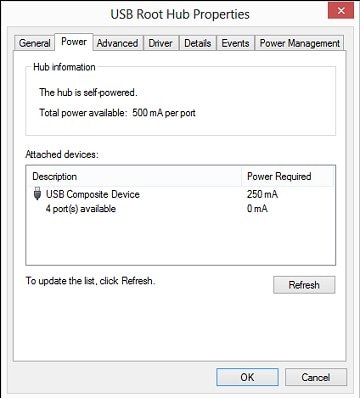
- Double-click a USB Root Hub, click the Power tab, then click Power Properties (if it is shown).
NOTE: The Power tab displays only in USB 2.0. There is no Power tab in USB 3.0.
Devices that are attached to the hub are shown, as well as the power that they require. If the total displayed power is over 500 mA, remove the devices and use a powered hub.
Figure : USB Root Hub Power Properties window

-
Continue looking at the power properties of each USB hub. If the total Power Required exceeds the Total power available for the hub, then remove a device on that hub to lower the Power Required number.
-
Connect the device and wait 5 seconds. If the device is not recognized, disconnect it and go to the next step.
-
Remove high-speed USB cables that are over 3 m (9.8 ft) in length and use high-speed cables that are shorter than 3 m.
Only use high-speed cables shorter than 3m in length with high-speed USB devices (multifunction printers, scanners, and cameras).
-
If the USB device is connected to a USB port on a keyboard, disconnect it, then connect it to a USB port on the computer or to a powered hub.
-
There might be an issue with the USB port. Try connecting to a different USB port. If the USB device displays in Device Manager after connecting the cable to a different port, then uninstall and reinstall the USB device software driver.
I sincerely hope this fixes the issue. Keep me posted. Good luck! 🙂