• ×
    Information
    Need Windows 11 help?
    Check documents on compatibility, FAQs, upgrade information and available fixes.
    Windows 11 Support Center.
  • post a message
  • ×
    Information
    Need Windows 11 help?
    Check documents on compatibility, FAQs, upgrade information and available fixes.
    Windows 11 Support Center.
  • post a message
Guidelines
Seize the moment! nominate yourself or a tech enthusiast you admire & join the HP Community Experts!
Common problems for Battery
We would like to share some of the most frequently asked questions about: Battery Reports, Hold a charge, Test and Calibrating Battery . Check out this link: Is your notebook plugged in and not charging?
HP Recommended
HP ENVY 17-k200 Notebook PC series
Microsoft Windows 10 (64-bit)

I have an HP Envy 17 running Windows 10. I have been using it for at least 18 months with a Seagate Backup Plus slimline external hard drive plugged into one of the three USB 3.0 ports. This worked perfectly until a few months ago when recognition of the hard drive started to become intermittent. Recently it has got much worse. After re-booting the PC the drive may not be recognised at all in any of the three ports. Or sometimes it will work in one or two ports only. Swapping ports may help or may not. Sometimes it will be recognised at first but then if the computer has been on sleep will not be recognised at wake up. Other times it disconnects spontaneously. After a couple of attempts to re-plug it in (with Windows beeps saying it is recognised and then "de-recognised") it stops bbeing identified all together. When plugged in and recongised the hard drive works fine, so I am working on the assumption that it is a USB port issue.


I use a Microsoft wireless mouse and keyboard with nano tranceivers in the other two USB ports.These are recognised much more reliably but are sometimes patchy in their behaviour - the mouse wil "stick" or be jerky, the keyboard will miss letters when typing. I find myself swapping them around to try and get reliable operation.


I have tried all of the fixes I can find. I have re-installed the two storage drivers from the HP support site. I have removed the USB 3.0 root hub in Device Manager numerous times and re-started the computer. I have checked the power settings under the USB 3.0 root hub properties and made sure that the power saving option is unticked. I called Microsoft WIndows 10 support and they called me back running through some system checks and driver updates. The USB ports worked properly for a short while - then went back to not working. No fixes seem to work more than partially or briefly. The hard drive recognition works erratically - and temporarily. 


I have all my work on my USB hard drive so not being able to access it reliably is driving me round the bend. Help to fix this would be much appreciated.

3 REPLIES 3
HP Recommended

@NigelFJ


Welcome to HP Support Forums. 🙂 


Thank you for posting on HP Forums, MKazi is at your service. 


I understand that you have an HP ENVY 17-k200 Notebook and are facing issues with USB devices being connected to it. Fabulous analysis. Spectacular diagnosis of the issue before posting. Kudos to you for that. Welcome to HP Support Forums. 🙂 


During my research, I came across this HP document. The steps suggested in this document help in fixing various USB related issues in Windows 10.


NOTE: You may skip the steps mentioned in "Front USB ports do not work on a desktop computer.".


If the issue persists even after performing the suggested steps, then let us run a hardware test on the USB ports. The following steps will help:


  • Shutdown the laptop.
  • Turn on the laptop and immediately press Esc repeatedly, about once every second. When the menu appears, press the F2 key.

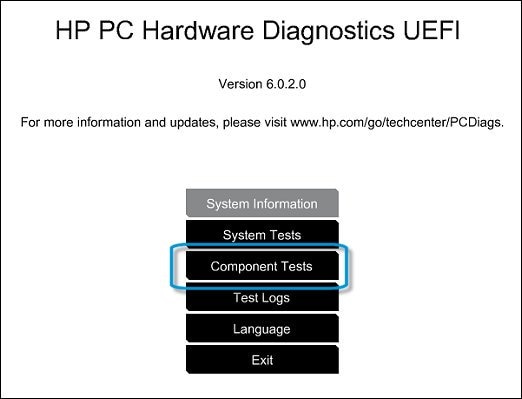
  • On the main menu, click Component Tests.


Figure : Selecting Component Tests from the main menu

Selecting Component Tests from the main menu


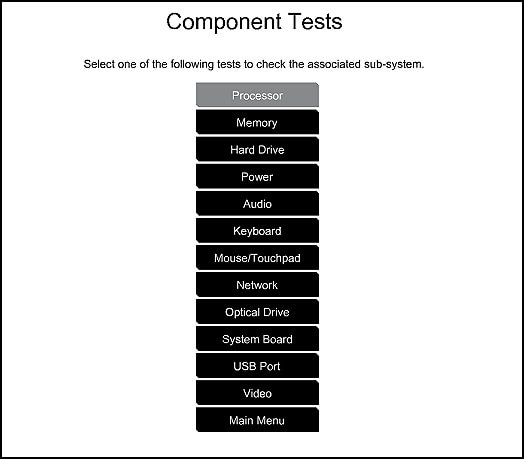
  • The Component Tests menu displays.Your Component Tests menu might be different, depending on the components installed on your computer.


Figure : Sample list of Component Tests

Sample List of the Component tests


  • USB Port Test - This test is interactive and requires you to connect an external USB device, like a mouse, keyboard, or USB flash drive when prompted. (This test is not available in the Windows version of the hardware diagnostics at this time.)

    Before running the test, make sure there are no USB devices connected to the port you want to test.

    To start the test, click USB Port, click Run once, and then connect a USB device to the port you want to test. Repeat the steps if you need to test other USB ports on the computer.


In case the USB test fails then you may contact our HP phone support team to check the available service options for your laptop. 


I sincerely hope this fixes the issue. Let me know how this pans out. Good luck! 🙂

HP Recommended

When all else fails... try the obvious!


Having tried all kinds of software fixes, I eventually decided to buy a replacement cable for the external HDD. Very pleasingly, but somewhat embarrassingly, that solved the problem.


Thanks very much MKazi for your help and suggestions, most of which I tried before replacing the cable.


Nigel

HP Recommended

@NigelFJ,


It looks like you were interacting with @MKazi, but he is out for the day & I'll be glad to help you out,

I'm the Flower_Bud & I'm at your service.


Thank you for the update,

I appreciate your time and efforts,


I'm glad you found the solution for this concern.

You've been great to work with and it has been a genuine pleasure interacting with you.

I hope both you and your product works great and remain healthy for a long time 😉


Take care now and do have a fabulous week ahead. 🙂

† The opinions expressed above are the personal opinions of the authors, not of HP. By using this site, you accept the <a href="https://www8.hp.com/us/en/terms-of-use.html" class="udrlinesmall">Terms of Use</a> and <a href="/t5/custom/page/page-id/hp.rulespage" class="udrlinesmall"> Rules of Participation</a>.