-
×InformationNeed Windows 11 help?Check documents on compatibility, FAQs, upgrade information and available fixes.
Windows 11 Support Center. -

-
×InformationNeed Windows 11 help?Check documents on compatibility, FAQs, upgrade information and available fixes.
Windows 11 Support Center. -
- HP Community
- Notebooks
- Notebook Hardware and Upgrade Questions
- Re: Underperforming RAM

Create an account on the HP Community to personalize your profile and ask a question
10-12-2019 06:54 AM - edited 10-12-2019 06:56 AM
Hi, Im using a HP 15 laptop,
I have 2 Sticks of DDR4 2400Mhz installed (one came preinstalled with the laptop), which run at 1866 as per the product specs of my laptop.
I just recently benchmarked my components, I had noticed that my RAM was severely underperforming.
I used passmark's testing to benchmark my laptop.
As you can see in the screenshot below, the ram is underperforming in almost every test, its not even better than ddr3 lower clocked rams. 😞
Is there any solution to this? Do i have to worry about this or is it fine?
Any help would be appreciated tremendously.
Thanks in advance.
10-14-2019 04:49 PM
@rex6rocks Welcome to HP Community!
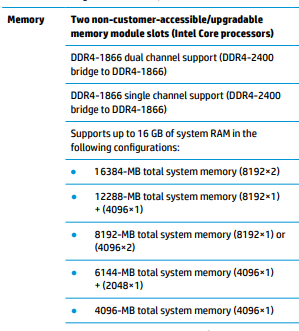
The maximum ram supported by your device is mentioned below, verify the same using your product's service and maintenance guide: click here to access

That said, HP doesn't recommend using 3rd party programs as they may not be precise, however, if you feel this is an issue, here's what you need to do:
This option in Windows is used to reserve RAM that is used during the boot procedure when your system is turning on. By default, it may permanently and unnecessarily reserve a significantly large amount of RAM for it.
- To set that right, Press and Hold the Windows key and Press R. Type msconfig in the Run dialog box and Press Enter.
- System Configuration window will open. Go to the Boot tab in it.
- Select your Operating system from the list below if you have more than one. Now Click on the Advanced Options button.
- On the upper right corner, Clear the checkbox next to Maximum memory. Click Ok.
-
Now restart your computer. Check of the issue resolved. If not, move on to the next solution.
If the issue persists, remove the ram, start the PC, turn it off, and re-insert the ram and check if the full ram size is showing under BIOS, by tapping on F10 during a restart.
Keep me posted, as I (Or a trusted colleague) shall follow-up on this case to ensure the concern has been addressed,
And your device is up and running again, only in case you don't get back to us, first!
That said, If the information I've provided was helpful, give us some reinforcement by clicking the solution and kudos buttons,
That'll help us, and others see that we've got the answers!
Good Luck.
Riddle_Decipher
I am an HP Employee
Learning is a journey, not a destination.
Let's keep asking questions and growing together.