• ×
    Information
    Need Windows 11 help?
    Check documents on compatibility, FAQs, upgrade information and available fixes.
    Windows 11 Support Center.
  • post a message
  • ×
    Information
    Need Windows 11 help?
    Check documents on compatibility, FAQs, upgrade information and available fixes.
    Windows 11 Support Center.
  • post a message
Guidelines
Webcam Not Working? Advanced Fixes for HP Notebooks! Click here to view the instructions!
Common problems for Battery
We would like to share some of the most frequently asked questions about: Battery Reports, Hold a charge, Test and Calibrating Battery . Check out this link: Is your notebook plugged in and not charging?
HP Recommended
HP Spectre x360 - 13-aw0060ca
Microsoft Windows 10 (64-bit)

Hallo,


I've faced a poor quality web camera video problem. Something similar to those artefacts you could see when your video adaptor is no longer able to handle with its tasks so the pictures destroys or freezes in some small rows of the window (but not completely whole the screen as it happens in case of the adaptor). The laptop is brand new and I've run the web camera the first time just couple days after having bought the device.  I've already tried to update its driver and it is up to day. The Windows Troubleshoot did not find any problems as well.


Did anyone have any similar experience and find some suitable solution?


Thanks

1 REPLY 1
HP Recommended

@Tatiana_P
Thank you for posting on HP Support Community.


Don't worry as I'll be glad to help, I have a few troubleshooting steps we could try to fix the issue:  

  • Make sure your video recording environment has good lighting.

  • Change the image quality, brightness, contrast, and other adjustments in the webcam software.

To resolve problems with choppy playback, take the following actions:

  • Reduce the size of the video image in the webcam software.

  • Use a high-speed Internet connection.

  • Do not use other high-speed USB devices while using the webcam.

To troubleshoot other video quality problems, refer to one of the following HP support documents:

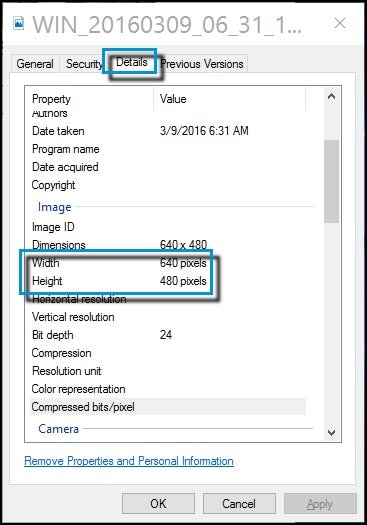
After taking a picture or video and saving it (or you may use a previously saved picture or video taken with your webcam), use the following steps to determine the webcam resolution.

  1. in File Explorer, navigate to the picture or video.

  2. Right-click the picture or video.

  3. Click Properties.

  4. Select the Details tab and see the webcam resolution.

    Details tab showing resolution

Hope this helps! Keep me posted for further assistance.
Please click “
Accept as Solution” if you feel my post solved your issue, it will help others find the solution.

ECHO_LAKE
I am an HP Employee

† The opinions expressed above are the personal opinions of the authors, not of HP. By using this site, you accept the <a href="https://www8.hp.com/us/en/terms-of-use.html" class="udrlinesmall">Terms of Use</a> and <a href="/t5/custom/page/page-id/hp.rulespage" class="udrlinesmall"> Rules of Participation</a>.