-
×InformationNeed Windows 11 help?Check documents on compatibility, FAQs, upgrade information and available fixes.
Windows 11 Support Center. -

-
×InformationNeed Windows 11 help?Check documents on compatibility, FAQs, upgrade information and available fixes.
Windows 11 Support Center. -
- HP Community
- Notebooks
- Notebook Hardware and Upgrade Questions
- When will HP fix the Keyboard Back Light Time Out Feature???

Create an account on the HP Community to personalize your profile and ask a question
10-22-2020 07:13 PM
I spent over 3 hours on chat today with HP Tech Support to figure out how to adjust the Keyboard Time Out feature on my new HP Pavilion laptop. My previous laptop, the HP ENVY, had the keyboard backlight turn on until the USER turned it off. The one for my new laptop turns off after only 10 -15 seconds of non use. I want to adjust this to NEVER turn off or to turn off only when I want to have it turned off.
So far, after doing a multitude of things with my laptop, there was NO answer except, "Sorry, it looks like that's not an option."
I can't be the ONLY one with this issue and it would seem to be a minor fix via BIOS update. Is anyone else having this issue? Will HP fix this?
10-26-2020 11:27 AM
@brownsatan Welcome to HP Community!
I understand that the keyboard backlight time out feature.
If the blacklight stays on for only a few seconds, the backlight timeout setting might need configuring in the BIOS.
NOTE:If there is not a setting for the backlight timing in the BIOS, this behavior might not be supported on the notebook. Check your notebook model's product support documentation to confirm support.
Your BIOS version and screens might vary.
-
Restart the notebook, and then immediately press the F10 repeatedly until the BIOS opens.
-
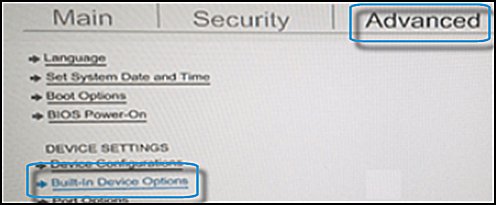
When the BIOS opens, use the arrow keys to navigate to the Advanced tab.
-
Navigate to Built-in Device Options, and then press Enter.

-
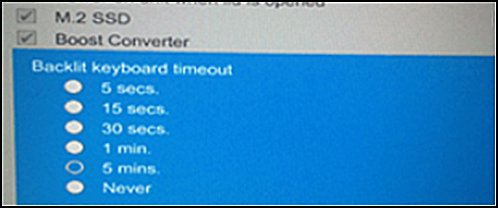
In the Built-in Device Options, select Backlit keyboard timeout.
-
Press the spacebar to open the keyboard backlight settings, and then select the timeout setting you want.
NOTE:
If you select Never, the backlight remains on which could quickly drain the notebook battery power.

If you are unable to find the option in the BIOS. It is not possible to change the settings.
Keep us posted,
If you would like to thank us for our efforts to help you,
Give us a virtual high-five by clicking the 'Thumbs Up' icon below, followed by clicking on the "Accept as solution" on this post,
Have a great day!