• ×
    Information
    Need Windows 11 help?
    Check documents on compatibility, FAQs, upgrade information and available fixes.
    Windows 11 Support Center.
  • post a message
  • ×
    Information
    Need Windows 11 help?
    Check documents on compatibility, FAQs, upgrade information and available fixes.
    Windows 11 Support Center.
  • post a message
Guidelines
Webcam Not Working? Advanced Fixes for HP Notebooks! Click here to view the instructions!
Common problems for Battery
We would like to share some of the most frequently asked questions about: Battery Reports, Hold a charge, Test and Calibrating Battery . Check out this link: Is your notebook plugged in and not charging?
HP Recommended
HP Spectre x360 - 13-aw0272tu
Microsoft Windows 10 (64-bit)

Dear,


I bought the new HP spectra last week.

After updating windows, my IR camera doesn't work, so I am not able to use windows hello recognition as sign-in option.

Before updating IR camera was working properly with normal IR blinking during sign in.


I saw on this site that someone have already had the same problem after updating BIOS F16 (https://h30434.www3.hp.com/t5/Notebook-Software-and-How-To-Questions/IR-camera-driver-for-Windows-He.... and that was 13th of March 2020. Is it possible that the new driver for IR is still not available after 7 months. I tried to find the most recent driver on HP support site for HP spectra aw series but there is not any driver for IR camera.


Before you give me answer I have just want to emphasis the following:

1) I uninstallad IR camera and update drivers in device menager

2) I did all thing that is suggested from the link above.

3) I reinstall windows update

4) I did system restore from the restore point before update (when Face recognition worked properly)

5) I do not want to do reset PC (reinstall windows) because there is know point, because I want 2004 Windows version


So, please could you give me right information how to fix my problem with hello face recognition, provide me some IR camera driver that can work properly for face recognition and do you know is anyone working on solving this at least 7-months-long problem?


Thank you so much!


Best regards,


Nemanja Aksic

1 REPLY 1
HP Recommended

@Nemanja10

Thank you for posting on HP Support Community.


Don't worry as I'll be glad to help, I have a few troubleshooting steps we could try to fix the issue:  
Clearing the keys from the TPM might resolve the issue. Back up your data, disable apps and security features that use the TPM, and then use the TPM management tool to clear the TPM.

  1. Disable or suspend all apps that use the TPM, for example, BitLocker.

  2. Restart the computer and press Esc repeatedly, about once every second, until the Startup Menu opens.

  3. When the Startup Menu displays, press F10 to open BIOS Setup.

  4. Use the right arrow key to choose Security.

  5. In the Security or System Security settings, disable the following security features, if they are listed.

    • Intel Software Guard Extensions (SGX)

    • Intel Trusted Execution Technology (TXT)

    note:BIOS configurations vary. Refer to the documentation that came with your PC for specific steps to navigate the BIOS and disable the settings.

    Disabling SGX in the Security settings

  6. Save your changes and exit the BIOS.

  7. Sign in to an administrator account.

  8. Using the search box on the taskbar, search for and open Run.

  9. In the Open field, type tpm.msc, and then click OK.

    If a User Account Control window displays, click Yes.

    The TPM management window opens.

    Typing tpm.msc in the Run app Open field

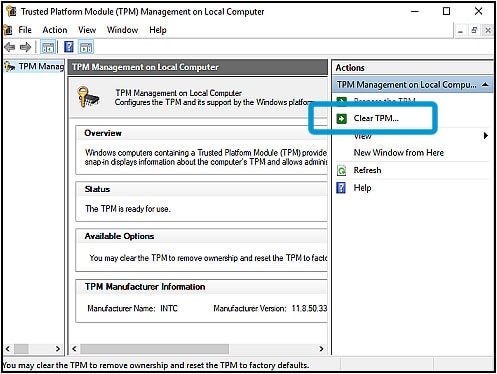
  10. In the Actions section, click Clear TPM.

    Clicking Clear TPM in the TPM Management window

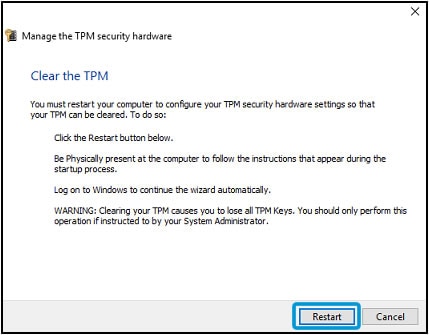
  11. Click Restart.

    note:You must be physically present to respond to prompts during the TPM clearing process.

    Clicking Restart in the Manage the TPM security hardware window

  12. Follow the on-screen instructions to clear the TPM.

  13. If you disabled security features such as Intel Trusted Execution Technology (TXT) or Intel Software Guard Extensions (SGX) in the BIOS before clearing the TPM, re-enable them.
    Note:If the feature was set to Software Controlled, set it to Software Controlled again.

Hope this helps! Keep me posted for further assistance.
Please click “
Accept as Solution” if you feel my post solved your issue, it will help others find the solution.

ECHO_LAKE
I am an HP Employee

† The opinions expressed above are the personal opinions of the authors, not of HP. By using this site, you accept the <a href="https://www8.hp.com/us/en/terms-of-use.html" class="udrlinesmall">Terms of Use</a> and <a href="/t5/custom/page/page-id/hp.rulespage" class="udrlinesmall"> Rules of Participation</a>.