• ×
    Information
    Need Windows 11 help?
    Check documents on compatibility, FAQs, upgrade information and available fixes.
    Windows 11 Support Center.
  • post a message
  • ×
    Information
    Need Windows 11 help?
    Check documents on compatibility, FAQs, upgrade information and available fixes.
    Windows 11 Support Center.
  • post a message
Guidelines
Join the HP Community Solve‑a‑thon | Help Others & Share Your Solutions | Live on Zoom | 2:30 PM to 2:30 AM IST | Every Wednesday Click here to know more
Common problems for Battery
We would like to share some of the most frequently asked questions about: Battery Reports, Hold a charge, Test and Calibrating Battery . Check out this link: Is your notebook plugged in and not charging?
HP Recommended
HP ENVY 15-k009ne
Microsoft Windows 10 (64-bit)

i have 2 fans in my laptop and my fan speed software indicates that fan 1 runs at minimum 1300 rpm and maximum at 4000 rpm (i dont know the exact maximum number) and fan 2 runs at minimum 100 rpm and maximum 300 or 400 rpm
the question is is that speed for fan 2 normal?

secondly where is this fan 2 i mean when i disassemble my laptop i see one big fan at the center of the board where is the other one
thanks in advance

3 REPLIES 3
HP Recommended

@mikhany


Thank you for posting on HP Forums, MKazi is at your service. 


I understand that you would like to know where is the second fan inside your HP ENVY 15-k009ne Notebook. 


During my research, I came across the service guide for the HP ENVY 15 series notebook. You may access the service guide by clicking here. The page# 77 shows where the fan is located and there is no mention about the other fan. 


To properly ventilate the computer, allow at least 7.6 cm (3 in) of clearance on the left side of the computer. The computer uses an electric fan for ventilation. The fan is controlled by a temperature sensor and is designed to turn on automatically when high temperature conditions exist. These conditions are affected by high external temperatures, system power consumption, power management/battery conservation configurations, battery fast charging, and software requirements. Exhaust air is displaced through the ventilation grill located on the left side of the computer.


However, in case the fan is malfunctioning then you will notice symptoms such a fan noise, overheating of the laptop, etc. 


Hope this information helps. Please feel free to let me know how this goes.


Cheers! 

HP Recommended

would you consider a 85 c graphics card and around 89c processor a high temperature?


please consider that i am in a very hot climate and these temperatures are not the normal state temps but i run a powerfull games and streaming at the same time


also consider that without streaming (game only ) the processor is around 85

HP Recommended

@mikhany


Thanks for your reply.


In that case, you may update the BIOS on the laptop. The BIOS can be downloaded and installed via this  HP link

NOTE: Please have the charger connected to the laptop while updating the BIOS. Because the BIOS update must not get interrupted due to the battery draining out. 


Secondly, you may download and run the HP Support Assistant tool. This tool will download and install the most required drivers for your laptop:

  • Please click here to download and install the HP Support Assistant.
  • Use HP Support Assistant to automatically install computer updates, such as updated drivers, system updates, and useful utilities.

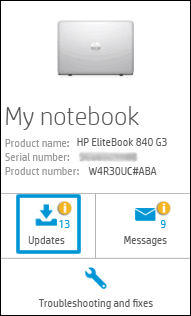
  • Click My devices in the top menu, and then click Updates in the My PC or My notebook pane.

    Click Updates in the My notebook pane

  • Click Check for updates and messages to scan for new updates.

     Updates list in HP Support Center

  • Review the list of updates. Updates with a yellow information icon are recommended. Updates with a blue information icon are optional.

  • Click the update name for a description, version number, and file size.

  • Select the box next to any updates you want to install, and then click Download and install.

  • Perform any other update management actions as needed.

    • Postpone an update: Click Remind me, and then select a time preference.

    • Delete an available update: Click the Delete icon  to remove the update from the list and record it in the action log.

    • Review updates status: Click Action log below the list to view installed, postponed, or deleted updates.

You may restart the laptop after the HP Support Assistant finishes installing the required drivers/updates.


During your free time, you may review the information from this HP document. This will also help in reducing the overheating issue on your laptop. 


I genuinely hope the issue gets resolved without hassles and the unit works great. Let me know how it goes. I'm always here to assist you.


Take care! 

† The opinions expressed above are the personal opinions of the authors, not of HP. By using this site, you accept the <a href="https://www8.hp.com/us/en/terms-of-use.html" class="udrlinesmall">Terms of Use</a> and <a href="/t5/custom/page/page-id/hp.rulespage" class="udrlinesmall"> Rules of Participation</a>.