• ×
    Information
    Need Windows 11 help?
    Check documents on compatibility, FAQs, upgrade information and available fixes.
    Windows 11 Support Center.
  • post a message
  • ×
    Information
    Need Windows 11 help?
    Check documents on compatibility, FAQs, upgrade information and available fixes.
    Windows 11 Support Center.
  • post a message
Guidelines
Seize the moment! nominate yourself or a tech enthusiast you admire & join the HP Community Experts!
Common problems for Battery
We would like to share some of the most frequently asked questions about: Battery Reports, Hold a charge, Test and Calibrating Battery . Check out this link: Is your notebook plugged in and not charging?
HP Recommended
Example:hp 15-db0003ca
Microsoft Windows 10 (64-bit)

I can't find a toggle to disable the touchpad. When at touchpad settings the toggle isnt an option. how do I  disable it temporarily

1 REPLY 1
HP Recommended

@the_raevan Welcome to HP Community!

To disable the Double Tap to Enable or Disable TouchPad feature, open the TouchPad tab in Mouse Properties.

  1. Click Start , and then type mouse in the search field.
  2. Click Change your mouse settings.

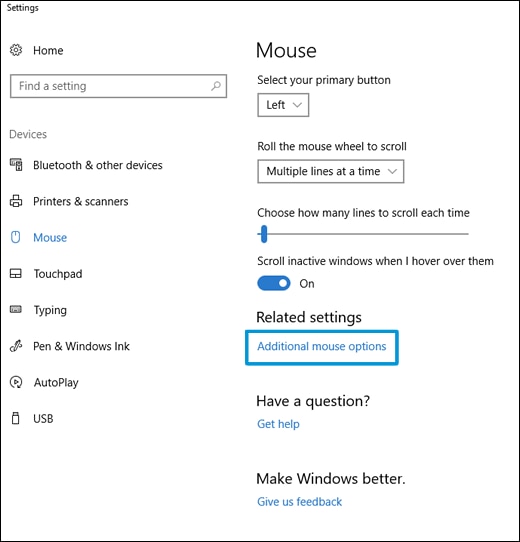
  3. Click Additional mouse options.

    Clicking on Additional mouse options

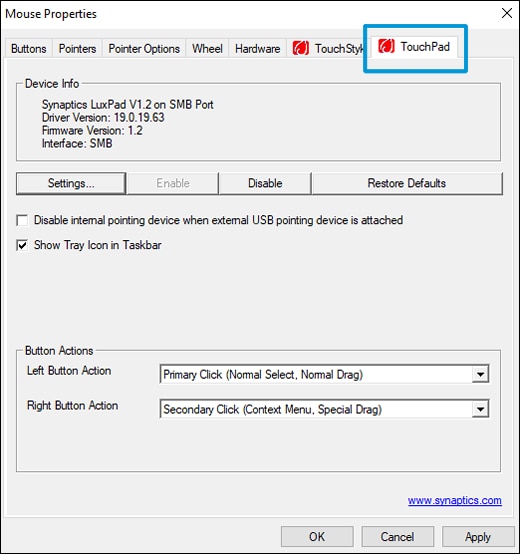
  4. In Mouse Properties, click the TouchPad tab.

    NOTE: 

    Some HP notebooks have an HP Control Zone tab. If your notebook has this tab, open it and click HP Control Zone Disable.


    If the properties window does not have a TouchPad option, then the TouchPad functionality is not available.

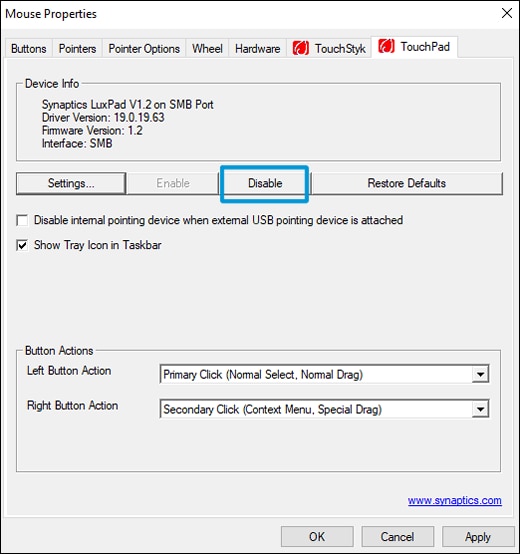
  5. Click Disable.

    Clicking on Disable

  6. Click Apply, and then click OK.

Let me know how that pans out,

If you feel I was helpful, simply click on Accept as Solution to help the community grow,

That said, I will have someone follow-up on this to ensure you've been helped,

Just in case you don't get back to us within 24 - 48hrs, and have a good day, ahead.

Riddle_Decipher
I am an HP Employee


Learning is a journey, not a destination.
Let's keep asking questions and growing together.
† The opinions expressed above are the personal opinions of the authors, not of HP. By using this site, you accept the <a href="https://www8.hp.com/us/en/terms-of-use.html" class="udrlinesmall">Terms of Use</a> and <a href="/t5/custom/page/page-id/hp.rulespage" class="udrlinesmall"> Rules of Participation</a>.