• ×
    Information
    Need Windows 11 help?
    Check documents on compatibility, FAQs, upgrade information and available fixes.
    Windows 11 Support Center.
  • post a message
  • ×
    Information
    Need Windows 11 help?
    Check documents on compatibility, FAQs, upgrade information and available fixes.
    Windows 11 Support Center.
  • post a message
Guidelines
Seize the moment! nominate yourself or a tech enthusiast you admire & join the HP Community Experts!
Common problems for Battery
We would like to share some of the most frequently asked questions about: Battery Reports, Hold a charge, Test and Calibrating Battery . Check out this link: Is your notebook plugged in and not charging?
HP Recommended
hp-cf2002
Microsoft Windows 10 (64-bit)

hi everyboard, anyboady know how to configure keyboard light timeout length ? dun have any setting in bios. using ELAN touchpad

4 REPLIES 4
HP Recommended

@sean0000
Thank you for posting on the HP Support Community.

  1. Restart the computer and immediately press the F10 repeatedly until the BIOS opens.
  2. Navigate to the Advanced tab. Use the arrow keys to navigate in the BIOS. ...
  3. Use the down arrow key in the Built-in Device Options to select Backlit keyboard timeout.
  4. Press the spacebar to open the keyboard backlight settings. Select the desired setting for a timeout of the backlighting.

Hope this helps! Keep me posted for further assistance.
Please click “
Accept as Solution” if you feel my post solved your issue, it will help others find the solution.

ECHO_LAKE
I am an HP Employee

HP Recommended

@sean0000

Thank you for posting back.


Let's try this:

Your BIOS version and screens might vary.

  1. Restart the notebook, and then immediately press the F10 repeatedly until the BIOS opens.

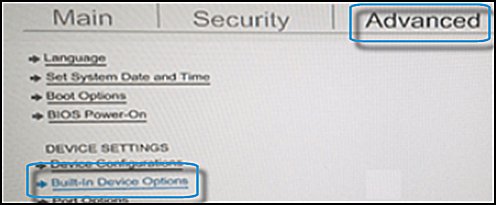
  2. When the BIOS opens, use the arrow keys to navigate to the Advanced tab.

  3. Navigate to Built-in Device Options, and then press Enter.

    The Advanced tab showing Built-in Device Option highlighted

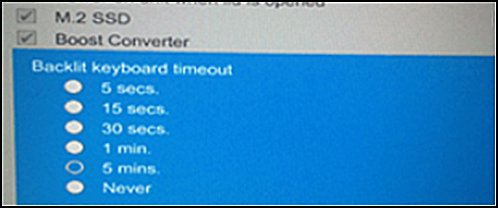
  4. In the Built-in Device Options, select Backlit keyboard timeout.

  5. Press the spacebar to open the keyboard backlight settings, and then select the timeout setting you to want.

    NOTE: If you select Never, the backlight remains on which could quickly drain the notebook battery power.

    Backlit keyboard timeout options

Note: To adjust the brightness of the backlight, press the key with the backlight icon  two or three times in a row. The keyboard backlight dims and brightens. It might be necessary to press the fn (function) key at the same time to activate the backlight key.


Hope this helps! Keep me posted for further assistance.
Please click “
Accept as Solution” if you feel my post solved your issue, it will help others find the solution.

ECHO_LAKE
I am an HP Employee

HP Recommended
hi Thanks for reply, but my bios dun have the setting.
HP Recommended

@sean0000

Thank you for posting back. 


Let's try updating the system BIOS and check. 


BIOS Update: Follow steps from the link: https://support.hp.com/in-en/document/c00042629

Hope this helps! Keep me posted for further assistance.

ECHO_LAKE
I am an HP Employee

† The opinions expressed above are the personal opinions of the authors, not of HP. By using this site, you accept the <a href="https://www8.hp.com/us/en/terms-of-use.html" class="udrlinesmall">Terms of Use</a> and <a href="/t5/custom/page/page-id/hp.rulespage" class="udrlinesmall"> Rules of Participation</a>.