• ×
    Information
    Need Windows 11 help?
    Check documents on compatibility, FAQs, upgrade information and available fixes.
    Windows 11 Support Center.
  • post a message
  • ×
    Information
    Need Windows 11 help?
    Check documents on compatibility, FAQs, upgrade information and available fixes.
    Windows 11 Support Center.
  • post a message
Guidelines
Join the HP Community Solve‑a‑thon | Help Others & Share Your Solutions | Live on Zoom | 2:30 PM to 2:30 AM IST | Every Wednesday Click here to know more
Common problems for Battery
We would like to share some of the most frequently asked questions about: Battery Reports, Hold a charge, Test and Calibrating Battery . Check out this link: Is your notebook plugged in and not charging?
HP Recommended
1011tu
Microsoft Windows 10 (64-bit)

when laptop getting drain in shutdown conditions so please suggest me

2 REPLIES 2
HP Recommended

Laptop battery getting drain without use

HP Recommended

@vikash28 Don't you worry, we have a few steps that should help fix this issue in no time, just follow the step by step instructions, it may look long and scary but it's worked on my laptop and it should work for you too, let's get started:


You will need to Understand Lithium-Ion and Smart Battery Technology: Click here for details

Resetting the ACPI battery driver may take care of this. There will be a hard reset mixed in as well, so the two methods combined typically help a lot with battery issues.


1. Go to Start, search for Device Manager, and open this result.

2. Expand batteries.

3. Right-click on the ACPI option (usually the 2nd option) and select delete or uninstall. Follow the prompts.

4. Shut down the computer. 

5. Disconnect the charger.

6. Remove the battery.

7. Hold down the power button for 1 minute.

8. Insert the battery only.

9. Attempt to turn the battery on.


If this had an impact, it should behave differently.

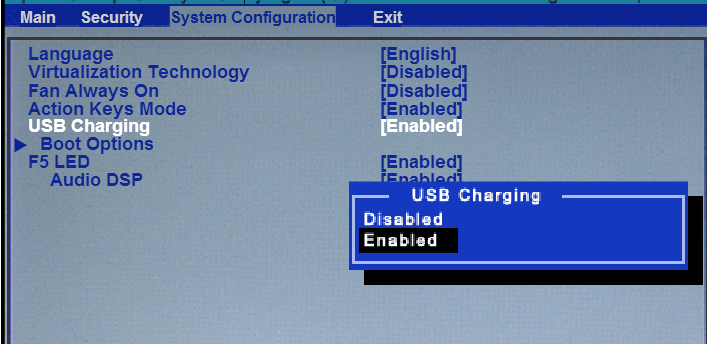
If not, Press the power button and then tap the F2 key to invoke the startup menu.


Choose and click on the F10 key to invoke the BIOS.

 Use the System Configuration tab. Disable USB Charging and press the F10 key to save the changes and boot into Windows.


P.S: Welcome to HP Community 😉


Let me know how that pans out,

If you feel I was helpful, simply click on Accept as Solution to help the community grow,

That said, I will have someone follow-up on this to ensure you've been helped,

Just in case you don't get back to us, 

have a good day, ahead.

Riddle_Decipher
I am an HP Employee


Learning is a journey, not a destination.
Let's keep asking questions and growing together.
† The opinions expressed above are the personal opinions of the authors, not of HP. By using this site, you accept the <a href="https://www8.hp.com/us/en/terms-of-use.html" class="udrlinesmall">Terms of Use</a> and <a href="/t5/custom/page/page-id/hp.rulespage" class="udrlinesmall"> Rules of Participation</a>.