• ×
    Information
    Need Windows 11 help?
    Check documents on compatibility, FAQs, upgrade information and available fixes.
    Windows 11 Support Center.
  • post a message
  • ×
    Information
    Need Windows 11 help?
    Check documents on compatibility, FAQs, upgrade information and available fixes.
    Windows 11 Support Center.
  • post a message
Guidelines
Join the HP Community Solve‑a‑thon | Help Others & Share Your Solutions | Live on Zoom | 2:30 PM to 2:30 AM IST | Every Wednesday Click here to know more
Common problems for Battery
We would like to share some of the most frequently asked questions about: Battery Reports, Hold a charge, Test and Calibrating Battery . Check out this link: Is your notebook plugged in and not charging?
HP Recommended
i OWN A REGISTERED HP PAVILION UPGRADED TO WINDOWS 11 Device HP Notebook 15-dy1032ms Product16U89UA

i OWN A REGISTERED HP PAVILION UPGRADED TO WINDOWS 11 Device HP Notebook 15-dy1032ms Product16U89UA 

2 REPLIES 2
HP Recommended

Hi @htaylor1000,


Welcome to the HP Support Community. 


I'd be happy to help you! 


This could be compatibility issues with your current OS. 


If the backlight key (F5) on your HP Pavilion Notebook 15-dy1032ms is not working after upgrading to Windows 11, and you have already tried reinstalling the driver, BIOS, and action key settings without success, here are some additional steps you can try:


Troubleshooting Steps

Check BIOS Settings:

  • Restart your laptop and enter the BIOS/UEFI settings by pressing the appropriate key (usually F10, F2, or ESC) during startup.
  • Look for a setting related to keyboard backlighting and ensure it is enabled.
  • Save and exit the BIOS settings, then restart your laptop.

Update the Keyboard Driver:

  • Open Device Manager (press Win + X and select Device Manager).
  • Expand the Keyboards section.
  • Right-click on your keyboard device and select Update driver.
  • Choose Search automatically for drivers. If Windows doesn’t find a new driver, you can try downloading the latest driver from the HP support website. If you do not find drivers for your current OS, I am afraid, you may have to wait for further updates or going back to original pre-installed OS. 

Install HP System Event Utility:

  • Download and install the HP System Event Utility from the HP support website. This utility helps manage keyboard functions, including the backlight key.
  • Restart your laptop after installation and check if the F5 key works.

Check Windows Mobility Center:

  • Open the Windows Mobility Center (press Win + X and select Mobility Center).
  • Look for a section related to keyboard backlighting and ensure it is turned on.

Run Windows Troubleshooter:

  • Open Settings > Update & Security > Troubleshoot.
  • Select Additional troubleshooters.
  • Run the Keyboard troubleshooter and follow the on-screen instructions.

Update Windows:

  • Ensure that your Windows 11 installation is up-to-date.
  • Go to Settings > Update & Security > Windows Update and check for updates.
  • Install any available updates and restart your laptop.


Kindly check the next set of steps in the next post. 


Hope this helps! Keep me posted for further assistance


Please mark this post as Accepted Solution” if the issue is resolved and if you feel this reply was helpful click “Yes”.

Nal_NR-
HP Community Moderator


HP Recommended

Hi @htaylor1000,


Please find the next set of steps below. 


Advanced Steps

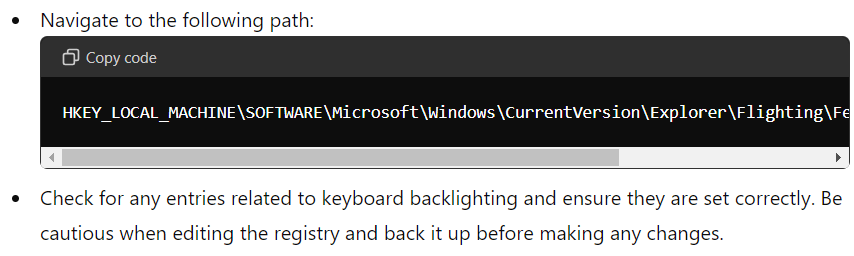
Registry Edit:

  • Press Win + R, type regedit, and press Enter.


  • If the issue persists, it could be a hardware-related problem. Contact HP Phone Support for further assistance with repair options. 


Hope this helps! Keep me posted for further assistance


Please mark this post as Accepted Solution” if the issue is resolved and if you feel this reply was helpful click “Yes”.

Nal_NR-
HP Community Moderator


† The opinions expressed above are the personal opinions of the authors, not of HP. By using this site, you accept the <a href="https://www8.hp.com/us/en/terms-of-use.html" class="udrlinesmall">Terms of Use</a> and <a href="/t5/custom/page/page-id/hp.rulespage" class="udrlinesmall"> Rules of Participation</a>.