• ×
    Information
    Need Windows 11 help?
    Check documents on compatibility, FAQs, upgrade information and available fixes.
    Windows 11 Support Center.
  • post a message
  • ×
    Information
    Need Windows 11 help?
    Check documents on compatibility, FAQs, upgrade information and available fixes.
    Windows 11 Support Center.
  • post a message
Guidelines
Seize the moment! nominate yourself or a tech enthusiast you admire & join the HP Community Experts!
Check out our WINDOWS 11 Support Center info about: OPTIMIZATION, KNOWN ISSUES, FAQs, VIDEOS AND MORE.
HP Recommended
Pavilion Power Laptop 15-cb0xx
Microsoft Windows 10 (64-bit)
I used HP Support Assistant to perform a BIOS update the other day, and since doing so I have been having lock-ups while playing videos. When I open HPSA, it displays multiple devices. If the wrong device was selected when it opened and I then went through the process of checking for updates and applying the BIOS update that was available, (1) is it possible that the download and update process was for one of the other devices? Could that be why I am having lock ups? (2) Is it possible to undo a BIOS update? This laptop has been rock solid and I don't think I could forgive myself if I have hosed it up.
2 REPLIES 2
HP Recommended

@taherte2 Good news, there is a way to recover the older version of the BIOS using a few techniques and I'll walk you through them, that said, I must let you know that these issues occur when the BIOS update was interrupted or the file was corrupted during the download, either way, if all steps are followed correctly, we should be able to revive the computer to its original form:

  1. Turn off the computer, and then connect the power cord.

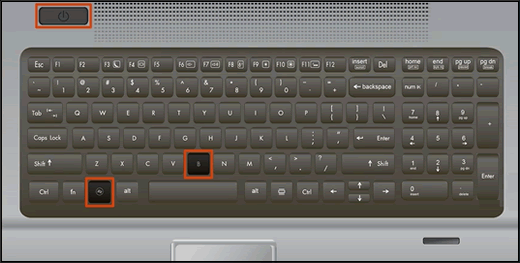
  2. Press and hold the Windows key and the B key at the same time, and then press and hold the Power button for 2 to 3 seconds.
     

    Keyboard highlighting the key presses for BIOS recovery

  3. Release the Power button but continue pressing the Windows and B keys. You might hear a series of beeps.

    • If the HP BIOS Update screen does not display, repeat the previous steps but press the Windows key and the V key. If the screen still does not display, your computer might not support the feature or there is a hard drive issue. Continue to the next section to Recover the BIOS using a USB recovery drive.

    • If the Power light turns off, the Power button was held too long. Repeat the previous steps, making sure to hold the Power button for only 2 to 3 seconds.

    • If a BIOS recovery message repeatedly displays, continue to the next section to Recover the BIOS using a USB recovery drive.

    • If a message that the computer improperly shut down or a boot problem is detected displays, follow the on-screen instructions to resolve the error.

    • If Windows starts, update to the latest BIOS version. Go to HP Notebook PCs - Updating the BIOS for more information.
       

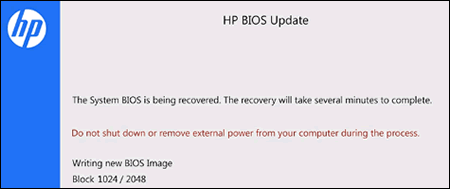
    The HP BIOS Update screen displays and the recovery begins automatically.

    HP BIOS Update recovery in progress

If this recovery method fails, use another working computer to create a BIOS recovery flash drive to install the latest BIOS file.


FOR DETAILS & FURTHER INSTRUCTIONS, USE THIS LINK: CLICK HERE & SKIP TO STEPS - Under recover the BIOS using a USB recovery drive

(By the end of this article all the issues should be resolved)


P.S: Welcome to HP Community 😉


Let me know how that pans out,

If you feel I was helpful, simply click on Accept as Solution to help the community grow,

That said, I will have someone follow-up on this to ensure you've been helped,

Just in case you don't get back to us within 24 - 48hrs, and have a good day, ahead.

Riddle_Decipher
I am an HP Employee


Learning is a journey, not a destination.
Let's keep asking questions and growing together.
HP Recommended

@taherte2


Apologies for the inconvenience caused. Please try these steps to re-install the operating system - 


1. Shutdown the computer. 
2. Turn the computer back on again and repeatedly tap on the ESC until a Startup menu appears. 
3. Press F11 once for System Recovery. 
4. Choose the Keyboard Layout. 
5. Click on Troubleshoot. 
6. Go to Recovery Manager and click on System Recovery. 
Note : Back-up all your data as System Recovery will delete everything that you had saved or installed on the computer. 
 

Keep me posted. 

Asmita
I am an HP Employee

† The opinions expressed above are the personal opinions of the authors, not of HP. By using this site, you accept the <a href="https://www8.hp.com/us/en/terms-of-use.html" class="udrlinesmall">Terms of Use</a> and <a href="/t5/custom/page/page-id/hp.rulespage" class="udrlinesmall"> Rules of Participation</a>.