• ×
    Information
    Need Windows 11 help?
    Check documents on compatibility, FAQs, upgrade information and available fixes.
    Windows 11 Support Center.
  • post a message
  • ×
    Information
    Need Windows 11 help?
    Check documents on compatibility, FAQs, upgrade information and available fixes.
    Windows 11 Support Center.
  • post a message
Guidelines
Seize the moment! nominate yourself or a tech enthusiast you admire & join the HP Community Experts!
Check out our WINDOWS 11 Support Center info about: OPTIMIZATION, KNOWN ISSUES, FAQs, VIDEOS AND MORE.
HP Recommended

Hi, I did cancel that audio playback test also a bluescreen occured while i was doing a test 

HP Recommended

@Ian97


Did you now try the steps provided in my last post?


Keep me posted.

TEJ1602
I am an HP Employee

HP Recommended

Hi I couldnt see the "go back to the previous versions of windows 10" option

IMG_20191107_205303.jpg


HP Recommended

@Ian97


Let us try the steps below-


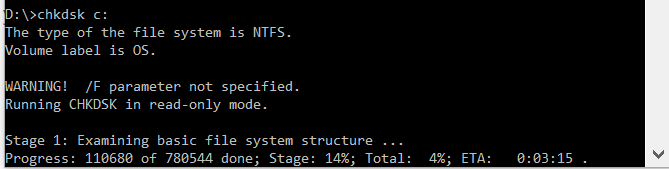
Step 1: Run CHKDSK

Type command prompt in your Start menu search bar, then right-click the best match and select Run as administrator. (Alternatively, press Windows Key + X, then select Command Prompt (Admin) from the menu.) Next, type chkdsk /r and press Enter. The command will scan your system for errors and fix any issues along the way.

how to fix whea uncorrectable error in windows 10


Step 2: Check Your System Hardware

The WHEA_UNCORRECTABLE_ERROR closely relates to your system hardware. Before progressing with system resets and memory tests, physically double-check your system hardware.

Check if the cooling systems are fully functioning, your RAM is secure in its slots, and the CPU has mystifyingly not come loose, and so on.


Step 3: Reset System Overclocking

If you have overclocked your system in search of higher speeds, there is a chance you’ll run into the WHEA_UNCORRECTABLE_ERROR. The easiest way to cross this off the list is to reset your system BIOS and remove the effects of any overclocking.

You need to enter your system BIOS or UEFI menu. To do this, turn off your system. Next, turn your system back on, pressing your BIOS/UEFI menu access key (common keys include F1, F2, F10, DEL, and ESC).


Step 4: Reset Your BIOS/UEFI Settings

If clearing your BIOS/UEFI overlock settings, try resetting your entire BIOS. Somewhere amongst the BIOS menu, there is an option to complete a full BIOS settings reset or load the default BIOS setup. Find the option and select it.


Step 5: Update Your BIOS/UEFI Settings

Again, this process varies heavily depending on your system’s motherboard manufacturer. Some BIOS/UEFI settings can automatically download and update using desktop utility. Other manufacturers require you to download the BIOS update and flash the firmware yourself.


Step 6: Check Your Drivers

Sometimes new drivers have an adverse effect on your system. In this day and age, it is becoming rarer as Windows 10 handles most driver updates. However, that doesn’t mean a dodgy driver cannot upset your system. Thankfully, Windows 10 lists any driver updates in the Windows Update section, so you can rapidly figure out where the issue stems from.

Press Windows Key + I to open the Settings panel, then select Update & Security > View update history. You can find any driver updates here. Now, type device manager in the Start menu search bar and select the best match. Head down the list and check for an error symbol. If there is nothing, your driver status is likely not the source of the issue.


Step 7: Reset Windows 10 (Last Resort)

If nothing else works, you can use the Windows 10 Reset function to refresh your system.


Keep me posted.


Please click “Accept as Solution” if you feel my post solved your issue, it will help others find the solution. Click the “Kudos/Thumbs Up" on the bottom right to say “Thanks” for helping!

TEJ1602
I am an HP Employee

† The opinions expressed above are the personal opinions of the authors, not of HP. By using this site, you accept the <a href="https://www8.hp.com/us/en/terms-of-use.html" class="udrlinesmall">Terms of Use</a> and <a href="/t5/custom/page/page-id/hp.rulespage" class="udrlinesmall"> Rules of Participation</a>.