
-
×InformationNeed Windows 11 help?Check documents on compatibility, FAQs, upgrade information and available fixes.
Windows 11 Support Center. -
-
×InformationNeed Windows 11 help?Check documents on compatibility, FAQs, upgrade information and available fixes.
Windows 11 Support Center. -
- HP Community
- Notebooks
- Notebook Operating System and Recovery
- Re: CPU Performance and Speaker Issue

Create an account on the HP Community to personalize your profile and ask a question
Your account also allows you to connect with HP support faster, access a personal dashboard to manage all of your devices in one place, view warranty information, case status and more.
Check out our WINDOWS 11 Support Center info about: OPTIMIZATION, KNOWN ISSUES, FAQs, VIDEOS AND MORE.

It has been a while since anyone has replied. Simply ask a new question if you would like to start the discussion again.

10-01-2018 08:19 PM
 HP Recommended
Product: HP Notebook - 14-bs589tu
Operating System: Microsoft Windows 10 (32-bit)
I bought a laptop last Monday, the laptop was lagging which I thought was due to the internet connection. However, I tried to open the task manager and see the performance of the CPU and found out that the performance goes to 100% when I open a video streaming site. The laptop is dometimes lagging. I have only 10 files on my laptop and few applications- around 11 basic applications and application for my work. I downloaded an app for music playing but the speaker did not sound good after I downloaded it. However, I decided to delete it and everything went fine. Is it a manufacturing error or did I do something wrong?
Solved! Go to Solution.
1 ACCEPTED SOLUTION
Accepted Solutions


10-03-2018 10:58 AM
HP Recommended
Welcome to HP Forums,
This is a great place to get support, find answers and tips to your technical queries.
Run Windows Updates.
Find and install updated software and hardware drivers for your computer with Windows 10.
NOTE:
To learn how to manage your update preferences, go to the Advanced options section.
In the Windows search bar, search for and open check for updates.
If there are any available updates, they begin installing automatically.
Figure : Windows Update window
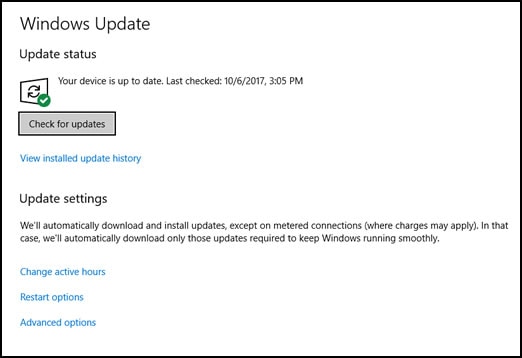
In the Windows Update window, click Advanced options.
Figure : Update status - Advanced options

In the Choose how updates are installed area, you can manage the delivery and installation of updates:
-
Click Give me updates for other Microsoft products when I update Windows to have the computer automatically update other Microsoft products drives and apps when updating Windows.
-
Click Sign-in options to automatically use your password and other sign in information to restart the computer as needed to complete the updates installed on your computer.
-
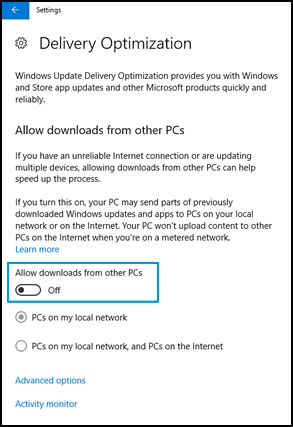
Click Delivery Optimization to download Windows updates from other computers, which can be faster than downloading updates exclusively from Microsoft. Turn on Allow downloads from other PCs to enable peer-to-peer sharing of Windows updates, and then select PCs on my local network or PCs on my local network, and PCs on the Internet to control where your computer can source the updates.
NOTE:
HP recommends getting updates only from sources you know and trust.
Figure : Choose how updates are delivered
-
Click Privacy Settings to change how apps access personal information.
Figure : Choose privacy options

If the issue persists, Update the BIOS, Chipset and Audio drivers using this link: https://support.hp.com/in-en/drivers/selfservice/hp-14-bs500-laptop-pc/16779156/model/19460100
Keep me posted, how it goes!
If the information I've provided was helpful, give us some reinforcement by clicking the Accepted Solution and Kudos buttons, that'll help us and others see that we've got the answers!
Have a great day!
Cheers:)
Raj1788
I am an HP Employee
13 REPLIES 13
10-03-2018 10:58 AM
HP Recommended
Welcome to HP Forums,
This is a great place to get support, find answers and tips to your technical queries.
Run Windows Updates.
Find and install updated software and hardware drivers for your computer with Windows 10.
NOTE:
To learn how to manage your update preferences, go to the Advanced options section.
In the Windows search bar, search for and open check for updates.
If there are any available updates, they begin installing automatically.
Figure : Windows Update window
In the Windows Update window, click Advanced options.
Figure : Update status - Advanced options
In the Choose how updates are installed area, you can manage the delivery and installation of updates:
-
Click Give me updates for other Microsoft products when I update Windows to have the computer automatically update other Microsoft products drives and apps when updating Windows.
-
Click Sign-in options to automatically use your password and other sign in information to restart the computer as needed to complete the updates installed on your computer.
-
Click Delivery Optimization to download Windows updates from other computers, which can be faster than downloading updates exclusively from Microsoft. Turn on Allow downloads from other PCs to enable peer-to-peer sharing of Windows updates, and then select PCs on my local network or PCs on my local network, and PCs on the Internet to control where your computer can source the updates.
NOTE:
HP recommends getting updates only from sources you know and trust.
Figure : Choose how updates are delivered
-
Click Privacy Settings to change how apps access personal information.
Figure : Choose privacy options
If the issue persists, Update the BIOS, Chipset and Audio drivers using this link: https://support.hp.com/in-en/drivers/selfservice/hp-14-bs500-laptop-pc/16779156/model/19460100
Keep me posted, how it goes!
If the information I've provided was helpful, give us some reinforcement by clicking the Accepted Solution and Kudos buttons, that'll help us and others see that we've got the answers!
Have a great day!
Cheers:)
Raj1788
I am an HP Employee
10-03-2018 10:18 PM - edited 10-03-2018 10:20 PM
HP Recommended
The windows is updated already since I returned my laptop to the shop where I bought it since the performance went 100%. I updated the BIOS. However, the google chrome seems to be lagging now.
10-04-2018 02:49 PM
HP Recommended
Thanks for the reply,
Use the following instructions to run System File Checker.
-
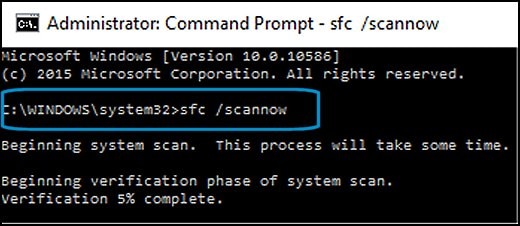
In Windows, search for Command Prompt. In the search results, right-click Command Prompt, select Run as administrator, then click Yes.
-
In Command Prompt, type sfc /scannow. Make sure to include the space between sfc and the forward slash /.
-
Press Enter, then wait while System File Checker scans for corrupted files.
When the scan completes, the results display on the screen.
-
If the file checker found and replaced any corrupted files, restart the computer, then check the performance.
-
If the file checker did not find any corrupted files or found corrupted files but could not replace them, then go to the next step.
-
-
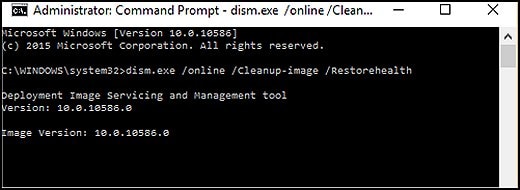
If System File Checker finds corrupted files but cannot replace them, use the Deployment Image Servicing and Management (DISM) tool. DISM checks the corrupted files, then downloads and replaces the files using Windows Update.
-
In Windows, open a web browser.
NOTE:
You need to be connected to the Internet to use DISM.
-
In Windows, search for Command Prompt. In the search results, right-click Command Prompt, select Run as administrator, then click Yes.
-
In Command Prompt, type dism.exe /Online /Cleanup-image /Restorehealth. Make sure to include the space before each forward slash / in the command line.
Press Enter, then wait while DISM works. This might take several minutes.
-
If DISM finds corrupted files, it replaces them using Windows Update. If this occurs, after DISM is finished, restart your computer and see if the performance has improved.
Manage applications and system features to increase performance
Computer performance is affected by some system feature settings, and also when too many apps are running at one time. This section describes different ways to manage how and when applications and features run on your computer.
Being connected to the Internet, watching TV or a video, playing games, listening to music, and running virus scans are all software tasks that can use a lot of system resources. Running more than one of these tasks can add up and cause the system to slow down. Run virus scans and other system tools when the computer is not in use.
The, click on this link: https://support.hp.com/in-en/document/c06102177 and follow the step by step troubleshooting excluding the one which is performed.
Keep me posted, how it goes!
If the information I've provided was helpful, give us some reinforcement by clicking the Accepted Solution and Kudos buttons, that'll help us and others see that we've got the answers!
Have a great day!
Cheers:)
Raj1788
I am an HP Employee
10-04-2018 11:49 PM
HP Recommended
The laptop seems fine now. However, when the laptop is heating everything goes slow again. The keyboard are heating. And I noticed that the exhaust for heat at the side are not releasing heat. It is supposed to close? or it should be open?
10-05-2018 01:34 PM
HP Recommended
Thanks for the reply,
Use the following steps to open the System Tests menu when Windows won't start.
-
Hold the power button for at least five seconds to turn off the computer.
-
Turn on the computer and immediately press Esc repeatedly, about once every second. When the menu appears, press the F2 key.
-
On the main menu, click System Tests.
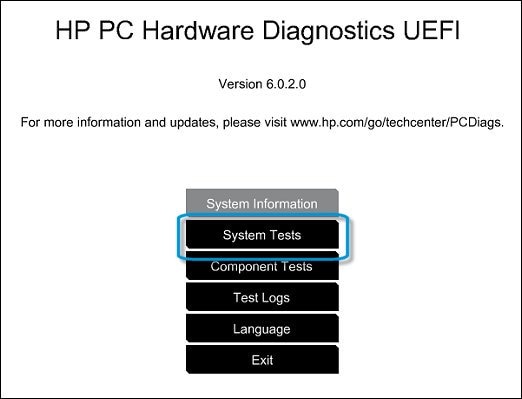
-
The System Tests menu displays.
-
Then click Extensive Test.
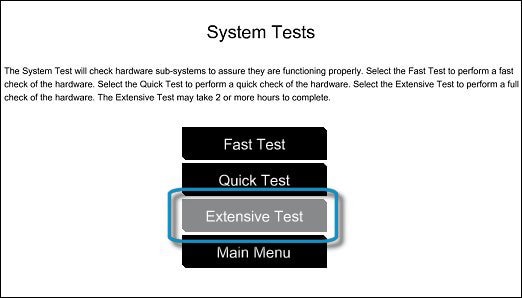
-
Click Run once, or Loop until error.
While the test is running, the time remaining and test result for each component are shown on the screen. The test can take 2 or more hours to complete.
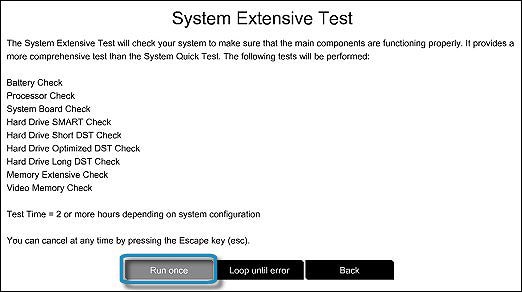
-
If a component fails a test, write down the failure ID (24-digit code) so you have it available when you contact HP Customer Support. The information is also available in Test Logs on the main menu.
Keep me posted, how the test goes!
Have a great day!
Cheers:)
Raj1788
I am an HP Employee


10-08-2018 12:07 PM - edited 10-08-2018 12:08 PM
HP Recommended
I'm the Riddle_Decipher & I'm writing on behalf of my colleague @Raj1788, as the tech is out for the day, that said, I have reviewed your concern and the entire conversation, did some research and here's what I recommend:
If you know there's heat inside the device and you need to reduce it: Click here for details.
And if the issue persists, you may need to perform a push button reset after creating a backup of all your personal data: Click here for instructions, considering the hardware tests have passed and I'm glad it did, as it confirms that this isn't a hardware malfunction, possibly a software issue or malfunction.
Keep us posted,
(We shall troubleshoot as a team, fight till the end and emerge - "victorious")
If you would like to thank us for our efforts to help you,
Feel free to give us a virtual high-five by clicking the 'Thumbs Up' icon below,
Followed by clicking on the "Accept as solution" button.
Have a great day!
Riddle_Decipher
I am an HP Employee
Learning is a journey, not a destination.
Let's keep asking questions and growing together.

Be alert for scammers posting fake support phone numbers and/or email addresses on the community.
If you think you have received a fake HP Support message, please report it to us by clicking on "Flag Post".
† The opinions expressed above are the personal opinions of the authors, not of HP. By using this site, you accept the Terms of Use and Rules of Participation.


Didn't find what you were looking for?
Ask the community
† The opinions expressed above are the personal opinions of the authors, not of HP. By using this site, you accept the <a href="https://www8.hp.com/us/en/terms-of-use.html" class="udrlinesmall">Terms of Use</a> and <a href="/t5/custom/page/page-id/hp.rulespage" class="udrlinesmall"> Rules of Participation</a>.