• ×
    Information
    Need Windows 11 help?
    Check documents on compatibility, FAQs, upgrade information and available fixes.
    Windows 11 Support Center.
  • post a message
  • ×
    Information
    Need Windows 11 help?
    Check documents on compatibility, FAQs, upgrade information and available fixes.
    Windows 11 Support Center.
  • post a message
Guidelines
Join the HP Community Solve‑a‑thon | Help Others & Share Your Solutions | Live on Zoom | 2:30 PM to 2:30 AM IST | Every Wednesday Click here to know more
Check out our WINDOWS 11 Support Center info about: OPTIMIZATION, KNOWN ISSUES, FAQs, VIDEOS AND MORE.
HP Recommended
HP ENVY x360 - 15t-dr100 CTO
Microsoft Windows 11

When I received my computer many moons ago, I noticed that the F-keys didn't operate as default Windows F-keys. Instead they operate as what appears to be a HP-determined functions. Can someone tell me either how to use the F-keys as-is in their Windows-default functions or how to do away with the HP mapping and get permanently back to the Windows default?

1 REPLY 1
HP Recommended

Hi @BobGanz,


Welcome to the HP Support Community. 


I'd like to help!


The Fn key is a special key controlled by hardware. It cannot be remapped using the software.
To activate/deactivate the function that corresponds to the symbol, press and hold the Fn key while pressing the function key.

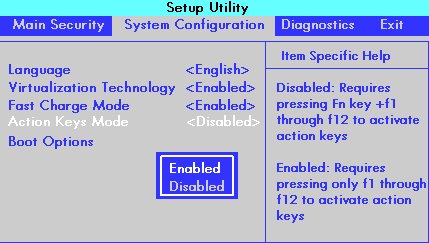
You can change the action key setting from the BIOS Setup Utility:

Press and hold the power button for at least five seconds to turn off the computer.

Turn on the computer and immediately press the f10 key repeatedly to open the BIOS Setup Utility.

Press the right or left arrow key to select the System Configuration menu.

Press the up or down arrow key to select Action Keys Mode.

Press the Enter key to display the Enabled / Disabled menu.

BIOS setup window with the System Configuration option and Action Keys Mode selected

Press the up or down arrow key to select one of the options.

Enabled: Does not require pressing fn to use the actions printed on the function keys.

For example, pressing f8 lowers the sound as printed on the key. Alternately, pressing both the fn + f8 minimizes and maximizes a web browser.

Disabled: Requires pressing fn to use the actions printed on the function keys.

For example, pressing f1 opens a help window. Alternately, pressing both the fn + f1 keys puts the computer to sleep as printed on the key.

Press the f10 key to save the selection and restart the computer.


Click here to know more about "Keyboard Shortcuts, Hotkeys, and Special Keys"


Hope this helps! Keep me posted for further assistance.
Please click “Accept as Solution” if you feel my post solved your issue, it will help others find the solution

Nal_NR-
HP Community Moderator


† The opinions expressed above are the personal opinions of the authors, not of HP. By using this site, you accept the <a href="https://www8.hp.com/us/en/terms-of-use.html" class="udrlinesmall">Terms of Use</a> and <a href="/t5/custom/page/page-id/hp.rulespage" class="udrlinesmall"> Rules of Participation</a>.