• ×
    Information
    Need Windows 11 help?
    Check documents on compatibility, FAQs, upgrade information and available fixes.
    Windows 11 Support Center.
  • post a message
  • ×
    Information
    Need Windows 11 help?
    Check documents on compatibility, FAQs, upgrade information and available fixes.
    Windows 11 Support Center.
  • post a message
Guidelines
Seize the moment! nominate yourself or a tech enthusiast you admire & join the HP Community Experts!
Check out our WINDOWS 11 Support Center info about: OPTIMIZATION, KNOWN ISSUES, FAQs, VIDEOS AND MORE.
HP Recommended
HP ENVY x360 - 15t-aq100 CTO
Microsoft Windows 10 (64-bit)

Hi, i got this new laptop by monday (november 14th 2016) & i had the windows automatic updates running & this had resulted in an error.

There were problems installing some updates, but we'll try again later. If you keep seeing this and want to search the web or contact support for information, this may help:


Feature update to Windows 10, version 1607 - Error 0xc1900204


post this failure, i see lots of inconsistencies in my OS. Ctrl+alt+ del for task manager does not bring any screen.

Regedit does nothing

i am not able install/ uninstall any new programs.


even the HP recovery does not work, can some one please assist.


I still have time for returning the laptop, but this seems to be more of OS issue & hence dont want return a product.


got irritated with the technical chat support service, which i can attach the conversation if needed.


Thanks & Regards

Ilango

1 ACCEPTED SOLUTION

Accepted Solutions
HP Recommended

Hi @rvilango


Welcome to the HP Support forum!


I am sorry for the issues you experienced. Let me try to assist you in fixing this.


First - I suggest you use HP Recovery to convert back the PC to the initial settings/factory default condition.

Here is how:


1. Please, shutdown the computer using the power button

2. Power it on.

2.1 As soon as you press the power-on button, immediately begin hitting the Esc button (like tap-tap-tap).

This should open a HP Startup Menu which may look similar to this one


3. Choose F11 for System Recovery options.

3.1  Hopefully the recovery partition is there and intact and you should see recovery stuff loading.


4. Follow the on-screen instruction to complete/open
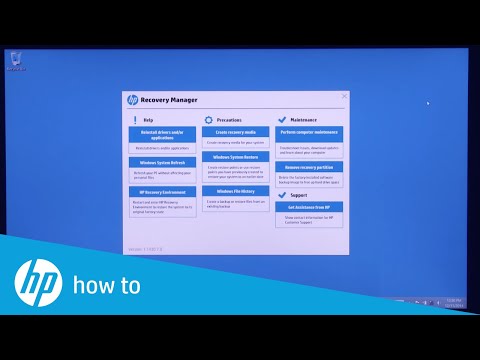
HP Recovery / Recovery manager

or just "Reset this PC" option with ability to erase everything

Video example >> https://www.youtube.com/watch?v=M6bGr3EgEI0


Second - once back to factory default condition, please uninstall any 3rd party security products you may have - example McAfee and leave the default Windows Defender running. Reason - the McAfee version you may have may be old and incompatible with W10 Anniversary update (new versio 1607)


Do not try anything else.


Third - update all your major drivers - update network adapters, update sound drivers, update video card drivers, etc... Use Device Manager as described here >> http://support.hp.com/us-en/document/c03330139

Don't manually run Windows Update yet


Last - upgrade your Windows to Anniversary Upgrade manually - using USB thumbdrive and ISO method


Instructions >> http://support.hp.com/us-en/document/c04876361

"Installing from USB drive using Media Creation Tool"


Hopefully this works for you. Note, that it is time intensive and long process.

After you upgrade to W10 AU, run Windows Updates to ensure all other updates are installed.


Let me know if you face difficulties.


Your FEEDBACK is important. Use the interactive buttons below and let me know if the post helps ;
*** HP employee *** I express personal opinion only *** Joined the Community in 2013

View solution in original post

1 REPLY 1
HP Recommended

Hi @rvilango


Welcome to the HP Support forum!


I am sorry for the issues you experienced. Let me try to assist you in fixing this.


First - I suggest you use HP Recovery to convert back the PC to the initial settings/factory default condition.

Here is how:


1. Please, shutdown the computer using the power button

2. Power it on.

2.1 As soon as you press the power-on button, immediately begin hitting the Esc button (like tap-tap-tap).

This should open a HP Startup Menu which may look similar to this one


3. Choose F11 for System Recovery options.

3.1  Hopefully the recovery partition is there and intact and you should see recovery stuff loading.


4. Follow the on-screen instruction to complete/open
HP Recovery / Recovery manager

or just "Reset this PC" option with ability to erase everything

Video example >> https://www.youtube.com/watch?v=M6bGr3EgEI0


Second - once back to factory default condition, please uninstall any 3rd party security products you may have - example McAfee and leave the default Windows Defender running. Reason - the McAfee version you may have may be old and incompatible with W10 Anniversary update (new versio 1607)


Do not try anything else.


Third - update all your major drivers - update network adapters, update sound drivers, update video card drivers, etc... Use Device Manager as described here >> http://support.hp.com/us-en/document/c03330139

Don't manually run Windows Update yet


Last - upgrade your Windows to Anniversary Upgrade manually - using USB thumbdrive and ISO method


Instructions >> http://support.hp.com/us-en/document/c04876361

"Installing from USB drive using Media Creation Tool"


Hopefully this works for you. Note, that it is time intensive and long process.

After you upgrade to W10 AU, run Windows Updates to ensure all other updates are installed.


Let me know if you face difficulties.


Your FEEDBACK is important. Use the interactive buttons below and let me know if the post helps ;
*** HP employee *** I express personal opinion only *** Joined the Community in 2013
† The opinions expressed above are the personal opinions of the authors, not of HP. By using this site, you accept the <a href="https://www8.hp.com/us/en/terms-of-use.html" class="udrlinesmall">Terms of Use</a> and <a href="/t5/custom/page/page-id/hp.rulespage" class="udrlinesmall"> Rules of Participation</a>.