-
×InformationNeed Windows 11 help?Check documents on compatibility, FAQs, upgrade information and available fixes.
Windows 11 Support Center. -

-
×InformationNeed Windows 11 help?Check documents on compatibility, FAQs, upgrade information and available fixes.
Windows 11 Support Center. -
- HP Community
- Notebooks
- Notebook Operating System and Recovery
- Re: Operating System Not Found on Hard Disk (3F0)

Create an account on the HP Community to personalize your profile and ask a question
07-31-2021 07:41 PM
I've been using my laptop for quite a long time then one day I tried turning on the laptop and got the error with operating system not found on hard disk. I've tried almost everything to get this laptop to work, hard reset, restored bios settings, system diagnostics with the hard drive and memory passing, reseated the hard drive, only thing I have not done was perform a HP system recovery which I'm not sure how to do that as I can't access my computer at all. How exactly do I do this and will it delete the important files I have on the laptop? Thank you! If there's any other solution feel free to comment.
Solved! Go to Solution.
Accepted Solutions
07-31-2021 09:51 PM
It's a good thing you asked because yes -- a full reset will erase the ENTIRE drive -- including all the important file that you, apparently, did not back up.
Your focus a this point should be on data recovery because the more you mess around with restoring the laptop, the greater the risk you are going to lose everything in the process.
All you will be able to recover at best from the drive is personal data. You will not be able to recover settings, website information (including user accounts and passwords) or applications.
Your best bet for recovering data now is to do the following:
1) Remove the disk drive from the old PC. If this is a SATA hard drive or a SATA SSD, this is a simple thing to do. If this is an m.2 SSD, that could be either screwed to the motherboard or soldered to the motherboard. If the second, you would need to have a techician remove it for you, or you risk seriously damaging the PC doing it yourself.
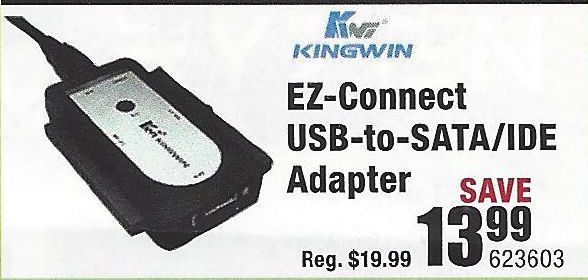
2) If you have a desktop PC with a spare hard drive connector, then connect the old drive to that. If the old drive is a SATA drive, connect both the power cable and the data cable. (This adapter is illustrated below) If the old drive is an m.2 SSD, you will need a USB-to-mSATA cable.
3) Try to retrieve the files and folders you want to save from the old drive and copy them to the new PC.
If this does not work, then you need to do the following:
1) Download and install this utility on a working PC http://www.majorgeeks.com/news/story/recover_data_in_3_steps_with_minitool_power_data_recovery_free_...
2) Run the data recovery utility to see what can be retrieved from the old drive.
If that tool does not find what you need, an alternative is Recuva http://www.piriform.com/recuva
And, if that does not work well, the best tool out there is this one, but only the demo version is free https://www.runtime.org/data-recovery-software.htm
I am a volunteer and I do not work for, nor represent, HP
07-31-2021 09:51 PM
It's a good thing you asked because yes -- a full reset will erase the ENTIRE drive -- including all the important file that you, apparently, did not back up.
Your focus a this point should be on data recovery because the more you mess around with restoring the laptop, the greater the risk you are going to lose everything in the process.
All you will be able to recover at best from the drive is personal data. You will not be able to recover settings, website information (including user accounts and passwords) or applications.
Your best bet for recovering data now is to do the following:
1) Remove the disk drive from the old PC. If this is a SATA hard drive or a SATA SSD, this is a simple thing to do. If this is an m.2 SSD, that could be either screwed to the motherboard or soldered to the motherboard. If the second, you would need to have a techician remove it for you, or you risk seriously damaging the PC doing it yourself.
2) If you have a desktop PC with a spare hard drive connector, then connect the old drive to that. If the old drive is a SATA drive, connect both the power cable and the data cable. (This adapter is illustrated below) If the old drive is an m.2 SSD, you will need a USB-to-mSATA cable.
3) Try to retrieve the files and folders you want to save from the old drive and copy them to the new PC.
If this does not work, then you need to do the following:
1) Download and install this utility on a working PC http://www.majorgeeks.com/news/story/recover_data_in_3_steps_with_minitool_power_data_recovery_free_...
2) Run the data recovery utility to see what can be retrieved from the old drive.
If that tool does not find what you need, an alternative is Recuva http://www.piriform.com/recuva
And, if that does not work well, the best tool out there is this one, but only the demo version is free https://www.runtime.org/data-recovery-software.htm
I am a volunteer and I do not work for, nor represent, HP