• ×
    Information
    Need Windows 11 help?
    Check documents on compatibility, FAQs, upgrade information and available fixes.
    Windows 11 Support Center.
  • post a message
  • ×
    Information
    Need Windows 11 help?
    Check documents on compatibility, FAQs, upgrade information and available fixes.
    Windows 11 Support Center.
  • post a message
Guidelines
Join the HP Community Solve‑a‑thon | Help Others & Share Your Solutions | Live on Zoom | 2:30 PM to 2:30 AM IST | Every Wednesday Click here to know more
Check out our WINDOWS 11 Support Center info about: OPTIMIZATION, KNOWN ISSUES, FAQs, VIDEOS AND MORE.
HP Recommended
Pavilion 15 n003TX
Microsoft Windows 8 (64-bit)

My laptop has to graphics units, Intel Family HD and AMD 8670M HD. However, my laptop runs games on the integrated GPU (Intel) instead of the dedicated GPU. My graphics drivers are updated as I could not see any in UPDATE DRIVERS option in DEVICE MANAGER. 

1 REPLY 1
HP Recommended

@Pratap97,


Welcome to the HP Forums 🙂 I would like to take a moment and thank you for using this forum, it is a great place to find answers. For you to have the best experience on the HP forum, you could also visit our HP Forums Guide for First Time Here? Learn How to Post and More. I see from your post that you need assistance with graphics settings for your HP Notebook. Don't worry we'll work together to help you find a solution.


To provide you with an accurate solution, I'll need a few more details:


Have you tried to update the drivers either using Windows update or using HP Support Assistant?

Have you tried to uninstall and reinstall the HP Support Assistant?


In the meantime, let's try these steps here: 


To change the default switchable graphics settings in the Catalyst Control Center software, follow the steps below.

  1. Click Start, type CCC in the Search field, and then select and open CCC from the search results list.

  2. Click the Start logo in the lower-left corner.

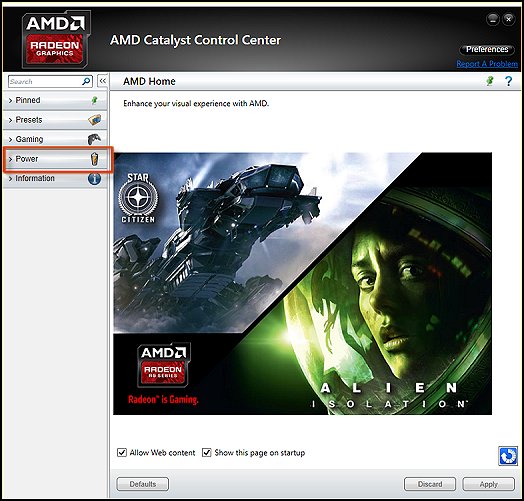
    On the Catalyst Control Center screen, click Power.

    Figure : Catalyst Control Center - Home

    Image of the Home screen with Power highlighted
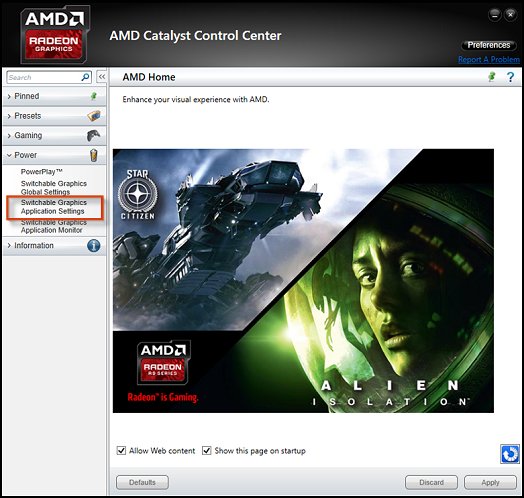
  3. Then click Switchable Graphic Application Settings.

    Figure : Catalyst Control Center showing the available Power settings

    Image of the Home screen with Switchable Graphics highlighted
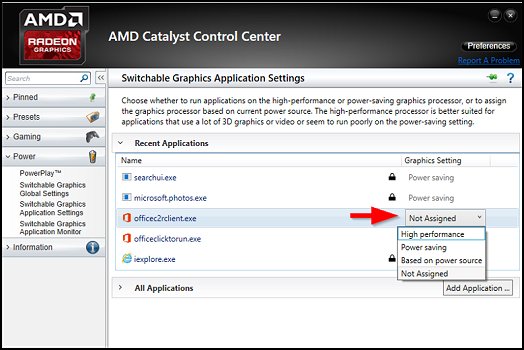
  4. Select a Recent Application and click Not Assigned (unless this has been altered before). Then choose either High performance, Power saving, or Based on power source.

    NOTE: 

    To add an application not shown in the Recent Applications list, click Add Application.

    Figure : Catalyst Control Center - Switchable Graphics Application Settings

    Catalyst Control Center Switchable Graphics window
  5. Click Apply to save the new settings.

    The changes take place immediately.

For more details, please follow the steps suggested in the support document for - HP Notebook PCs - Switchable Graphics on Notebooks Configured with Intel and ATI GPUs


If the issue persists, I would suggest here is to uninstall the display drivers from device manager:


Display drivers:

Use shortcut keys Win + X on Windows 10

Select Device Manager.

Expand the entry. Right-click the problematic device and select Uninstall device.

You may need to check the option Delete the driver software for this device, and then click the Uninstall button.

Now restart the computer and then update the Bios, and graphics card drivers from our HP support website, using this link.


If the issue persists, I would suggest here is to uninstall the HP Support Assistant from the control panel and then reinstall the latest version.

Download and install HP support assistant on your PC. It should automatically download and install the latest updates and drivers for your PC.

Refer this link to know how to use HP support assistant.


If the issue persists, I would suggest here is to download and install the latest display drivers from the manufacturer's website.

I would recommend you go ahead and download and install AMD detect tool  -Click here

Once you have downloaded the AMD detect tool on your PC, please go ahead and uninstall thee display drivers from Device manager.

Once done, restart the computer and then double click on the AMD detect file which you have saved and click on Run, follow the procedure to install the display drivers.

Once done, restart the computer and check how it goes.


Please let me know if this resolves the issue, or if you require further assistance!

Eagerly waiting for your response!

that said, If the information I've provided was helpful, 

give us some reinforcement by clicking the solution and kudos buttons, 

that'll help us and others see that we've got the answers!

Good Luck.

Jeet_Singh
I am an HP Employee

† The opinions expressed above are the personal opinions of the authors, not of HP. By using this site, you accept the <a href="https://www8.hp.com/us/en/terms-of-use.html" class="udrlinesmall">Terms of Use</a> and <a href="/t5/custom/page/page-id/hp.rulespage" class="udrlinesmall"> Rules of Participation</a>.