
-
×InformationNeed Windows 11 help?Check documents on compatibility, FAQs, upgrade information and available fixes.
Windows 11 Support Center. -
-
×InformationNeed Windows 11 help?Check documents on compatibility, FAQs, upgrade information and available fixes.
Windows 11 Support Center. -
- HP Community
- Notebooks
- Notebook Video, Display and Touch
- Re: Brightness Control Hotkeys are not working after windows...

Create an account on the HP Community to personalize your profile and ask a question
Your account also allows you to connect with HP support faster, access a personal dashboard to manage all of your devices in one place, view warranty information, case status and more.

It has been a while since anyone has replied. Simply ask a new question if you would like to start the discussion again.

01-07-2016 08:25 PM - edited 01-07-2016 08:27 PM
 HP Recommended
@Chris_Slone wrote:Thank you this was the best solution. I created account just so I could thank you and give you +1.
Hilarious that you wrote this. I just tried to do the same thing. Though I realized I already had an account and so I just signed in. But I was going to post the same thing.
Anyone notice that the "Expert" told people to "be patient" while the Intern (real expert) told us how to fix it!
Oh the irony. Someone get this Intern a full time job and rename his title to "True Expert".
THANK YOU NUKiE!
03-21-2016 09:28 PM
HP Recommended
@NuKiE_8 wrote:Guys, you dont need to updater your driver or anything. Whenever you update a display driver your generic monitor would be disabled, only think you need to do is enable it by going to > Device Manager > Monitors > Generic Pnp Monitor > Enable. As your monitor is off the Function keys would not work, after enabling it, the keys will work as normal.
Check the image.
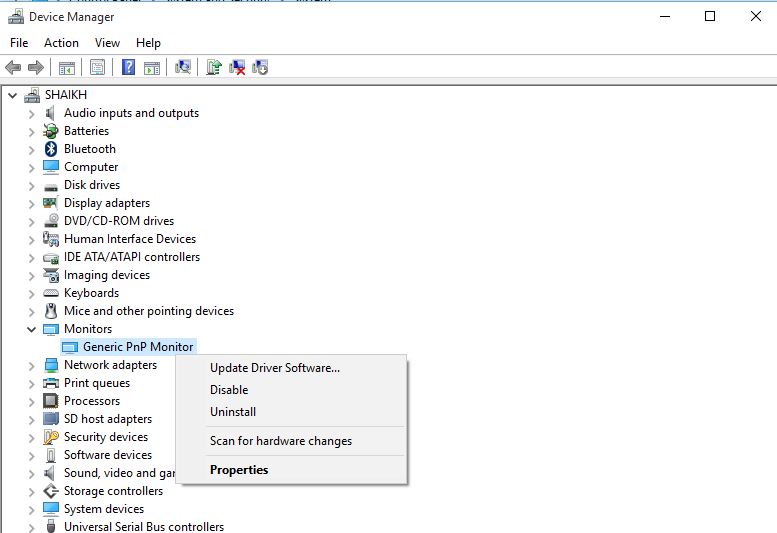
Thank you very much... this did it.
07-26-2016 01:46 PM - edited 07-26-2016 02:00 PM
HP Recommended
@NuKiE_8 wrote:Guys, you dont need to updater your driver or anything. Whenever you update a display driver your generic monitor would be disabled, only think you need to do is enable it by going to > Device Manager > Monitors > Generic Pnp Monitor > Enable. As your monitor is off the Function keys would not work, after enabling it, the keys will work as normal.
Check the image.
I have HP Pavilion Notebook 15 ab028tx. I tried your tip, however it didn't worked for me. Whereas my Generic Pnp Monitor was already enabled. I tried to disable and then reenable it, alas no result. Do you know any other solution?
07-27-2016 05:01 AM
HP Recommended
Fortunately I found solution to this issue after calling HP Support Toll Free 1800112267 in India. I will recommend you to first get a case number by opening the HP support wizard in your system (it is a question mark icon beside system tray).
What happens is, when you upgrade to Windows 10, few device drivers are not upgraded along with it. So after the upgradation is complete. You will need to do follow these steps to perform a Windows Update:
- Press Windows + i key simultaneously
- There you will reach settings window
- click or go to Update & security
- Then go to Windows Update
- Then it may automatically start downloading updates or it may give you an option to go for it
- After the downloading is done, it will ask you to restart your PC. Do it
if for some reason few updates show error and don't get installed, then contact HP Support. There they will provide you link to specific device drivers to fix the issue.
This solved my issue of non functioning hot keys F2 & F3 for controlling brightness.
Hoping that it will help others... 🙂

Be alert for scammers posting fake support phone numbers and/or email addresses on the community.
If you think you have received a fake HP Support message, please report it to us by clicking on "Flag Post".
† The opinions expressed above are the personal opinions of the authors, not of HP. By using this site, you accept the Terms of Use and Rules of Participation.


Didn't find what you were looking for?
Ask the community
† The opinions expressed above are the personal opinions of the authors, not of HP. By using this site, you accept the <a href="https://www8.hp.com/us/en/terms-of-use.html" class="udrlinesmall">Terms of Use</a> and <a href="/t5/custom/page/page-id/hp.rulespage" class="udrlinesmall"> Rules of Participation</a>.