• ×
    Information
    Need Windows 11 help?
    Check documents on compatibility, FAQs, upgrade information and available fixes.
    Windows 11 Support Center.
  • post a message
  • ×
    Information
    Need Windows 11 help?
    Check documents on compatibility, FAQs, upgrade information and available fixes.
    Windows 11 Support Center.
  • post a message
Guidelines
Troubleshooting black screen issues on HP Notebooks: Click here to view the instructions!
HP Recommended
HP ENVY X360 CONVERTIBLE 15-BP0XX
Microsoft Windows 10 (64-bit)

Approximately 1 week ago my Clickpad came back to life after it was previously disabled (so I could use a bluetooth mouse instead).  I am unable to disable the clickpad as I did before, using the Control Panel and the Settings methods.  I tried updating the driver; deleting the driver; uninstalling the driver.  Nothing is working.  Please help. 

1 REPLY 1
HP Recommended

@Dr_Rob-1, Welcome to HP Support Community!


Follow these steps to disable the Touchpad when an external USB mouse is attached. You can also determine if the taskbar has a Touchpad icon and how it appears.

  1. In the Windows search box, type TouchPad.

    From the results list click TouchPad settings.

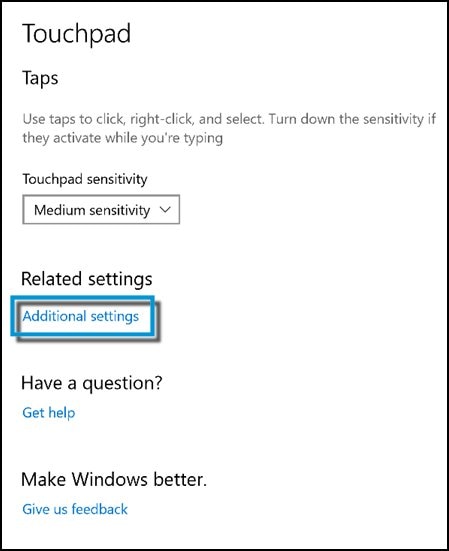
  2. Click Additional settings.

    Figure: Clicking Additional settings

    Clicking Additional settings on the Touchpad window
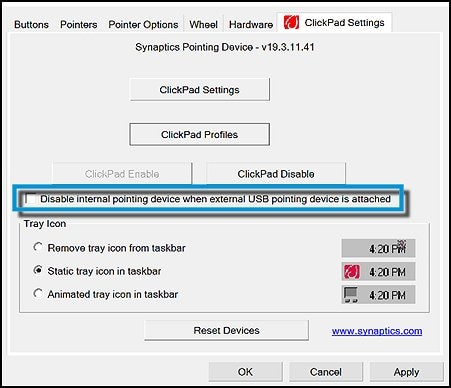
  3. To disable the Touchpad when using a USB mouse, check Disable external pointing device when the external USB pointing device is attached.

    Figure: Disabling the Touchpad

    Disabling the Touchpad when a USB mouse is in use
  4. To determine if the icon for the Touchpad is displayed in the taskbar, and if it is, how it appears, make the appropriate selection under Tray Icon.

    Figure: Tray Icon settings

    Tray Icon settings

FOR DETAILS & FURTHER INSTRUCTIONS, USE THIS LINK: CLICK HERE FOR FAQs


Hope this helps! Keep me posted. 


Please click “Accept as Solution” if you feel my post solved your issue, it will help others find the solution. Click the “Kudos/Thumbs Up" on the bottom right to say “Thanks” for helping!

TEJ1602
I am an HP Employee

† The opinions expressed above are the personal opinions of the authors, not of HP. By using this site, you accept the <a href="https://www8.hp.com/us/en/terms-of-use.html" class="udrlinesmall">Terms of Use</a> and <a href="/t5/custom/page/page-id/hp.rulespage" class="udrlinesmall"> Rules of Participation</a>.