
-
×InformationNeed Windows 11 help?Check documents on compatibility, FAQs, upgrade information and available fixes.
Windows 11 Support Center. -
-
×InformationNeed Windows 11 help?Check documents on compatibility, FAQs, upgrade information and available fixes.
Windows 11 Support Center. -
- HP Community
- Notebooks
- Notebook Video, Display and Touch
- Clickpad left button does not always activate the target

Create an account on the HP Community to personalize your profile and ask a question
Your account also allows you to connect with HP support faster, access a personal dashboard to manage all of your devices in one place, view warranty information, case status and more.

It has been a while since anyone has replied. Simply ask a new question if you would like to start the discussion again.

12-23-2018 06:19 PM
 HP Recommended
Product: Spectre X360-15t
Operating System: Microsoft Windows 10 (64-bit)
On My new Spectre X360 the left clickpad button will not always activate the target. It often takes several clicks to get it to work. I have slowed the cursor speed, made the sensitivity low and turned off all the finger functions to get it to work at all for me at all. How can I get this thing to work for me?
3 REPLIES 3


12-25-2018 08:32 AM
HP Recommended
Hey there! @CJBill, Thanks for stopping by the HP Support Forums!
I understand the left button on the touchpad is functioning correctly.
Don't worry I'll try to help you out.
Did you make any hardware or software changes on your PC?
Have you tried checking with an external mouse? Does the issue persist?
Please share the product number of your PC to assist you better.
Splendid analysis and remarkable patience shown. It is immensely appreciated.
First, Turn the touchpad off and turn the touchpad on again and check if it works.
Double tap on the top left the corner of the touchpad space to disable the touchpad.
Double tap again on the top left corner to enable the touchpad.
Try restoring the BIOS to default on your PC.
- Turn off the computer and wait five seconds.
- Press the Power button to start the computer and repeatedly press the F10 key to enter the BIOS setup menu.
- On the BIOS Setup screen, press F9 to select and load the BIOS Setup Default settings.
- Press F10 to Save and Exit.
- Use the arrow keys to select Yes, then press Enter when asked Exit Saving Changes?
- Follow the prompts to restart your computer.
Uninstall the touchpad drivers from the device manager and install the latest drivers.
Try updating the BIOS, Touchpad and chipset driver on your PC and check if it helps.
You can try updating the drivers using the HP support assistant.
Refer this article to know more information about using the HP support assistant.
Also, if you still have issues with your PC uninstall the touchpad driver from device manager and install the drivers using HP recovery manager.
Refer this article to know how to restore drivers using the HP recovery manager.
If the issue still persists after trying out the steps try the steps recommended below.
In Windows, search for Command Prompt. In the search results, right-click Command Prompt and select Run as administrator. Then click Yes.
In Command Prompt, type sfc /scannow. Make sure to include the space between sfc and the /.
Press Enter and wait while System File Checker scans for corrupted files.
When scanning is complete, the results are displayed on the screen.
If the file checker found and replaced any corrupted files, restart the computer and check the performance.
If the file checker did not find any corrupted files or found corrupted files but could not replace them, go to the next step.
If System File Checker finds corrupted files but cannot replace them, use the Deployment Image Servicing and Management (DISM) tool. DISM checks the corrupted files; then downloads and replaces the files using Windows Update.
In Windows, open a web browser.
NOTE:
You need to be connected to the Internet to use DISM.
In Windows, search for Command Prompt. In the search results, right-click Command Prompt and select Run as administrator. Then click Yes.
In Command Prompt, type dism.exe /Online /Cleanup-image /Restorehealth. Make sure to include the space before each / in the command line.
Press Enter and wait while DISM works. This might take several minutes.
If DISM finds corrupted files, it replaces them using Windows Update. If this occurs, after DISM is finished, restart your computer and see if the performance has improved.
If the issue still persists try running a system diagnostics test on your PC and check if the hardware on your laptop is functioning correctly.
Refer this article to know more information about running system diagnostics on your PC. Click Here
Also, refer this article to further troubleshoot touchpad issues with your PC. Click Here
Hope this helps!
Have a great day! 🙂
Please click “Accept as Solution” if you feel my post solved your issue, it will help others find the solution.
Click the “Kudos, Thumbs Up" on the bottom right to say “Thanks” for helping!
A4Apollo
I am an HP Employee
12-25-2018 09:30 AM
HP Recommended
Does the left click button work or not was the question and still is. I just bought a Spectre X360-15t-ch000CTO and have not done anything to it except turn off finger stuff on the touchpad which helped a lot, slow the cursor which helped more, does it work? If I put the cursor on a target and click the left button sometimes it works with one click, sometimes it works with two clicks, sometimes it works if I click and hold and sometimes it doesn't work at all until I try several times.
Maybe it works, just difficult for an octogenarian, but I'm not so sure. I wrote code for an HP1000 many years ago and in those days HP was a great company with great service. I wish it was still true but this computer does not convince me. On my Sony there are two buttons next to the touch pad for clicking, on the HP they are under or on the touch pad so it you put your finger on it to click and move your finger it will move the cursor off the target and you will loose it. Smart?
I'm still trying to adjust it and learn to use it but if it wasn't so difficult to pack it up and send it back and if I could get my money back it would have been gone before now. Maybe I can get it? The screen is great.
12-25-2018 11:21 AM
HP Recommended
@CJBill, Thanks for your quick response and time.
I appriciate your efforts for writing back to us.
You can change the settings in the game and select left click button as a target.
Also, try the steps recommended below to change the touchpad button settings.
-
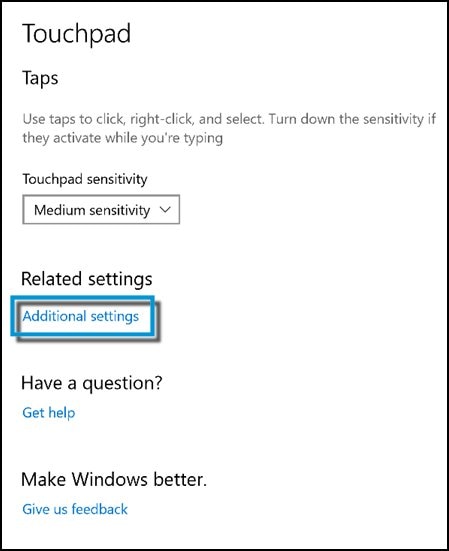
In the Windows search box, type TouchPad.
From the results list click TouchPad settings.
-
Click Additional settings.
-
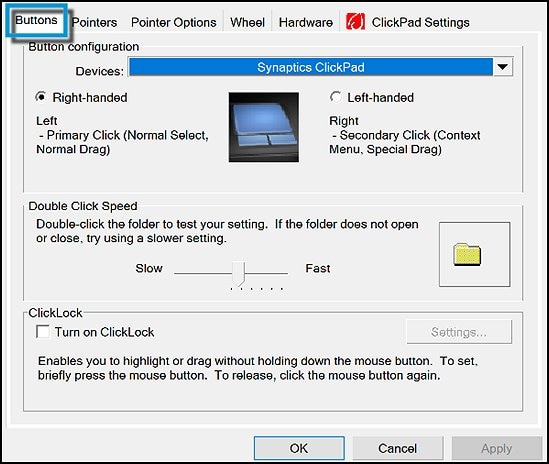
Click the Buttons tab. Under Button configuration you can make selections to customize the button functions.
Lastly, I would suggest you to go through the document on using the clickpad or touchpad on HP notebooks. Click Here
Let me know if this helps!
Take Care! 🙂
Please click “Accept as Solution” if you feel my post solved your issue, it will help others find the solution.
Click the “Kudos, Thumbs Up" on the bottom right to say “Thanks” for helping!
A4Apollo
I am an HP Employee

Be alert for scammers posting fake support phone numbers and/or email addresses on the community.
If you think you have received a fake HP Support message, please report it to us by clicking on "Flag Post".
† The opinions expressed above are the personal opinions of the authors, not of HP. By using this site, you accept the Terms of Use and Rules of Participation.


Didn't find what you were looking for?
Ask the community
† The opinions expressed above are the personal opinions of the authors, not of HP. By using this site, you accept the <a href="https://www8.hp.com/us/en/terms-of-use.html" class="udrlinesmall">Terms of Use</a> and <a href="/t5/custom/page/page-id/hp.rulespage" class="udrlinesmall"> Rules of Participation</a>.