
-
×InformationNeed Windows 11 help?Check documents on compatibility, FAQs, upgrade information and available fixes.
Windows 11 Support Center. -
-
×InformationNeed Windows 11 help?Check documents on compatibility, FAQs, upgrade information and available fixes.
Windows 11 Support Center. -
- HP Community
- Notebooks
- Notebook Video, Display and Touch
- Replacing Display

Create an account on the HP Community to personalize your profile and ask a question
Your account also allows you to connect with HP support faster, access a personal dashboard to manage all of your devices in one place, view warranty information, case status and more.

It has been a while since anyone has replied. Simply ask a new question if you would like to start the discussion again.

03-04-2018 08:41 AM
 HP Recommended
Product: dv6-7320el
Operating System: Microsoft Windows 10 (64-bit)
Hey,
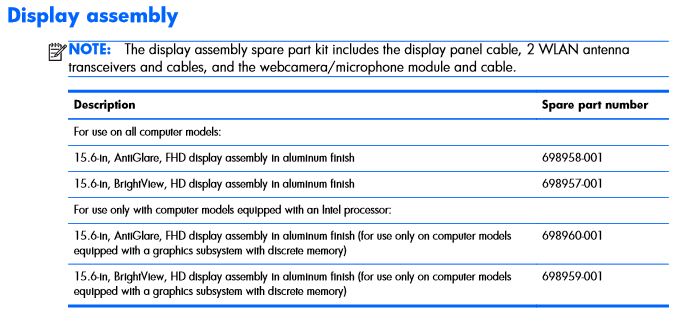
I need to change my display because it broke, but instead of replacing it with the same exact display I was thinkin I could replace it with a better one. The thing is my courrent display has a 1366 x 768 resolution, but since my graphics card can handle more (and frankly I would love more) it seems to me it would be kind of a waste not to go with a Full HD display. I was wondering if anyone cuold tell me the serial number of a compatible display that has a 1920 x 1080 resolution.
There's another thing. It would be nice if the new display was also touch-screen, I mean, it's not necessary, but it would be a useful feature. The question is can it be done? If it can could you also wrigth the serial number of a compatible one?
Thank you in advance!
Solved! Go to Solution.
1 ACCEPTED SOLUTION
Accepted Solutions


03-06-2018 09:54 AM
HP Recommended
I'm glad that the screen information helped.
If the suggested steps for the battery did not help then you may try running a hardware test on the battery. The following steps will help:
- Shutdown/turn off the laptop.
-
Turn on the laptop and immediately press Esc repeatedly, about once every second. When the menu appears, press the F2 key.
-
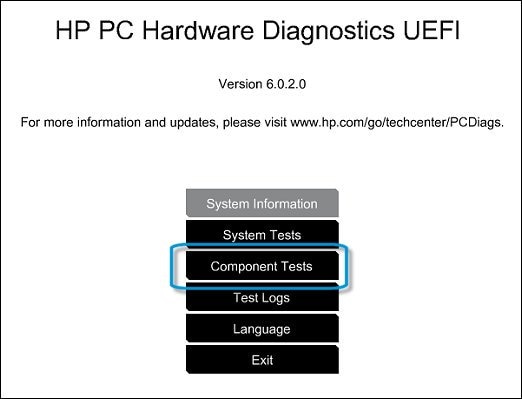
On the main menu, click Component Tests.
Figure : Selecting Component Tests from the main menu
-
The Component Tests menu displays. Your Component Tests menu might be different, depending on the components installed on your computer.
Figure : Sample list of Component Tests
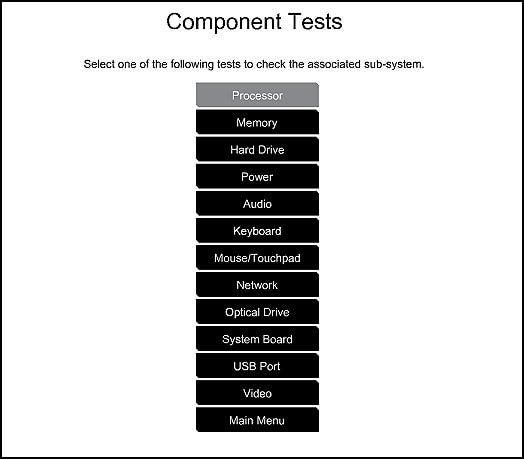
- Power Tests - There are several power tests available, the Power Source Test, the AC Adapter Test, and the Battery Test. Use the Power Source option to check both the battery and AC adapter, or use the two individual tests to check each of them separately.
Battery Test - The Battery Test checks your system to make sure that the battery is functioning properly. It tests the battery and allows you to run calibration if needed.
The Battery Check test time is 2 minutes. Battery Calibration time is 2 to 4 hours. To run the test and for battery information, follow the steps in Battery Test.
If the battery test fails or is not detected then it confirms a hardware issue.
Hope this helps. Let me know if you have any further questions.
Cheers! 🙂
3 REPLIES 3
03-05-2018 03:04 PM
HP Recommended
Thank you for posting on HP Forums, MKazi is at your service.
I understand that you have an HP ENVY dv6-7320el Notebook and the would like to know if you could replace it with another screen that can support a 1920 x 1080 resolution. From one of your other posts, I see that that the battery does not charge and displays a message saying "plugged in and not charging". The light where the charger connects to the laptop is always on. Not to worry, I'll do my best to assist you with this case.
During my research, I came across the service guide for your laptop. Page# 95 gives the list of compatible screens for this laptop model. Also, it gives information how the screen can be replaced.
Secondly, for fixing the battery related issue, please perform the following steps:
- Power off the laptop.
- Remove the battery out. If the battery is integrated and does not have a latch to release it then leave the battery inside the laptop.
- Disconnected AC adapter from the laptop.
- Press and hold the power button for 15 seconds.
- Reconnect the battery and plug the AC adapter.
- Power ON the laptop.
Let us uninstall the battery drivers and reinstall them. The following steps will help:
- Open the device manager.
- Expand "Batteries". Right click on the ACPI battery drivers in it and select uninstall. Uninstall all the ACPI battery drivers listed in there.
- Close the device manager.
- Restart the laptop. While restarting Windows will automatically reinstall the battery drivers.
Also, download and run the HP Support Assistant tool. This tool will scan your laptop and install the required drivers/updates.
If the issue remains then, please contact our HP phone support team to explore the available service options.
I sincerely hope this information helps. Keep me posted for any further questions.
Good luck! 🙂
03-05-2018 03:19 PM
HP Recommended
Thank you, @MKazi !
Regarding the display request that's exactly what I was looking for.
As for the battery thing I'm afraid I've already tried those roots but nothing's changed. Frankly I don't know what to do.
Regarding the display request that's exactly what I was looking for.
As for the battery thing I'm afraid I've already tried those roots but nothing's changed. Frankly I don't know what to do.
03-06-2018 09:54 AM
HP Recommended
I'm glad that the screen information helped.
If the suggested steps for the battery did not help then you may try running a hardware test on the battery. The following steps will help:
- Shutdown/turn off the laptop.
-
Turn on the laptop and immediately press Esc repeatedly, about once every second. When the menu appears, press the F2 key.
-
On the main menu, click Component Tests.
Figure : Selecting Component Tests from the main menu
-
The Component Tests menu displays. Your Component Tests menu might be different, depending on the components installed on your computer.
Figure : Sample list of Component Tests
- Power Tests - There are several power tests available, the Power Source Test, the AC Adapter Test, and the Battery Test. Use the Power Source option to check both the battery and AC adapter, or use the two individual tests to check each of them separately.
Battery Test - The Battery Test checks your system to make sure that the battery is functioning properly. It tests the battery and allows you to run calibration if needed.
The Battery Check test time is 2 minutes. Battery Calibration time is 2 to 4 hours. To run the test and for battery information, follow the steps in Battery Test.
If the battery test fails or is not detected then it confirms a hardware issue.
Hope this helps. Let me know if you have any further questions.
Cheers! 🙂

Be alert for scammers posting fake support phone numbers and/or email addresses on the community.
If you think you have received a fake HP Support message, please report it to us by clicking on "Flag Post".
† The opinions expressed above are the personal opinions of the authors, not of HP. By using this site, you accept the Terms of Use and Rules of Participation.


Didn't find what you were looking for?
Ask the community
† The opinions expressed above are the personal opinions of the authors, not of HP. By using this site, you accept the <a href="https://www8.hp.com/us/en/terms-of-use.html" class="udrlinesmall">Terms of Use</a> and <a href="/t5/custom/page/page-id/hp.rulespage" class="udrlinesmall"> Rules of Participation</a>.