• ×
    Information
    Need Windows 11 help?
    Check documents on compatibility, FAQs, upgrade information and available fixes.
    Windows 11 Support Center.
  • post a message
  • ×
    Information
    Need Windows 11 help?
    Check documents on compatibility, FAQs, upgrade information and available fixes.
    Windows 11 Support Center.
  • post a message
Guidelines
Troubleshooting black screen issues on HP Notebooks: Click here to view the instructions!
HP Recommended
Omni10
Microsoft Windows 8.1 (32-bit)

Touch not responding at all, 

1 REPLY 1
HP Recommended

@Touch_screen Welcome to HP Community!


I understand that the Touch screen not responding.


Do not worry. I will try to fix the issue.


The touchscreen isn't working I recommend you connect an external keyboard to your tablet and check if that works,

Although if the touchscreen works periodically, use the below steps:


If Windows cannot open to the Start screen, you can still use Reset your PC to permanently remove all personal files, the software you have installed, and then return the computer to factory settings. To do this, you need to open the Choose an option screen.

  1. Start your computer and press the F11 key repeatedly.

    The Choose an option screen opens.

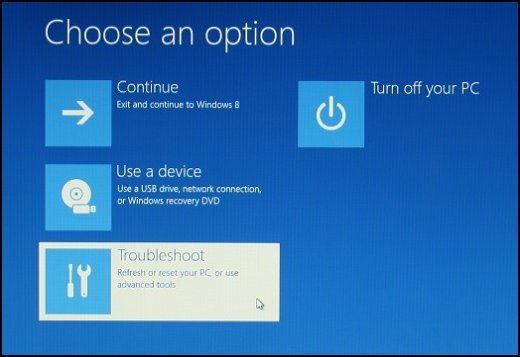
  2. On the Choose an option screen, click Troubleshoot.

    Image of Choose an option screen with Troubleshoot selected

  3. Click Reset your PC.

    Image of the Troubleshoot screen with Reset your PC selected

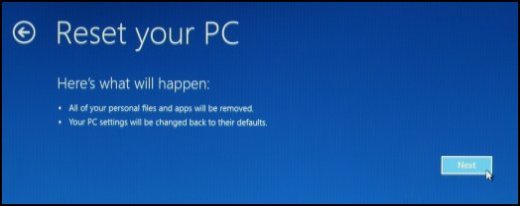
  4. On the Reset, your PC screen, click Next.

       CAUTION:

    Your personal files and settings are destroyed by performing this step. Make sure you have backed up all your important files on another drive before performing a reset. If you need help backing up your files, you might want to contact a professional data recovery service.

       NOTE:

    If an error displays stating Unable to reset your PC. A required drive partition is missing., resetting your PC does not work. Instead, recover your computer using the steps in Performing an HP System Recovery (Windows )

    Image of the Reset your PC screen

FOR DETAILS & FURTHER INSTRUCTIONS, USE THIS LINK: CLICK HERE & SKIP TO STEP 5 ONWARD

(By the end of this article all the issues should be resolved)


Keep us posted,

If you would like to thank us for our efforts to help you, 


Give us a virtual high-five by clicking the 'Thumbs Up' icon below, followed by clicking on the "Accept as solution" on this post, 


Have a great day!

† The opinions expressed above are the personal opinions of the authors, not of HP. By using this site, you accept the <a href="https://www8.hp.com/us/en/terms-of-use.html" class="udrlinesmall">Terms of Use</a> and <a href="/t5/custom/page/page-id/hp.rulespage" class="udrlinesmall"> Rules of Participation</a>.