
-
×InformationNeed Windows 11 help?Check documents on compatibility, FAQs, upgrade information and available fixes.
Windows 11 Support Center. -
-
×InformationNeed Windows 11 help?Check documents on compatibility, FAQs, upgrade information and available fixes.
Windows 11 Support Center. -
- HP Community
- Notebooks
- Notebook Wireless and Networking
- Re: Bluetooth inaccessible for years since OS update

Create an account on the HP Community to personalize your profile and ask a question
Your account also allows you to connect with HP support faster, access a personal dashboard to manage all of your devices in one place, view warranty information, case status and more.
Check out our WINDOWS 11 Support Center info about: OPTIMIZATION, KNOWN ISSUES, FAQs, VIDEOS AND MORE.

It has been a while since anyone has replied. Simply ask a new question if you would like to start the discussion again.

01-09-2019 10:32 PM
 HP Recommended
Product: Pavilion dv6t-6100 CTO Quad
Operating System: Microsoft Windows 10 (64-bit)
I haven't been able to use the bluetooth functionality on my laptop for years since a previous OS update. I need help making sure I have the correct blue tooth drivers installed. Also, bluetooth is not showing in device manager, and there is no way to toggle bluetooth on in settings. Any advice and guidance would be appreciated.
5 REPLIES 5


01-10-2019 04:41 PM
HP Recommended
Welcome to HP Support Forums. A really great platform for posting all your questions and finding solutions.
I have gone through your Post and would like to help
I suggest you download and run the HP Support Assistant from this Link: https://www8.hp.com/us/en/campaigns/hpsupportassistant/hpsupport.html?jumpid=va_r602_us/en/any/psg/p...
HPSA will automatically search for all the latest drivers for your Notebook
-
Click My devices in the top menu, and then click Updates in the My PC or My notebook pane.
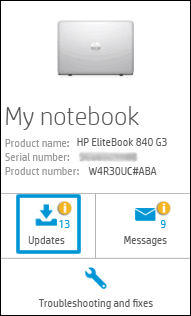
-
Click Check for updates and messages to scan for new updates.

-
Review the list of updates. Updates with a yellow information icon are recommended. Updates with a blue information icon are optional.
-
Click the update name for a description, version number, and file size.
-
Select the box next to any updates you want to install, and then click Download and install.
Also ensure Windows is up to date.
Select the Start button, and then go to Settings > Update & security > Windows Update , and select Check for updates. If Windows Update says your device is up to date, you have all the updates that are currently available
Try using the Bluetooth and let me know how it goes
Thank you and have a wonderful day 😊
If the information I've provided was helpful, give us some reinforcement by clicking the "Solution Accepted" on this Post and it will also help other community members with similar issue.
KrazyToad
I Am An HP Employee
01-17-2019 12:32 PM
HP Recommended
I downloaded the HP Support Assistant and checked for updates. It showed that everything was up to date. I also checked to make my sure my windows was updated. It found an update, but it failed to update. Here's the screenshot of the dialog box. The bluetooth is still not working.


01-18-2019 01:32 PM
HP Recommended
Hi @dacommish33, I am the Mr.Robot. It looks like you were interacting with @KrazyToad, but he is out of the office today, so I'll take over from here.
Thanks for your prompt response and time.
As you still have Bluetooth issues and updating windows on the PC.
Please try the steps recommended below.
a) Open Control Panel by clicking the Start button, and then clicking Control Panel.
b) In the Control Panel search box, type Bluetooth, and then click Change Bluetooth settings.
c) In the Bluetooth Settings dialog box, click the Options tab and do any of the following:
d) To make your computer discoverable to Bluetooth devices, select the check box for Allow Bluetooth devices to find this computer.
e) When a Bluetooth enabled computer is in discovery mode, it broadcasts a wireless signal that allows it to be detected by other Bluetooth enabled computers or devices. This is sometimes called pairing mode.
f) To allow Bluetooth devices to connect to your computer, select the check box for Allow Bluetooth devices to connect to this computer.
To be notified when a Bluetooth device is trying to connect to your computer, select the check box for Alert me when a new Bluetooth device wants to connect.
Also, try the steps recommended below.
press Win + R,” type services.msc and then press the Enter key on your keyboard.
find the service “Bluetooth Support Service” and see it if is running.
If the service is not running, right-click on it and then select the “Start” option.
If you want to, you can also make the service start automatically at every Windows startup. To do that, right-click on the service and then select the “Properties” option.
In the Properties window select the option “Automatic” from the Startup Type drop-down menu, and then click on the “OK” button to save the changes.
Try the steps recommended below.
→ Go to RUN (Windows Logo + R) and type “services.msc” and Enter.
→ Now find “Bluetooth Support Service” and double click on it.
→ In General Tab change startup type Manual to Automatic.
→ Now click on Log On Tab and mark on “This Account” and type your account name or browse to find your account name.
→ Now remove both hidden password and restart your PC.
→ Now Re-install your Bluetooth drivers. You can download latest Bluetooth drivers from your PC official website.
→ If Bluetooth drivers not compatible with Windows 8.1 then follow simple steps.
→ Go to RUN(Windows logo + R) and type “regedit” to open registry editor
→ In registry editor go to HKEY_LOCAL_MACHINE/SOFTWARE/Microsoft/Windows NT/CurrentVersion
→ In Current Version find the Current version and change the value 6.3 to 6.2.
Refer this article to further troubleshoot Bluetooth issues with your laptop. Click Here
Also, for windows update issues, Install the latest .NET Framework.
Download and install the latest .NET Framework from Microsoft website. Click Here
Run an SFC scan on your computer
Click on the Start menu at the bottom left.
Type “cmd“. When you see Command Prompt appear in the menu above, right click on it and select Run as administrator.
In Command Prompt, type “sfc /scannow” and press Enter.
Wait for the scan to complete.
Try installing the system updates.
Let me know if this helps!
Take Care! 🙂
Please click “Accept as Solution” if you feel my post solved your issue, it will help others find the solution.
Click the “Kudos, Thumbs Up" on the bottom right to say “Thanks” for helping!
A4Apollo
I am an HP Employee
01-23-2019 05:49 AM
HP Recommended
Hi Mr Robot - I have a similar problem. My Pavilion g6 1331-sa laptop used to have Bluetooth working. Now i cannot find any reference to Bluetooth in Device Manager and no bluetooth icons in the Taskbar tray. I have been to the HP driver download facility and tried downloading various drivers for this model and serial number (5CD1515ML0), e.g. Atheros Bluetooth, Realtek Motorola Bluetooth 3.0+HS Driver, but this does not solve it. The problem may have begun after I reloaded Windows 7 (64-bit) at the end of last year. I have seen other similar problems posted for Pavilion g 1300 series apparently 'losing' the bluetoth capability. Also I think I had the same problem a couple of years ago and somehow managed to solve it but cant remember how!
I followed your advice about the 'services.msc' command and Bluetooth Support Service. I changed the Bluetooth Service to 'Automatic' and it is now 'Started'. I also tried the 'Log On' tab but it is set to 'Local Service' and I cannot Browse any User ID and not sure what I would 'type'.
Please advise how I might proceed
01-23-2019 09:26 AM
HP Recommended
Hi! @nick6013, Welcome back to HP support community.
I appreciate your efforts for writing back to us.
As you don't see Bluetooth drivers listed in the device manager.
Try running a Bluetooth module test on the PC and check if the hardware components on the PC are functioning correctly.
Refer this article to know more information about running system diagnostics on your PC. Click Here
It sounds like a hardware issue with the laptop.
Please contact HP phone support for service options. Click Here
Hope this helps!
Take Care! 🙂
Please click “Accept as Solution” if you feel my post solved your issue, it will help others find the solution.
Click the “Kudos, Thumbs Up" on the bottom right to say “Thanks” for helping!
A4Apollo
I am an HP Employee

Be alert for scammers posting fake support phone numbers and/or email addresses on the community.
If you think you have received a fake HP Support message, please report it to us by clicking on "Flag Post".
† The opinions expressed above are the personal opinions of the authors, not of HP. By using this site, you accept the Terms of Use and Rules of Participation.


Didn't find what you were looking for?
Ask the community
† The opinions expressed above are the personal opinions of the authors, not of HP. By using this site, you accept the <a href="https://www8.hp.com/us/en/terms-of-use.html" class="udrlinesmall">Terms of Use</a> and <a href="/t5/custom/page/page-id/hp.rulespage" class="udrlinesmall"> Rules of Participation</a>.