• ×
    Information
    Need Windows 11 help?
    Check documents on compatibility, FAQs, upgrade information and available fixes.
    Windows 11 Support Center.
  • post a message
  • ×
    Information
    Need Windows 11 help?
    Check documents on compatibility, FAQs, upgrade information and available fixes.
    Windows 11 Support Center.
  • post a message
Guidelines
Join the HP Community Solve‑a‑thon | Help Others & Share Your Solutions | Live on Zoom | 2:30 PM to 2:30 AM IST | Every Wednesday Click here to know more
Check out our WINDOWS 11 Support Center info about: OPTIMIZATION, KNOWN ISSUES, FAQs, VIDEOS AND MORE.
HP Recommended
HP 15 PRODUCT NO K8U06PA#ACJ
Microsoft Windows 10 (64-bit)

Hello,


My HP wireless mouse X3000 not scrolling properly, when i try to scroll down 4 or 5 line it will scroll down to 5 and move upwards to 1st or 2 nd line.

i have updated the driver and cleaned the mouse . But not working

Kindly suggest a solution


Regards,

Bertin

1 REPLY 1
HP Recommended

@BertinGeorge,


Thank you for reaching out to the HP Support community!


Let's try these steps:

  1. Try using the mouse on a different surface. For instance, if you are using an optical mouse on a glossy surface, use a mouse pad.
  2. Try to connect the USB receiver to a different port.
  3. Try the mouse on another computer
  4. Change the Batteries on the mouse and check.
  5. Run the HP Hardware Diagnostics to test the attached mouse
  • In the HP PC Hardware Diagnostics Windows section, click Download Diagnostics Windows.
  • Follow the on-screen instructions to download and install the software.
  • In Windows, search for HP PC Hardware Diagnostics Windows, right-click the app in the search results and then select Run as administrator.
  • The HP PC Hardware Diagnostics Main Menu displays.
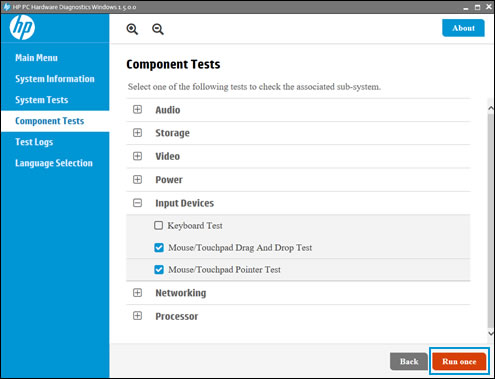
  • Click Component Tests.


  • On the Component Tests menu window, click Input Devices, and then select Mouse/Touchpad Pointer Test and Mouse/Touchpad Drag and Drop Test.
  • Click Run once 


  • Follow the on-screen instructions to test the functioning of the attached mouse.
  • Follow the on-screen instructions to test the functioning of the attached mouse.

    When you complete the tests, the test results display on the screen.

    • If the mouse passed the tests, click Finish, close the tool, and then restart the computer.

    • If the mouse failed the tests, write down the failure ID (24-digit code) and share the failure ID.


Let me know if this information helps. 


Please click “Accept as Solution” if you feel my post solved your issue, it will help others find the solution.

Click the “KudosThumbs Up" on the bottom right to say “Thanks” for helping.

ATHARVA_GP
I am an HP Employee

† The opinions expressed above are the personal opinions of the authors, not of HP. By using this site, you accept the <a href="https://www8.hp.com/us/en/terms-of-use.html" class="udrlinesmall">Terms of Use</a> and <a href="/t5/custom/page/page-id/hp.rulespage" class="udrlinesmall"> Rules of Participation</a>.