• ×
    Information
    Need Windows 11 help?
    Check documents on compatibility, FAQs, upgrade information and available fixes.
    Windows 11 Support Center.
  • post a message
  • ×
    Information
    Need Windows 11 help?
    Check documents on compatibility, FAQs, upgrade information and available fixes.
    Windows 11 Support Center.
  • post a message
Guidelines
Join the HP Community Solve‑a‑thon | Help Others & Share Your Solutions | Live on Zoom | 2:30 PM to 2:30 AM IST | Every Wednesday Click here to know more
Archived This topic has been archived. Information and links in this thread may no longer be available or relevant. If you have a question create a new topic by clicking here and select the appropriate board.

HP Recommended
Spectre X360 13-ac041nd
Microsoft Windows 10 (64-bit)

Hi, I briefly had a Spectre X360 13-ac041nd, which has a 13" , 4k screen.

I returned it to the vendor due to screen flashing problems (tried all possible driver updates and trips found on internet without result).

Actually, a 4k screen is a bit overkill on a small laptop, I thought it would be a nice gimmick but didn't anticipate the designflaws.

https://h30434.www3.hp.com/t5/Notebook-Video-Display-and-Touch/Flickering-screen-issue-in-HP-spectre...


Further it was a nice machine, now I consider a Spectre X360 13-ap0250nd.

Still 13", full HD screen and a great battery life.


As the screen flashing probleem seems to be a power problem, I suppose this is solved on a full HD screen.

Is that correct?


2 REPLIES 2
HP Recommended

@JP681

Welcome to HP Forums,  

This is a great place to get support, find answers and tips,
Thank you for posting your query, I'll be more than glad to help you out 🙂


I see that your experiencing issue with display flashing, I appreciate your efforts to try and resolve the issue.
 

To get the answer to this question, Yes! its solved on full HD screen or monitor.


Performing Video Test you can isolate the issue - This test includes three tests of the video hardware on your computer.

To run the test, click Video, select one of the following tests, and then click Run Once.


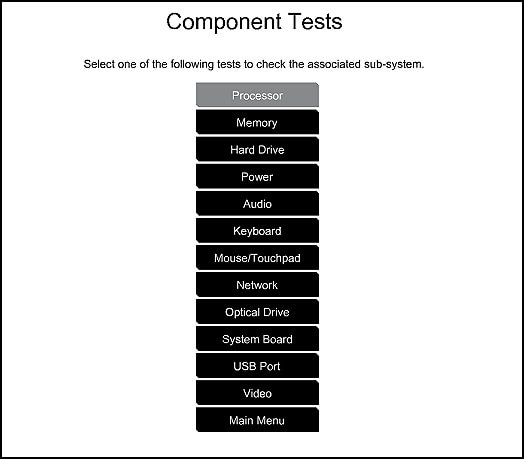
Use the following steps to open the Component Tests menu.

  1. Hold the power button for at least five seconds to turn off the computer.

  2. Turn on the computer and immediately press Esc repeatedly, about once every second. When the menu appears, press the F2 key.

  3. On the main menu, click Component Tests.

  4. The Component Tests menu displays.

    Your Component Tests menu might be different, depending on the components installed on your computer.

    Sample List of the Component tests

And, also, You can connect to a computer to an external monitor or TV to confirm flickering is not happening.


Hope this helps! Keep me posted for further assistance.

If I have helped you resolve the issue, feel free to give me a virtual high-five by clicking the 'Thumbs Up' icon below,

Followed by clicking on "Accept as solution" from the drop-down menu on the upper right corner,

Thank you for posting in the HP Support Forum.  Have a great day!

ECHO_LAKE
I am an HP Employee

HP Recommended

OK, thanks.


I can't test it on the 4k Spectre anymore, I returned it to the vendor, and I get a refund.


I just try to get confirmation that a Full HD screen doesn't have this problems before I order a new Spectre with Full HD screen.

Archived This topic has been archived. Information and links in this thread may no longer be available or relevant. If you have a question create a new topic by clicking here and select the appropriate board.
† The opinions expressed above are the personal opinions of the authors, not of HP. By using this site, you accept the <a href="https://www8.hp.com/us/en/terms-of-use.html" class="udrlinesmall">Terms of Use</a> and <a href="/t5/custom/page/page-id/hp.rulespage" class="udrlinesmall"> Rules of Participation</a>.