
-
×InformationNeed Windows 11 help?Check documents on compatibility, FAQs, upgrade information and available fixes.
Windows 11 Support Center. -
-
×InformationNeed Windows 11 help?Check documents on compatibility, FAQs, upgrade information and available fixes.
Windows 11 Support Center. -
- HP Community
- Printers
- Printer Setup, Software & Drivers
- 8610 / No scanner recognised

Create an account on the HP Community to personalize your profile and ask a question
Your account also allows you to connect with HP support faster, access a personal dashboard to manage all of your devices in one place, view warranty information, case status and more.
Check some of the most frequent questions about Instant Ink: HP INSTANT INK, HP+ PLANS: INK AND TONER.
Check out our WINDOWS 11 Support Center info about: OPTIMIZATION, KNOWN ISSUES, FAQs AND MORE.

It has been a while since anyone has replied. Simply ask a new question if you would like to start the discussion again.

04-18-2020 06:39 AM
 HP Recommended
Product: 8610
Operating System: macOS 10.15 Catalina
This morning my printer/scanner software wouldn't start up when I double clicked the icon in the task bar. Very odd. Anyway used the HP uninstaller to clear everything out, and then re-installed HP Easy Start and Easy Scan. Restarted Mac.
It will now print OK, but it just will not recognise the scanner, I get "waiting for scanner" and the wheel keeps on spinning.
Using image capture, the same thing happens - cant find the scanner.
Any ideas ? - thanks
Solved! Go to Solution.
1 ACCEPTED SOLUTION
Accepted Solutions


05-01-2020 01:35 PM
HP Recommended
Thanks!
Try the steps below to try and fix the issue:
- Uninstall the old printer drivers first. Follow the steps mentioned here: http://hp.care/2cKwLyC
- Now run the Apple Software Update. Check here for steps: http://hp.care/2cNgw3C
- Also, remove the HP Easy Scan.
- Restart your computer and printer.
- Click the Apple menu icon, and then click “System Preferences”.
- Click “Printers and Scanner” / “Print and Scan” or “Print and Fax”.
- Right-click the blank space in the Printers list, and then click “Reset printing system”.
- Click “Reset” in the confirmation window.
- Enter an administrator username and password, and then click “OK”.
- Wait until the printing system is reset and no devices show in the Printers list
- Restart your computer and then go back to System preferences – Printers and scanners.
- Click the “Add button” (+).
- Find, and then select the name of your printer from the printer list, and then click “Add” to add your printer.
- Click “Print Using...”, and then select the name of your printer (By default “AirPrint” would be selected)
Now, try installing the HP Easy scan and check.
Please click “Accepted Solution” if you feel my post solved your issue, it will help others find the solution. Click the “Kudos/Thumbs Up" on the bottom right to say “Thanks” for helping!
TEJ1602
I am an HP Employee
9 REPLIES 9
04-22-2020 10:31 AM
HP Recommended
@Nevis88, Welcome to HP Support Community!
I see that you have issues with scanning, we can try to isolate and resolve the issue-
Ensure you have the latest version of Mac OS installed on your computer which is 10.15.4 Catalina.
Also, Update the printer firmware
Download available firmware updates from the HP website
With the printer on and connected to the computer, go to HP Customer Support - Software and Driver Downloads, and then identify your printer. Look for and install any available firmware updates. Refer to the document HP Printers - Updating or Upgrading Printer Firmware
HP Easy Scan might not find your printer if the software or driver needs to be updated. Try the solutions below, and then try to add your printer to HP Easy Scan.
-
Update HP Easy Scan: Open HP Easy Scan. On the upper bar, click HP Easy Scan, click Check for Updates, and then install any available updates.
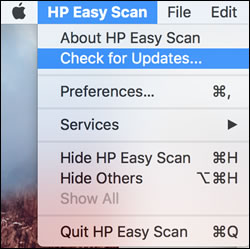
Try scanning.
Hope this helps! Keep me posted.
Please click “Accepted Solution” if you feel my post solved your issue, it will help others find the solution. Click the “Kudos/Thumbs Up" on the bottom right to say “Thanks” for helping!
TEJ1602
I am an HP Employee
04-23-2020 11:23 AM
HP Recommended
Hi
Yes OS 10.15.4 installed
Easy Scan version 1.9.1 is installed, so no updates are available.
Going through the steps in your reply, no Firmware update is available.
I download HP Easy Start and install " Essential Software" and Easy Scan and in my applications folder I find HP Easy Scan, and an empty HP folder

When I start up easy scan I get this - just a spinning wheel, no scanning possible

If i go to system prefs > printers >
I get this - which is good for printing

but clicking on the Scan button gives me this

so I've tried everything, but no scanning is available.
Any help appreciated
04-27-2020 08:25 PM - edited 04-27-2020 08:26 PM
HP Recommended
Thanks for waiting!
ensure that the printer is up to date with its firmware and Mac is up to date with its software. If you are unsure you may use the links below to update the printer firmware and Mac software:
Remove and add the printer
Click the Apple menu, and then select System Preferences.
Depending on your operating system version, click Print & Fax, Print & Scan, or Printers & Scanners.
Click the name of your printer, click the Minus sign , and then delete the printer.
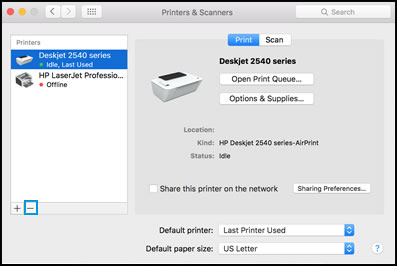
Click the Plus sign , and then click Add Printer or Scanner.
Click the Use or Print Using box, and then select AirPrint
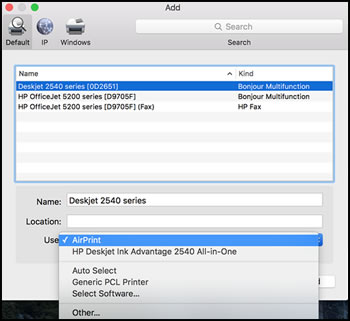
Click Add to add the printer to the list. Ensure you select kind as Bonjour Multifunction.
Try to print/scan.
Keep me posted for further assistance.
Please click “Accepted Solution” if you feel my post solved your issue, it will help others find the solution. Click the “Kudos/Thumbs Up" on the bottom right to say “Thanks” for helping!
TEJ1602
I am an HP Employee

05-01-2020 01:35 PM
HP Recommended
Thanks!
Try the steps below to try and fix the issue:
- Uninstall the old printer drivers first. Follow the steps mentioned here: http://hp.care/2cKwLyC
- Now run the Apple Software Update. Check here for steps: http://hp.care/2cNgw3C
- Also, remove the HP Easy Scan.
- Restart your computer and printer.
- Click the Apple menu icon, and then click “System Preferences”.
- Click “Printers and Scanner” / “Print and Scan” or “Print and Fax”.
- Right-click the blank space in the Printers list, and then click “Reset printing system”.
- Click “Reset” in the confirmation window.
- Enter an administrator username and password, and then click “OK”.
- Wait until the printing system is reset and no devices show in the Printers list
- Restart your computer and then go back to System preferences – Printers and scanners.
- Click the “Add button” (+).
- Find, and then select the name of your printer from the printer list, and then click “Add” to add your printer.
- Click “Print Using...”, and then select the name of your printer (By default “AirPrint” would be selected)
Now, try installing the HP Easy scan and check.
Please click “Accepted Solution” if you feel my post solved your issue, it will help others find the solution. Click the “Kudos/Thumbs Up" on the bottom right to say “Thanks” for helping!
TEJ1602
I am an HP Employee
05-02-2020 02:43 AM
HP Recommended
Thanks for your help and persistence.
I seemed to have gone through these steps many times BUT:
- Right-click the blank space in the Printers list, and then click “Reset printing system”.
this was the first time I had done this - didn't know about it - and it seems to have done the trick.
Thanks again.
Peter

Be alert for scammers posting fake support phone numbers and/or email addresses on the community.
If you think you have received a fake HP Support message, please report it to us by clicking on "Flag Post".
† The opinions expressed above are the personal opinions of the authors, not of HP. By using this site, you accept the Terms of Use and Rules of Participation.


Didn't find what you were looking for?
Ask the community
† The opinions expressed above are the personal opinions of the authors, not of HP. By using this site, you accept the <a href="https://www8.hp.com/us/en/terms-of-use.html" class="udrlinesmall">Terms of Use</a> and <a href="/t5/custom/page/page-id/hp.rulespage" class="udrlinesmall"> Rules of Participation</a>.