
-
×InformationNeed Windows 11 help?Check documents on compatibility, FAQs, upgrade information and available fixes.
Windows 11 Support Center. -
-
×InformationNeed Windows 11 help?Check documents on compatibility, FAQs, upgrade information and available fixes.
Windows 11 Support Center. -
- HP Community
- Printers
- Printer Setup, Software & Drivers
- Re: 8710 all in one stopped printing

Create an account on the HP Community to personalize your profile and ask a question
Your account also allows you to connect with HP support faster, access a personal dashboard to manage all of your devices in one place, view warranty information, case status and more.
Check some of the most frequent questions about Instant Ink: HP INSTANT INK, HP+ PLANS: INK AND TONER.
Check out our WINDOWS 11 Support Center info about: OPTIMIZATION, KNOWN ISSUES, FAQs AND MORE.

It has been a while since anyone has replied. Simply ask a new question if you would like to start the discussion again.

07-27-2020 02:51 PM
 HP Recommended
Product: HP 8710
Operating System: macOS 10.15 Catalina
My printer has stopped printing. I can send things to it, and it say's printing, but nothing happens, it seems to be stuck in the queuing system. I've uninstalled and reinstalled everything. I have tried all the ideas I could find online. The printer is connected via wireless with a strong signal. The ink is fine. What am I doing wrong? I'm so frustrated it's not working, when it was just last week.
6 REPLIES 6


07-30-2020 03:55 AM
HP Recommended
@frustratedmom6, Welcome to the HP Support Community!
Let us try these steps to resolve this issue:
Try making a standalone copy and check if that works. By this, we can conclude if this is a hardware or a driver issue.
Clear the print queue:
- On your Mac, choose Apple menu > System Preferences, then click Printers & Scanners.
- Select the printer you used in the list on the left, then click Open Print Queue.
- Delete all pending print jobs.
Update the printer firmware
Go to Setup > Printer maintenance > Update the printer
Also, check for any software updates on MAC
Click the Apple icon > About This Mac > Software Update and install any available update.
Restart the wireless router, the printer, and the MAC
Check the connectivity between the printer and the MAC
- Obtain the IP address of the printer by clicking on the Wireless icon on the printer
- On the MAC Go to Spotlight > search for Network utility > select Ping tab > enter the IP address of the printer in the box
- Check the second box that says Send only > 10 pings
- Click on ping > Check the results at the end if any packets are lost
- Note: There should be 0% packet loss, share the results in your next post.
If 0% loss, then try printing to check if the issue is resolved.
Hope this helps! Keep me posted.
Please click “Accept as Solution” if you feel my post solved your issue, it will help others find the solution.
Click the “Kudos, Thumbs Up" on the bottom right to say “Thanks” for helping!
Have a great day!
KUMAR0307
I am an HP Employee
08-17-2020 02:27 PM
HP Recommended
I have the same problem. I believe it was caused after the recent printer firmware update. Send file to printer, but stuck in processing print job.
From the printer utility, I was able to print the configuration status report. This showed that there was a wireless network connection between my Macbook Pro and the HP 8710. I proceeded to retry printing the pdf document. Here are the trials and outcomes:
1. Pulled out plug and restarted printer ---> problem still occurred
2. Restored the printer to factory defaults ---> problem still occurred
3. Reinstalled printer drivers and software ---> problem still occurred
4. Tried printing via USB only ---> problem still occurred
Hope this helps to troubleshoot the problem. I thought restoring to factory defaults would revert the printer to its WORKING status. However, nope.
08-18-2020 01:59 PM - edited 08-18-2020 02:00 PM
HP Recommended
Thanks for replying!
What happens when you print from other applications?
Are you using the Preview App or any other PDF reader?
Try printing the PDF as an image- https://helpx.adobe.com/acrobat/kb/quick-fix-print-pdf-image.html
If you still have issues, follow the steps below-
Remove and add the printer
Click the Apple menu, and then select System Preferences.
Depending on your operating system version, click Print & Fax, Print & Scan, or Printers & Scanners.
Click the name of your printer, click the Minus sign , and then delete the printer.
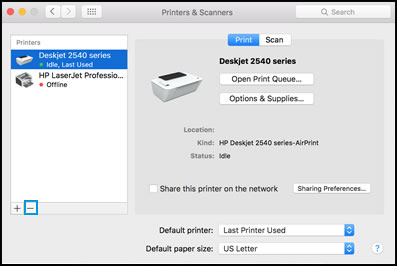
Click the Plus sign , and then click Add Printer or Scanner.
Click the Use or Print Using box, and then select AirPrint
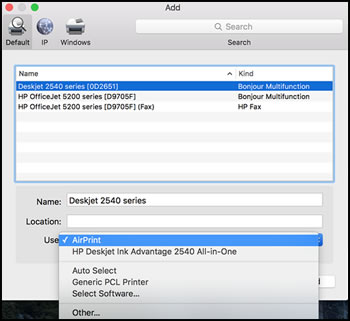
Click Add to add the printer to the list.
Try to print.
Keep me posted for further assistance.
Please click “Accepted Solution” if you feel my post solved your issue, it will help others find the solution. Click the “Kudos/Thumbs Up" on the bottom right to say “Thanks” for helping!
TEJ1602
I am an HP Employee
08-18-2020 10:05 PM
HP Recommended
Thank you for your suggestion. Unfortunately, still not printing. I have tried opening in Adobe Acrobat and 2 other third party pdf applications. Also opened in Preview on Mac. Nothing works.
Definitely a bug with the update. Is there a way to revert to the previous firmware? A working HP printer is more helpful than one about to be traded in for a Canon.
08-19-2020 01:16 PM
HP Recommended
This requires remote assistance. Please reach out to the HP Support in your region for further course of action.
Hope this helps!
Please click “Accepted Solution” if you feel my post solved your issue, it will help others find the solution. Click the “Kudos/Thumbs Up" on the bottom right to say “Thanks” for helping!
TEJ1602
I am an HP Employee

Be alert for scammers posting fake support phone numbers and/or email addresses on the community.
If you think you have received a fake HP Support message, please report it to us by clicking on "Flag Post".
† The opinions expressed above are the personal opinions of the authors, not of HP. By using this site, you accept the Terms of Use and Rules of Participation.


Didn't find what you were looking for?
Ask the community
† The opinions expressed above are the personal opinions of the authors, not of HP. By using this site, you accept the <a href="https://www8.hp.com/us/en/terms-of-use.html" class="udrlinesmall">Terms of Use</a> and <a href="/t5/custom/page/page-id/hp.rulespage" class="udrlinesmall"> Rules of Participation</a>.