
-
×InformationNeed Windows 11 help?Check documents on compatibility, FAQs, upgrade information and available fixes.
Windows 11 Support Center. -
-
×InformationNeed Windows 11 help?Check documents on compatibility, FAQs, upgrade information and available fixes.
Windows 11 Support Center. -
- HP Community
- Printers
- Printer Setup, Software & Drivers
- Apps not working

Create an account on the HP Community to personalize your profile and ask a question
Your account also allows you to connect with HP support faster, access a personal dashboard to manage all of your devices in one place, view warranty information, case status and more.
Check some of the most frequent questions about Instant Ink: HP INSTANT INK, HP+ PLANS: INK AND TONER.
Check out our WINDOWS 11 Support Center info about: OPTIMIZATION, KNOWN ISSUES, FAQs AND MORE.

It has been a while since anyone has replied. Simply ask a new question if you would like to start the discussion again.

08-12-2021 11:17 AM
 HP Recommended
Product: MFP M283fdw
I have moved house and set up my printer onto the new wifi network. Previously I sent scans to myself using the Apps section from the home screen. Now when I try this I am told the printer is busy (it isn't). How do I set this up?
6 REPLIES 6
08-12-2021 11:34 AM
HP Recommended
OK I've made progress by disabling apps and restarting the printer but now, having reenabled apps, if I try to print the information sheet I am told the machine cannot connect to the internet. But it is connected to the same network as my computer and I can print wirelessly.
08-21-2021 07:22 AM
HP Recommended
And now it's not working again. Can print wirelessly through home network. When I try to check if ePrint is enabled I get an error message saying:
Access denied
The service may be busy. Retry later. If the problem continues, check for firmware updates.
I'm pretty sure my firmware is up to date.
08-21-2021 08:22 AM
HP Recommended
No, that didn't work. Managed to do two scans the second of which came through but not the first and now I can't connect to the apps again.
Can anyone suggest an engineer who understands wifi, mesh networks, PCs and HP printers? Happy to pay if my system can be set up reliably.


08-22-2021 10:50 AM
HP Recommended
Welcome to the HP support community.
I understand that you are unable to scan using apps on the printer screen, follow these steps to fix the issue.
Turn On Web Services
-
Make sure the printer is connected to a wired (Ethernet) or wireless network with an active internet connection.
NOTE:
If you connect your printer to a computer with a USB cable, web-connected printing services do not work.
-
If your printer is connected with a wired (Ethernet) connection, check the cable and the lights on the printer’s Ethernet
 port. The green link light should be steady, and the orange activity light should blink when the cable is connected.
 -
If your printer is connected with a wireless connection, make sure the wireless feature is on and the printer is connected to the same network as your computer.
Some printers have a wireless icon
 and a blue light on the front of the printer. If the printer has a blue light, and the light is on and not blinking, your printer is connected.
-
-
On your control panel, press the HP ePrint
 icon.
icon.If your control panel does not have an HP ePrint icon, navigate to Web Services Setup, Network Setup, or Wireless Settings to open the Web Services menu.
-
If a summary screen displays, Web Services is already on.
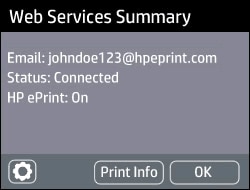
-
If a prompt to turn on Web Services or set up HP ePrint displays, follow the prompts to turn it on or set it up.
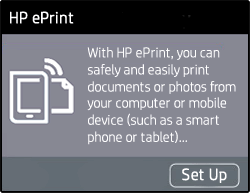
-
-
If you are prompted to update the firmware, press OK.
Refer to this HP document for more assistance:- Click here
Let me know how it goes.
To thank me for my efforts to help you, please mark my post as an accepted solution so that it benefits several others.
Cheers.
Sandytechy20
I am an HP Employee

Be alert for scammers posting fake support phone numbers and/or email addresses on the community.
If you think you have received a fake HP Support message, please report it to us by clicking on "Flag Post".
† The opinions expressed above are the personal opinions of the authors, not of HP. By using this site, you accept the Terms of Use and Rules of Participation.


Didn't find what you were looking for?
Ask the community
† The opinions expressed above are the personal opinions of the authors, not of HP. By using this site, you accept the <a href="https://www8.hp.com/us/en/terms-of-use.html" class="udrlinesmall">Terms of Use</a> and <a href="/t5/custom/page/page-id/hp.rulespage" class="udrlinesmall"> Rules of Participation</a>.