• ×
    Information
    Need Windows 11 help?
    Check documents on compatibility, FAQs, upgrade information and available fixes.
    Windows 11 Support Center.
  • post a message
  • ×
    Information
    Need Windows 11 help?
    Check documents on compatibility, FAQs, upgrade information and available fixes.
    Windows 11 Support Center.
  • post a message
Guidelines
Join the HP Community Solve‑a‑thon | Help Others & Share Your Solutions | Live on Zoom | 2:30 PM to 2:30 AM IST | Every Wednesday Click here to know more
Check some of the most frequent questions about Instant Ink: HP INSTANT INK, HP+ PLANS: INK AND TONER.


Check out our WINDOWS 11 Support Center info about: OPTIMIZATION, KNOWN ISSUES, FAQs AND MORE.
HP Recommended
HP Ink Tank Wireless 415

I have tried many times to print on both sides using my HP Apps. Every time it outputs one side for full documents, isn't it cheating? my curiosity was HP company would be good. After buying I have faced so many problems (such as paper jam without reason, half-page print, taking two or more pages, not connecting to wifi, etc.) in the last 2-3 months that many of my friends who used other brands have not faced in several years. Very disappointing!

1 REPLY 1
HP Recommended

@BeingSayem 


Welcome to the HP Community --


It is not "cheating" -- this printer supports manual 2-sided printing.

This means you print one side, flip the paper and print the other side.

Some printers lack the mechanical ability to flip the paper for automatic 2-sided printing.


The printer supports manual 2-sided printing.


If you install the Full Feature Software, it can help you print 2-sided by telling you when to flip the document to the second side(s).


True - Depending on the "app" you are using to print, the feature to tell you when to flip the pages might not be available.


Specifications

Product Specifications for the HP Ink Tank Wireless 415 Printer (Z4B53A) 

Duplex printing
Manual (driver support provided)
 
 
  1. Install the Full Feature Software
  2. Watch the how-to video
 

Details Page - Driver - For your Printer

>>> Full Feature Software - Web Pack Installation Package - Information - Download / Save / Install  <<<

After the software is installed, Restart the computer and sign in.


====================================

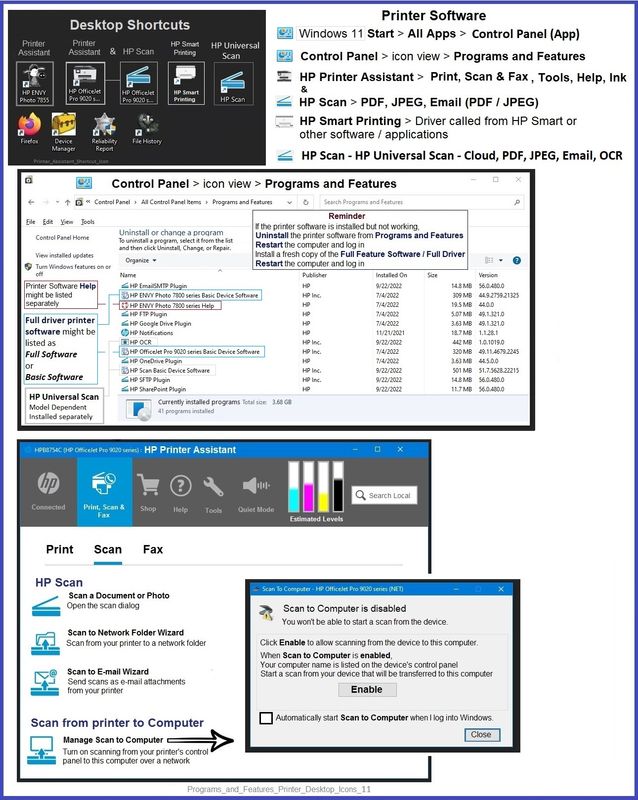
The installation of the full driver adds at least two shortcuts to the Desktop:  

Printer Assistant 

HP Scan


>>> Open the Printer Assistant > tab Scan Manage Scan to Computer Enable


Example - Windows - Full Feature Software - Installed in Programs and Features

Programs_and_Features_Printer_Desktop_Icons_11Programs_and_Features_Printer_Desktop_Icons_11

 
Video
 

=+=+=+=+=+=+=+=+=+=+=+=+=+=

References / Resources


User Guide – HP Smart Tank 410 Series


Technology Tips Video Gallery from our HP Expert greenturtle

 Technology Tips YouTube Video Help for Printers

 Technology Tips smart tank 410


HP Printer Home Page - References and Resources

Learn about your Printer - Solve Problems

“Things that are your printer”

When the website support page opens, Select (as available) a Category > Topic > Subtopic

NOTE: Content depends on device type and Operating System

Categories: Alerts, Troubleshooting, Ink & Paper, HP Software / Drivers / Firmware Updates , Setup & User Guides, Product Specifications, Account & Registration, Warranty & Repair

Open


Thank you for participating in the HP Community --

People who own, use, and support HP devices.

Click Yes to say Thank You

Question / Concern Answered, Click my Post "Accept as Solution"


Dragon-Fur

† The opinions expressed above are the personal opinions of the authors, not of HP. By using this site, you accept the <a href="https://www8.hp.com/us/en/terms-of-use.html" class="udrlinesmall">Terms of Use</a> and <a href="/t5/custom/page/page-id/hp.rulespage" class="udrlinesmall"> Rules of Participation</a>.