• ×
    Information
    Need Windows 11 help?
    Check documents on compatibility, FAQs, upgrade information and available fixes.
    Windows 11 Support Center.
  • post a message
  • ×
    Information
    Need Windows 11 help?
    Check documents on compatibility, FAQs, upgrade information and available fixes.
    Windows 11 Support Center.
  • post a message
Guidelines
Join the HP Community Solve‑a‑thon | Help Others & Share Your Solutions | Live on Zoom | 2:30 PM to 2:30 AM IST | Every Wednesday Click here to know more
Check some of the most frequent questions about Instant Ink: HP INSTANT INK, HP+ PLANS: INK AND TONER.


Check out our WINDOWS 11 Support Center info about: OPTIMIZATION, KNOWN ISSUES, FAQs AND MORE.
HP Recommended
Pavillion
Microsoft Windows 8.1 (64-bit)

Officejet 3830 I want to scan a multipage document. If I put allthe pages together into the Document tray and press Scan will they all go through and produce a multipage scan or printout

1 REPLY 1
HP Recommended

@mike2244 


==============================================================

Welcome to the HP Community.

Reminder to those reading:

Do NOT respond to individuals who post phone numbers or email addresses.

These might be scammers trying to steal your information / money.

HP does not post phone numbers or email in Community messages.

==============================================================

The short answer to the question in the subject line:  No


Use Webscan (if available) or use software on your computer to create multi-page document.


Webscan – located in the Embedded Web Server (EWS) – No additional software

NOTE:  Webscan feature  is not available on Laser printers

If the printer is on the network,

If the EWS feature is available on your printer,


First, make sure Webscan is "enabled" (first time use only)


  • Open your favorite browser > type / enter Printer IP address into URL / Address bar
  • Tab Settings > Security > Administrator Settings > Enable >> Check box next to Webscan
  • Click Apply to save any changes

Next

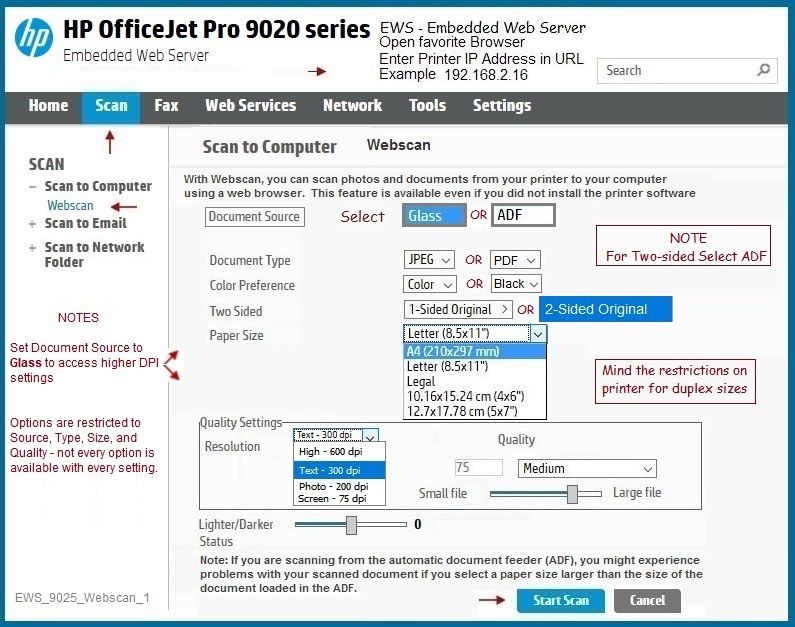
  • Tab Scan > Webscan 
  • Set up Webscan the way you want it - for example, set the Source to ADF
  • Click Start Scan to scan your document / image using Webscan
  • After the scan is complete, Save the scan to your computer.


Example

EWS_9025_Settings_Security_Administrator_3EWS_9025_Settings_Security_Administrator_3EWS_9025_Webscan_1EWS_9025_Webscan_1


What else?


If you have not done so, download-save-install the Full Feature Software / Full Driver for the printer


If using USB cable between the printer and the computer, disconnect the cable.


  HP Easy Start Printer Setup Software


  • Download-and-Save the printer software (Full Feature Software / HP Smart / Easy Start)
  • Right-Click on the downloaded package and "Run as Administrator" to start the installation
  • Reminder:  If using Easy Start, select the Full Driver
  •   About 2/3 of the way through the setup, you will be given the opportunity to select the software - select the "Full" driver set (as opposed to the basic driver).
  • If using USB:  Connect the cable when instructed to do so (near the last part of the driver installation)
  • After the software is installed, Restart the computer and log in.

Full driver provides print and scan functions (even if HP Smart proves to be stubborn).

==================================================================

and

Not related to borderless but important...

Adobe Reader DC – Needed Whether You Use It or Not

If you have not done so,

Reinstall / Update your PDF Reader (Adobe Reader DC /Optional  Foxit Reader)

HINT:  Watch out for and UNCHECK unwanted extra software

NOTE:  Adobe Reader DC software should be installed even if you do not normally open / view / print PDF files directly from the Adobe Reader DC software.


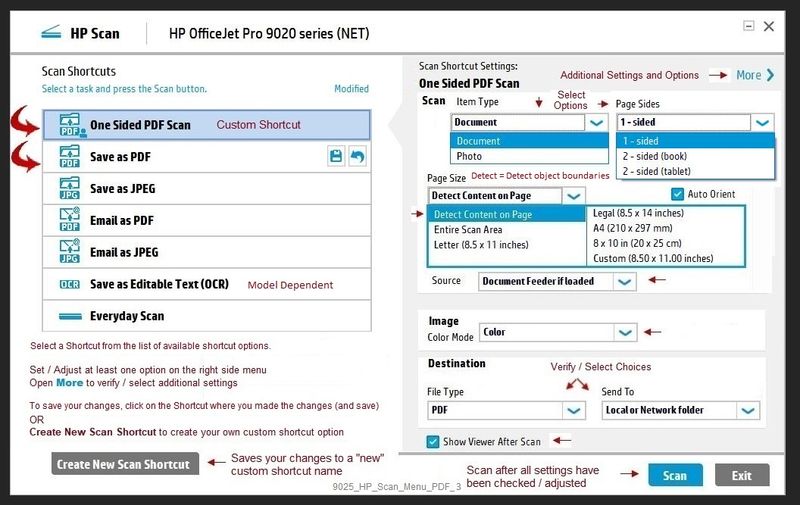
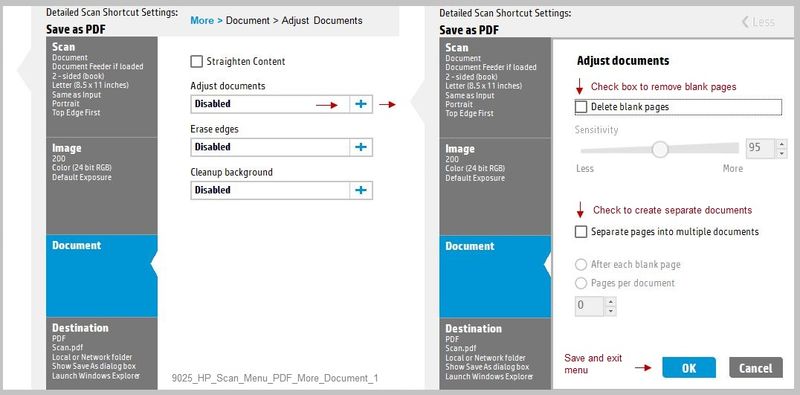
Example - HP Scan (Part of the Full Driver / Full Feature Software)

9025_HP_Scan_Menu_PDF_39025_HP_Scan_Menu_PDF_39025_HP_Scan_Menu_PDF_More_Document_19025_HP_Scan_Menu_PDF_More_Document_1


What else?

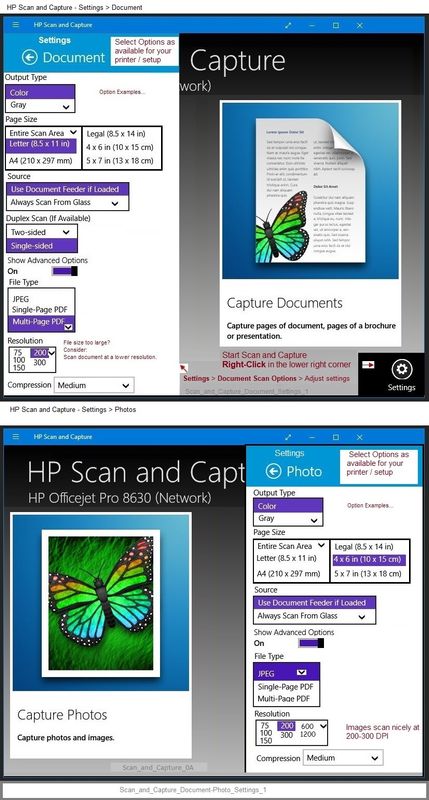
HP Scan and Capture - Microsoft Store - Requires Windows 8 or higher

undefined


What else?

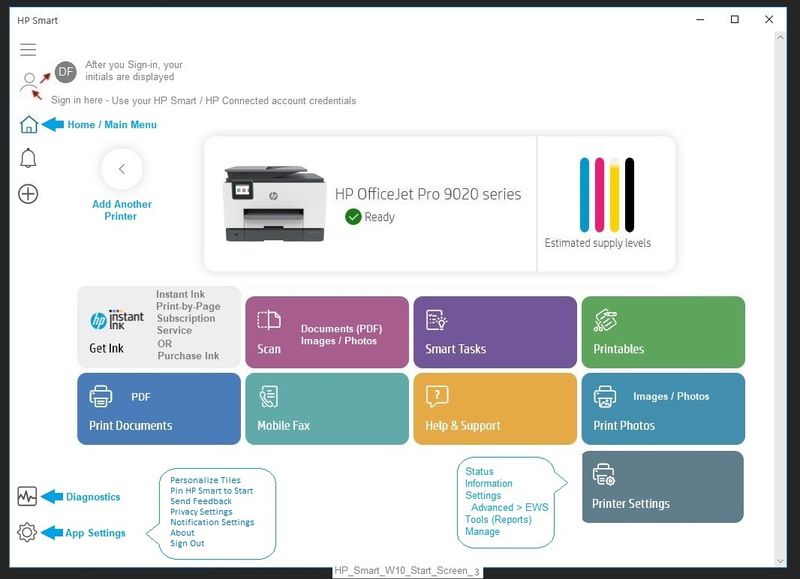
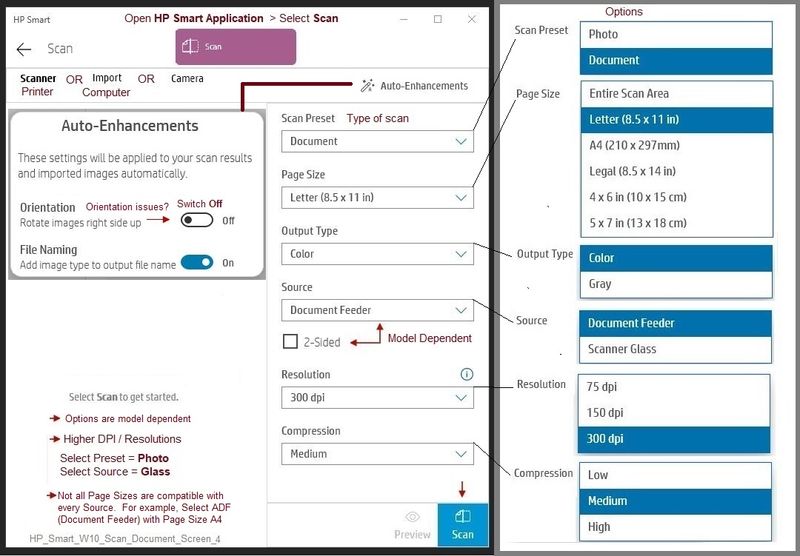
HP Smart for Windows


HP Smart is an application available in the Microsoft Store


Learn how to use HP Smart on your Windows 10 computer.

Open the Software and Drivers Support Website for your printer > Check the Box Get the App

OR

HP Printers - Using the HP Smart App (Windows 10)

NOTES: 

  • Website includes the HP Smart software for Windows and Mobile devices, plus an FAQ section to assist with questions / issues
  • Latest versions of HP Smart require that you be signed into the application with your HP Account credentials.


Example - HP Smart - Windows - Main Menu

HP_Smart_W10_Start_Screen_3HP_Smart_W10_Start_Screen_3


HP_Smart_W10_Scan_Document_Screen_4HP_Smart_W10_Scan_Document_Screen_4


Printer  Home Page - References and Resources – Learn about your Printer  - Solve Problems

 “Things that are your printer”

NOTE:  Content depends on device type and Operating System

Categories:  Alerts, Access to the Print and Scan Doctor (Windows), Warranty Check, HP Drivers / Software / Firmware Updates, How-to Videos, Bulletins/Notices, Lots of How-to Documents, Troubleshooting, Manuals > User Guides, Product Information (Specifications), more

When the website support page opens, Select (as available) a Category > Topic > Subtopic

HP OfficeJet 3830 All-in-One Printer series 


Thank you for participating in the HP Community.

The Community is a separate wing of the HP website - We are not a business group of HP..

Our Community is comprised of volunteers - people who own and use HP devices.

Click Thumbs Up to say Thank You.

Question Resolved / Answered, Click "Accept as Solution" .


Dragon-Fur

† The opinions expressed above are the personal opinions of the authors, not of HP. By using this site, you accept the <a href="https://www8.hp.com/us/en/terms-of-use.html" class="udrlinesmall">Terms of Use</a> and <a href="/t5/custom/page/page-id/hp.rulespage" class="udrlinesmall"> Rules of Participation</a>.