• ×
    Information
    Need Windows 11 help?
    Check documents on compatibility, FAQs, upgrade information and available fixes.
    Windows 11 Support Center.
  • post a message
  • ×
    Information
    Need Windows 11 help?
    Check documents on compatibility, FAQs, upgrade information and available fixes.
    Windows 11 Support Center.
  • post a message
Guidelines
Seize the moment! nominate yourself or a tech enthusiast you admire & join the HP Community Experts!
Check some of the most frequent questions about Instant Ink: HP INSTANT INK, HP+ PLANS: INK AND TONER.


Check out our WINDOWS 11 Support Center info about: OPTIMIZATION, KNOWN ISSUES, FAQs AND MORE.
HP Recommended
Office Jet 3830 All-in-One
Microsoft Windows Vista

Just bought this printer yesterday and can't set it up.  Downloaded the full web pack. When trying to install I got an error saying "unable to run windows installer service". A link led to a workaround to enable the install. When I downloaded "hp print and scan doctor" and tried to run it, got error saying I needed an earlier version to run with Vista. Provided a link to download an alternative program. When I tried to install this alternate version, I got a message saying the "download failed" and to retry. When I retry, it loops back to the first error message re Vista. Can't get past this point.

I've had a problem with services for some time, primarily because of my OS and browser, etc., so that is nothing new.  But I have always been able to install prgms. without an installer prgm.  
I have a new printer that I cannot use.
13 REPLIES 13
HP Recommended

@tika46


Welcome to the HP Support Community.


Let's try to do a root uninstall and reinstall of the software:


Unplug any USB cable, if any, before doing this.


1.) In Windows, search for and open Programs and features

2.) Select your HP Printer

3.) Select Uninstall

4.) In Windows, search for and open Devices and printers

5.) In the Devices and Printers windows look for your HP printer. If you see it listed right-click on it and choose 'Delete' or 'Remove Device'

6.) Open up the run command with the "Windows key + R" key combo.

7.) Type printui.exe /s and click Ok. (Note: there is a space in between “printui.exe” and “/s”)

8.) Click on the "Drivers" tab

9.) Look for HP Printer driver. If you see it Click on it and click Remove at the bottom

10.) Select Ok

11.) Select Apply and Ok on the Print Server Properties windows

12.) Close Devices and Printers

13.) Open up the run command with the "Windows key + R" key combo

14.) Type c:/programdata and click Ok. Go to Hewlett Packard folder, remove any printer related folders & files.

15.) Restart the computer.


Once done, please download and install the software from here:

https://support.hp.com/in-en/drivers


Let me know if this helps.


If the information I've provided was helpful, give us some reinforcement by clicking the Accepted Solution and Kudos buttons, that'll help us and others see that we've got the answers!


Thanks!


Have a great day!


I am an HP Employee

HP Recommended

I am following your instructions but I have a question. I went into Programs and Features but there are 4 entries for Hewlett Packard. (HP Advisor, HP Update, HP Easy Setup Front End (I think) and HP Easy Setup Core. I was able to uninstall successfully the setup front end. 


I tried to uninstall the first entry, HP Advisor and it returned this message:

-The feature you are trying to use is on a network resource that is unavailable. The path it points to is "C:\Users\Mom\AppData\Local\Temp\Advisor\{A4BCCAE0-F70E-478B-8B3A-5966A98B4798}\" and it couldn't find it. 

The last entry was setup core and it didn't even offer an option of uninstall.

So, do I continue with the instructions? There's no printer listed in device manager at all. I was unable to delete the HP printer driver--it said it's in use.  I couldn't delete all of the HP folders in programdata.

HP Recommended

Your instructions have been very helpful even though I've been working on this all day. The software did install and the scanner works from my desktop. But when I try to scan from the printer, it keeps saying I have no computer connected to the scanner. I have it connected via USB cord. How can I get the scan function to work by using the button on the printer screen? Also, I'd like to scan pics to an online site. How do I do that?

HP Recommended

@tika46


Let's use the Windows built-in driver. Uninstall the old software through the traditional way if any Printer software did install.


https://support.hp.com/in-en/document/c01796879


Let me know if this helps.


If the information I've provided was helpful, give us some reinforcement by clicking the Accepted Solution and Kudos buttons, that'll help us and others see that we've got the answers!


Thanks!


I am an HP Employee

HP Recommended

I tried the last instruction but I kept getting message that the download failed. I've went thru the install and uninstall of the full web pack 2 times and the 3rd time it fully installed. Print and scan are working. My problem is getting the printer to recognize my computer. I want to be able to hit the scan button on the printer and not always from the computer. That's all I need fixed right now.

HP Recommended

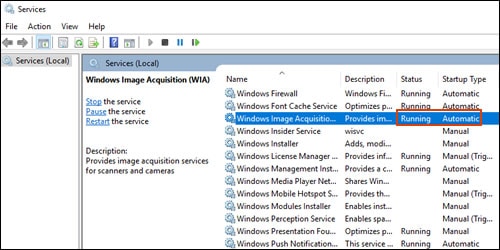
Windows Image Acquisition (WIA) is a Windows service that helps communication between the computer and scanners. If WIA is not activated, scan jobs can fail.

  1. In Windows, search for and open View local services.

  2. In the Services window, scroll down the list and find Windows Image Acquisition (WIA).

  3. Look at the Status and Startup Type values.

    • If the status is Started or Running and the Startup Type is Automatic, WIA is running correctly. Skip to the next step.

      Making sure WIA Status is Running, and Startup Type is Automatic

    • If the status is Disabled or no status displays, right-click Windows Image Acquisition (WIA), click Properties, click the General tab, select Automatic from the Startup type dropdown menu, and then click Start.

      If the Start button is grayed out, go back to the Services menu, make sure Remote Procedure Call, Shell Hardware Detection, RPC Endpoint Mapper, and DCOM Server Process Launcher are running and set as Automatic, and then start WIA.

  4. Try to scan. 

If the information I've provided was helpful, give us some reinforcement by clicking the Accepted Solution and Kudos buttons, that'll help us and others see that we've got the answers!


Thanks!


I am an HP Employee

HP Recommended

I followed all the instructions incl'g adjustments in services. They all are as they should be except the RPC Endpoint Mapper was not listed.  I tried to scan again from the printer and it returned this message:

"No Computer Found.  Make sure scanning to a computer is turned on. Windows: Open the HP printer software, select "Scanner Actions", and then select "Manage Scan to Computer". I don't see any of that anywhere. (I've had the printer over a week and still can't use the scan function from the printer.) 

HP Recommended

Bought this 3830 all-in-one a little over a week ago. I have spent almost 2 hrs. on the phone with support, communicated via Facebook, and finally in the community. I have installed and uninstalled 3 times. I use Vista. Finally, I got the entire package installed and functioning except I can't scan from the printer. I can scan from the computer but not from the printer. There's a thread with Betty0610 that has helped me a lot. But I am now stuck and on the verge of sending the printer back. Extreme frustration.

HP Recommended

Let's do this: 

  1. Search Windows for your printer model name, and click the printer name in the list of results. HP Printer Assistant opens.
  2. Click Scanner Actions, and then click Manage Scan to Computer.
  3. Click Enable to activate the scan to computer option.

Let me know if this helps.


If the information I've provided was helpful, give us some reinforcement by clicking the Accepted Solution and Kudos buttons, that'll help us and others see that we've got the answers!


Thanks!


I am an HP Employee

† The opinions expressed above are the personal opinions of the authors, not of HP. By using this site, you accept the <a href="https://www8.hp.com/us/en/terms-of-use.html" class="udrlinesmall">Terms of Use</a> and <a href="/t5/custom/page/page-id/hp.rulespage" class="udrlinesmall"> Rules of Participation</a>.