• ×
    Information
    Need Windows 11 help?
    Check documents on compatibility, FAQs, upgrade information and available fixes.
    Windows 11 Support Center.
  • post a message
  • ×
    Information
    Need Windows 11 help?
    Check documents on compatibility, FAQs, upgrade information and available fixes.
    Windows 11 Support Center.
  • post a message
Guidelines
Seize the moment! nominate yourself or a tech enthusiast you admire & join the HP Community Experts!
Check some of the most frequent questions about Instant Ink: HP INSTANT INK, HP+ PLANS: INK AND TONER.


Check out our WINDOWS 11 Support Center info about: OPTIMIZATION, KNOWN ISSUES, FAQs AND MORE.
HP Recommended
Microsoft Windows 10 (32-bit)

According to my manual, I need to set 3 things to print borderless:


Singles sided

Photo paper

Not draft quality.


OK.  I have done that.  However, even using the HP Smart application, I cannot get a photo to print borderless.  Here are the relevant screenshots:


Any help would be sincerely appreciated. 


Thanks in advance,


Jim

borderless-printer-issue1.PNG


Any help wouldborderless-printer-issue2.PNG

1 REPLY 1
HP Recommended

@PAJimS 


Welcome to the HP User Community.


If you have not done so,

Install the Full Feature Software / full driver printer software.

The full driver printer software provides access to the Printing Preferences > Shortcuts and printer features.


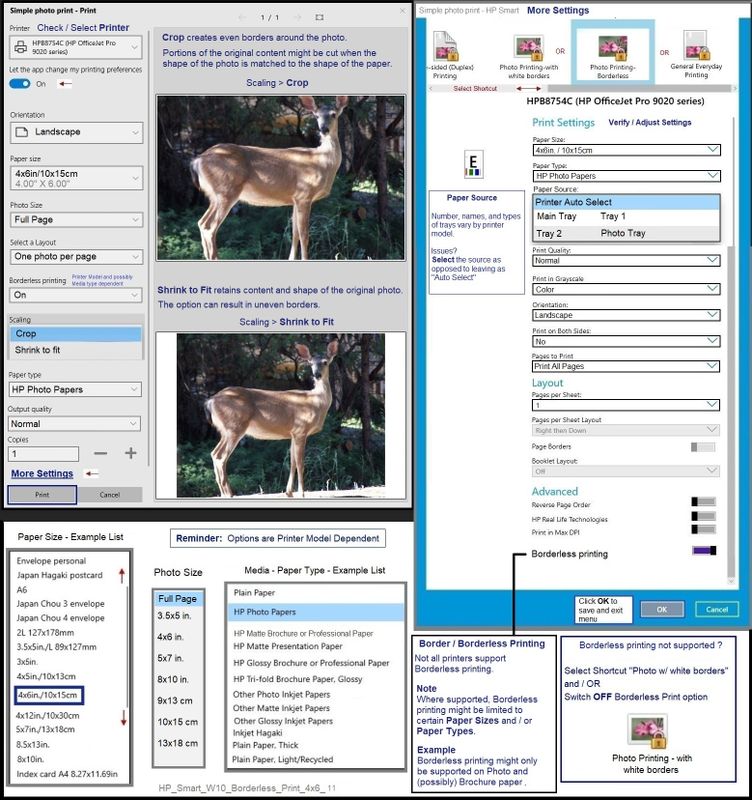
After selecting the options in the main HP Smart menu, Open More Settings to select a shortcut and adjust settings, including the setting to print in Borderless format.


Click OK to save changes and exit the More Settings menu > When ready, click to Print


How-to Video

HP OfficeJet 9010 | 9015 | 9018 | 9019 : Download & Install HP Full featured software 


After the printer software is installed, Restart the computer and log in


- - - - - - - - - - - - - - - - - - - - - - - - - - - - - - - - - - - - - - - - - - - - - - - - - - - - - - - - - -

Preparation > Check / enable the printer as the “Default Printer”


Settings > Devices > Printers and scanners

UNCHECK (clear box) Let Windows manage my default printer

Select (Left-Click) your printer from the list of printers > Manage > Set as Default


- - - - - - - - - - - - - - - - - - - - - - - - - - - - - - - - - - - - - - - - - - - - - - - - - - - - - - - - - -


Example - HP Smart - Windows - Simple Photo Print - 4x6 inch - Borderless

HP_Smart_W10_Borderless_Print_4x6_11HP_Smart_W10_Borderless_Print_4x6_11


References / Resources


Printing Preferences:  HP print settings guide (Windows, Mac)


Set the Preferences – Windows


NOTES

  • This section is not applicable to Mobile Printing.
  • Access to the complete Printer Preferences requires having installed the Full Driver printer software.
  • The printer should be selected as the default and current printing device.
  • Printing Preferences are available directly from the driver. 
  • Printing Envelopes?  See NOTE


Control Panel > icon view > Devices and Printers

Right-Click on your printer > Printing Preferences


  • When called from within printing software / applications, Printing Preferences might be called "Printer Properties" / "Shortcuts" / “More Settings” / “Properties” / "Printer Setup" or similar.


NOTE >> Word > Mailings > Envelopes  :: Preferences and Envelopes 

Select / leave Printing Preferences Shortcut to "Everyday Printing" or something equally benign. 


HP Printer Support Home Page - References and Resources – Learn about your Printer  - Solve Problems

 “Things that are your printer”

NOTE:  Content depends on device type and Operating System

Categories Alerts, Access to the Print and Scan Doctor (Windows), Warranty Check, HP Drivers / Software / Firmware Updates, How-to Videos, Bulletins/Notices, Lots of How-to Documents, Troubleshooting, Manuals > User Guides, Product Information (Specifications), more

When the website support page opens, Select (as available) a Category > Topic > Subtopic

HP OfficeJet Pro 9015e All-in-One Printer 


Thank you for participating in the HP Community.

Our Community is comprised of volunteers - people who own and use HP devices.

Click Helpful = Yes to say Thanks!

Question / Concern Answered, Click "Accept as Solution"


Dragon-Fur

† The opinions expressed above are the personal opinions of the authors, not of HP. By using this site, you accept the <a href="https://www8.hp.com/us/en/terms-of-use.html" class="udrlinesmall">Terms of Use</a> and <a href="/t5/custom/page/page-id/hp.rulespage" class="udrlinesmall"> Rules of Participation</a>.