
-
×InformationNeed Windows 11 help?Check documents on compatibility, FAQs, upgrade information and available fixes.
Windows 11 Support Center. -
-
×InformationNeed Windows 11 help?Check documents on compatibility, FAQs, upgrade information and available fixes.
Windows 11 Support Center. -
- HP Community
- Printers
- Printer Setup, Software & Drivers
- Carriage Jam error

Create an account on the HP Community to personalize your profile and ask a question
Your account also allows you to connect with HP support faster, access a personal dashboard to manage all of your devices in one place, view warranty information, case status and more.
Check some of the most frequent questions about Instant Ink: HP INSTANT INK, HP+ PLANS: INK AND TONER.
Check out our WINDOWS 11 Support Center info about: OPTIMIZATION, KNOWN ISSUES, FAQs AND MORE.

It has been a while since anyone has replied. Simply ask a new question if you would like to start the discussion again.

01-19-2019 05:44 AM
 HP Recommended
Product: Officejet4620
Printer keeps giving a Carriage Jam error despite it being movable & all clear. Reset actioned but still reverts to same error message on start up so I can never progress to print a test page as recommended in HP Support
5 REPLIES 5


01-20-2019 05:19 PM
HP Recommended
Welcome to the HP Support Community!
I assure you I will try my best to get this sorted.
In order that I may provide you with an accurate solution, I will need a few more details.
- When was the last time the printer was working fine?
- What is the exact error message you are getting?
- Have you made any software or hardware changes on the computer?
While you respond to that, I recommend you follow the steps in the below article and check if it helps.
Let me know how it goes and you have a great day!
If you wish to show appreciation for my efforts, mark my post as Accept as Solution. Your feedback counts!
Cheers!
The_Fossette
I am an HP Employee
01-21-2019 02:17 AM
HP Recommended
Thanks
Error message is Carriage jam. The print carriage cannot move.Open......
It came up earlier this month but then cleared itself on reset & was working last week but then I got this message again and cannot shift it. It is blocking me going to tools so I can't print a test page. I have tried everything else
When I switch off as recommended and restart it shows the main menu and then goes immediately into check routine-the carriage moves ok back and forth but it then finishes with the carriage jam error. When I say OK it repeats. Catch 22
No new software uploads
01-21-2019 10:04 AM
HP Recommended
It is great to have you back and your patience is greatly appreciated.
Thank you for the information.
I recommend you follow the below steps and check if it helps.
-
Unplug the power cord from the power source or electrical outlet.
-
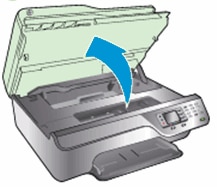
Open the cartridge access door.
Figure : Open the cartridge access door
-
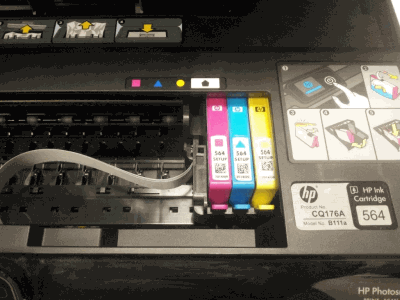
Reach into the cartridge access area, and then manually move the carriage to the left of the printer and then the right. The carriage should move completely underneath the cover on the right side of the printer.
-
If you cannot move the carriage completely underneath the cover on the right side of the printer, continue with these steps.
Figure : Example of the carriage partially under the cover on the right side of the printer
-
If you can move the carriage underneath the cover on the right side of the printer, skip to the next step to print a status report.
Figure : Example of the carriage resting underneath the cover on the right side of the printer

-
-
Move the carriage to the left side of the printer, and then use a flashlight to look inside the printer under the right cover.
Figure : Example showing where to look under the printer cover

-
Make sure that the posts are not blocking the carriage from moving all the way to the right.
Figure : Example of posts that might be blocking the carriage

-
If you see posts that could be blocking the carriage, continue with these steps.
-
If you do not see posts blocking the carriage, skip to the next step to print a status report.
-
-
Use a long, slim object (such as the eraser-end of a pencil) to gently push in the post.
Figure : Example of pushing in the post with a pencil

-
Reach into the cartridge access area, and then manually move the carriage to the right of the printer. The carriage should move under the printer cover.
WARNING:
Do not lift up on the carriage.
Figure : Push the carriage to the right
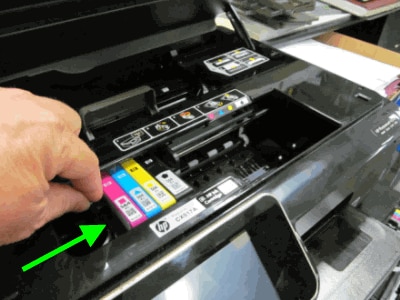
Figure : Example of the carriage resting under the cover
-
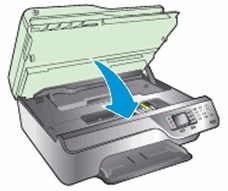
Close the cartridge access door.
Figure : Close the cartridge access door
-
Reconnect the power cord to the rear of the printer.
-
Plug the power cord back into the power source or electrical outlet.
-
If the printer does not turn on automatically, press the Power button to turn it on.
Let me know how it goes and you have a great day!
If you wish to show appreciation for my efforts, mark my post as Accept as Solution. Your feedback counts!
Cheers!
The_Fossette
I am an HP Employee
01-22-2019 09:24 AM
HP Recommended
The carriage is now jammed on the RHS (underneath)
This is the sequence:
1. Power disconnected. Carriage stuck RHS and can't be moved. Cover open
2 Power reconnected Start up cartridge carriage moves fully to left, to right and to left again where it stays
3Power disconnected. I can move carriage freely including to right and back again. Leave RHS
4 Repeat 2 above
5 Cover down carriage jam error OK
6 It comes back to Menu and goes into test mode
7 Carriage jam error
8 Cover up and carriage is stuck RHS as 1 above
Groundhog Day !
01-23-2019 10:35 AM
HP Recommended
It is great to have you back and your patience is greatly appreciated.
I recommend you contact HP phone support to check the available service options for your printer as it looks like a hardware issue.
Here is how you can get in touch with the phone support.
1)Click on this link - www.hp.com/contacthp/
2)Select the product type.
3)Enter the serial number of your device or select let HP detect your product option.
4)Select the country from the drop-down.
5)You should see the HP phone support number or Chat option listed.
Good day! Take care 🙂
Cheers!
The_Fossette
I am an HP Employee

Be alert for scammers posting fake support phone numbers and/or email addresses on the community.
If you think you have received a fake HP Support message, please report it to us by clicking on "Flag Post".
† The opinions expressed above are the personal opinions of the authors, not of HP. By using this site, you accept the Terms of Use and Rules of Participation.


Didn't find what you were looking for?
Ask the community
† The opinions expressed above are the personal opinions of the authors, not of HP. By using this site, you accept the <a href="https://www8.hp.com/us/en/terms-of-use.html" class="udrlinesmall">Terms of Use</a> and <a href="/t5/custom/page/page-id/hp.rulespage" class="udrlinesmall"> Rules of Participation</a>.