-
×InformationNeed Windows 11 help?Check documents on compatibility, FAQs, upgrade information and available fixes.
Windows 11 Support Center. -

-
×InformationNeed Windows 11 help?Check documents on compatibility, FAQs, upgrade information and available fixes.
Windows 11 Support Center. -
- HP Community
- Printers
- Printer Setup, Software & Drivers
- Close document Feeder Door

Create an account on the HP Community to personalize your profile and ask a question
01-02-2021 04:11 PM
Hello all; I was given a brand new L7590. Never used, still in the box. After unboxing and setting up, I’m getting a “close document feeder door” message. I cannot clear nor bypass it. Someone please help cause I’m ready to fling this thing in the trash. Thanks.
01-11-2021 05:11 AM
Hi @SirMention,
I'd like to help!
Clean the ADF rollers and the separator pad
Dust inside the automatic document feeder (ADF) can result in paper feed issues.
-
Get a lint-free cloth and distilled water.
-
Remove the original document from the ADF.
-
Turn off the printer.
-
Disconnect the power cord from the rear of the printer.
-
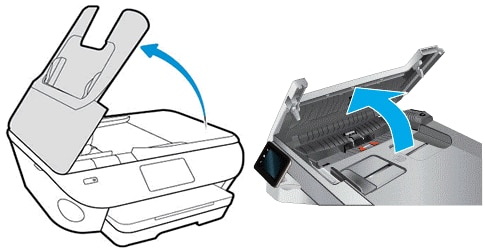
Open the ADF cover.

-
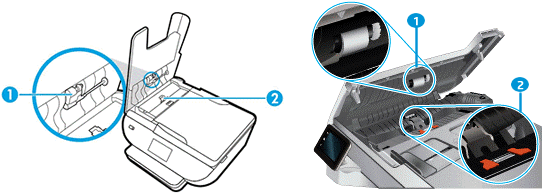
Find the paper pick rollers and the separator pad inside the ADF.
Callout
Description
1.
Paper pick roller
2.
Separator pad
-
Lightly dampen a clean, lint-free cloth with filtered or distilled water, and then squeeze any excess liquid from the cloth.
-
Use the damp cloth to clean the paper pick rollers and the separator pad.
-
Leave the ADF cover open for two minutes to allow the rollers and pad to dry.
-
Close the ADF cover.
-
Reconnect the power cord to the printer, and then turn on the printer.
-
Slide in the paper width guides until they rest against the sides of the paper.
-
Try to scan or copy with the ADF.
Reset the printer
Reset the printer to recover from printer errors or failures.
-
With the printer turned on, disconnect the power cord from the printer.
-
Unplug the power cord from the power source.
-
Wait 60 seconds.
-
Reconnect the power cord to a wall outlet and to the printer.
NOTE:
HP recommends plugging the printer directly into a wall outlet.
-
Turn on the printer to complete the reset.
Also, try updating the printer's firmware -HP Printers - Updating or Upgrading Printer Firmware
If the issue persists, I'd suggest you Contact HP in your region regarding the service options for your printer
Hope this helps! Keep me posted.
And, Welcome to the HP Support Community.
Please click “Accept as Solution” if you feel my post solved your issue, it will help others find the solution.
Click the “Kudos, Thumbs Up" on the bottom right to say “Thanks” for helping