• ×
    Information
    Need Windows 11 help?
    Check documents on compatibility, FAQs, upgrade information and available fixes.
    Windows 11 Support Center.
  • post a message
  • ×
    Information
    Need Windows 11 help?
    Check documents on compatibility, FAQs, upgrade information and available fixes.
    Windows 11 Support Center.
  • post a message
Guidelines
Here is the solution for the error: "Encryption Credentials have expired" when attempting to print or scan from Mac OS or iOS devices: Click here to view the troubleshooting steps!
Check some of the most frequent questions about Instant Ink: HP INSTANT INK, HP+ PLANS: INK AND TONER.


Check out our WINDOWS 11 Support Center info about: OPTIMIZATION, KNOWN ISSUES, FAQs AND MORE.
HP Recommended
HP OfficeJet Pro 8035e All-in-One Printer
Microsoft Windows 10 (64-bit)

Do I need BOTH HP Smart and HP Support Assistant?

1 REPLY 1
HP Recommended

@Mustangsallie 


Welcome to the HP Community --


HP Support Assistant is not printer software nor is it a printer application that supports print and scan operations.


HP App, in the context of a printing scan and print application, is just that -- a print / scan application that supports open, view, configuration, and submission of a job to the printer.


In the sense that using the printer involves using printer application or software to access the printer features and submit jobs to the printer, you need HP App to use the printer but do not need HP Support Assistant.


The HP Support Assistant is primarily used by some people as a means to keep the devices (those listed in the HPSA) updated and monitor the device(s) for behavior characteristics or issues.


References


HP Support Assistant – HPSA


 HP Support Assistant


 HP PCs - Using HP Support Assistant (Windows) 

Excerpted

Note:

If you are looking for a tool to download software updates for an HP business PC, go to HP PCs - Using HP Image Assistant.


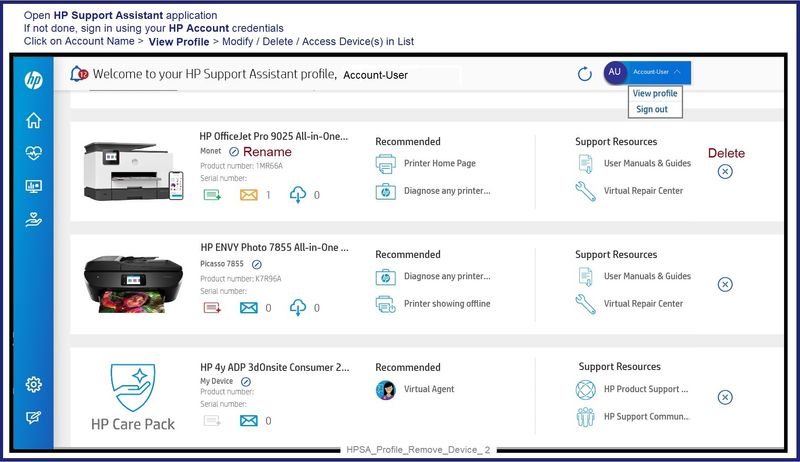
General Example - HPSA - Device list

HPSA_Profile_Remove_Device_2HPSA_Profile_Remove_Device_2


============================

HP App- Windows - Application


HP App is an application available in the Microsoft Store

OR

Open the Homepage / Support Website for your printer

Category Software and Drivers > Check/ Get the App


>>> How to Use >>> HP printer setup (HP app)

>>> Terms of Use >>>  HP App– formally HP Connected – Services Terms of Use


NOTES: 

  • Read the Terms of Use document to understand the conditions of using HP App products.  For example, in the HP application, find the link in HP App> Settings (gear) > About > Click on the link for Terms of Use
  • Read FAQ - including - What are the requirements to set up a printer using the HP app?
  • If using VPN >>Disconnect from Virtual Private Network (VPN) connection before downloading.
  • Turn on Wi-Fi on your computer or mobile device and connect to your network. If the computer is connected to the network with an Ethernet cable, temporarily disconnect the cable and use the Wi-Fi connection during the setup.
  • Enable Bluetooth for an HP app setup: Enable Bluetooth on your computer or mobile device so that HP App can detect the printer during the setup.  Source: How to scan with an HP printer > FAQ > Why can't I connect my wireless printer or scan over the network?
  • HP App requires that you sign into the application using your HP Account credentials.
  • When working through a Browser to access HP App, be sure you have Cookies enabled.  If cookies are enabled and you are having trouble, clear Cache and Cookies.   And / Or … Try a different Browser – assign that Browser as the Default. (Note:  Chrome not working?  Use / Assign a different default Browser.)
  • Where possible, HP App benefits (likes) having the Full Feature Software / full driver printer software installed.  For example, full driver provides access to Shortcuts and Printing Preferences.
  • “Share” to email – Before using Share, add your sender email address to the Windows Mail application


  • Document includes the HP application download links for Windows and Mobile devices, plus an FAQ section to assist with questions / issues.
    •  FAQ examples: 
      • What are the requirements to use the HP app?
      • Which printers are compatible with the HP app?
      • Why do I need to sign in or create an account to use the HP app features?
      • Which languages does the HP app support?
    • Older versions of the HP app no longer support the required login feature.
    • Update the application to the latest version to access / use HP App


Help Here:  Unable to download and install the HP App printer app

and

Check / Update  >> Every device (computer(s) and / or mobile) where HP App is installed should be running the latest version of the HP application available for that device platform (Operating System / Version).


Example - HP App- Windows - Menu

HP_Smart_Win_Main_Menu_5HP_Smart_Win_Main_Menu_5


=+=+=+=+=+=+=+=+=+=+=+=+=+=

References / Resources


HP Printer Home Page - References and Resources

Learn about your Printer - Solve Problems

“Things that are your printer”

When the website support page opens, Select (as available) a Category Topic Subtopic

NOTE: Content depends on device type and Operating System

CategoriesAlerts, Troubleshooting, Ink & Paper, HP Software / Drivers / Firmware Updates , Setup & User Guides, Product Specifications, Account & Registration, Warranty & Repair

Open

HP OfficeJet Pro 8035e All-in-One Printer  


Thank you for participating in the HP Community --

People who own, use, and support HP devices.

Click Yes to say Thank You

Question / Concern Answered, Click my Post "Accept as Solution"


Dragon-Fur

† The opinions expressed above are the personal opinions of the authors, not of HP. By using this site, you accept the <a href="https://www8.hp.com/us/en/terms-of-use.html" class="udrlinesmall">Terms of Use</a> and <a href="/t5/custom/page/page-id/hp.rulespage" class="udrlinesmall"> Rules of Participation</a>.