• ×
    Information
    Need Windows 11 help?
    Check documents on compatibility, FAQs, upgrade information and available fixes.
    Windows 11 Support Center.
  • post a message
  • ×
    Information
    Need Windows 11 help?
    Check documents on compatibility, FAQs, upgrade information and available fixes.
    Windows 11 Support Center.
  • post a message
Guidelines
Join the HP Community Solve‑a‑thon | Help Others & Share Your Solutions | Live on Zoom | 2:30 PM to 2:30 AM IST | Every Wednesday Click here to know more
Check some of the most frequent questions about Instant Ink: HP INSTANT INK, HP+ PLANS: INK AND TONER.


Check out our WINDOWS 11 Support Center info about: OPTIMIZATION, KNOWN ISSUES, FAQs AND MORE.
HP Recommended
HP ENVY Photo 6255 All-in-One Printer

HP Smart can not Find my Printer

I need to connect it to Lenovo Laptop (Updated to Windows 11) so I can print docs.

Printer is on and connected to WiFi (blue light is on) and test page printer.

Printer is new - out of box.   Bought months ago so now out of warranty.


Using Wireless (no cables supplied)

VPN is off

Bluetooth on

HP Smart app on laptop

It still can not Find Printer


Is IPS address that of laptop or printer?

Tried and still can not find


1 REPLY 1
HP Recommended

@PT-G 


Welcome to the HP English Community --


HP Smart has rules about how it connects a printer -

  • One of requirement is the connection type and the frequency
  • Another is the dislike of VPN - If you are using it, switch it off
  • Both printer and device must be on the same network
  • Make sure Bluetooth is switched on (in the computer) -- HP Smart uses Bluetooth during the initial connection process
  • Other considerations can impact the connection, too -- scroll down to see HP Smart notes in section Message Content References


What else?


The printer does not support Ethernet -- you are stuck using Wireless.


In spite of the claims for "dual band" in the specifications, he printer is likely more suited to run in the 2.4GHz frequency.


Semi-related >> Nothing I've seen indicates the printer would tolerate a Mesh network -- maybe?


If your router supports it,

  • Create a separate SSID named network for each Frequency (band).

and

  • Connect the printer to the SSID named network for the 2.4GHz frequency.

Also, if not done >>

  •  Create and use a manual / static IP address for the printer.


Example – EWS Setup – IPv4


EWS > HP Document / How-to (original format)

Use the HP printer Embedded Web Server (EWS)

NOTE:  Find printer IP address

Section Open the EWS over a local network orientation


Ethernet

Open your Browser > Type / enter the Printer IP address into URL / Address bar

Tab Network > Wired (802.3) > IPv4 Configuration


Wireless

Open your Browser > Type / enter the Printer IP address into URL / Address bar

Tab Network > Wireless (802.11) > IPv4 Configuration

As Available:

Tab Network > Wireless (802.11) > Advanced

Network Interface on / off, Network SSID name, Security Settings, Passphrase / Password

Select and connect to the correct SSID / network name for the bandwidth you are using.


Note:   It is not mandatory that you use a manual / static IP address.  Doing so can improve stability.


EWS_9025_Network_IPv4_Configuration_4EWS_9025_Network_IPv4_Configuration_4


EWS_9025_Network_Wireless_IPv4_Advanced_2EWS_9025_Network_Wireless_IPv4_Advanced_2


What else?


If not done,

Install the Full Feature Software / full driver printer software so you can use HP Scan.


If the printer is set on the network (see notes on IPv4) - installing the software can also help connect the printer to the software.


Full Driver Printer Software -

Details, Download page, Examples

==================================

Printer - Full Feature Software


HP Full Feature Software / Full Driver printer software - supports printing and scanning from the web, printing in in other software and programs (for example, Word), and provides access to the full range of Printing Preferences / Shortcuts.  The full driver generally adds at one, possibly least one, possibly two shortcuts to the Desktop: Printer Assistant, HP Scan Assistant, and/or HP Scan.


NOTES:  


HP Scan is not installed if the printer does not support Scan.


The Printer Assistant is not installed if the type of full driver software does not support it.  If the printer model includes built-in Fax hardware, the software supports the setup and use of the Fax driver. No Sign-in required.


Reinstalling?


  • Uninstall existing full driver printer software from Programs and Features.
  • If your printer includes a separate "help" in Programs and Features, uninstall that, too.
  • Restart the computer and log in.
  • If the printer is connected to the computer using a printer USB cable, remove / disconnect the cable before loading the software.


Details Page - Driver - For your Printer

>>> Full Feature Software - Web Pack Installation Package - Information - Download / Save / (then) Install <<<


HP ENVY Photo 6200 All-in-One Print and Scan Driver and Accessories


If asked, opt for the Full Driver to be installed.

After the software is installed, Restart the computer and sign in. 


=--=--=--=--=--=--=--=--=--=--=--=--=--=--=--=--=--= 


he installation of the full driver generally adds at least one or more shortcuts to the Desktop.


 Note Printer Assistant, HP Scan Assistant, and HP Scan are dependent on printer model and supported software options.


  • Printer Assistant – Where still supported as part of the full driver printer software
  • HP Scan Assistant – For those printers that no longer provide the Printer Assistant
  • HP Scan – Shortcut on Desktop named for the printer model
  • When installed, HP Universal Scan software adds a separate self-named “HP Scan” shortcut


Printer Assistant shortcut > Tab Scan > Manage Scan to Computer > Enable

Or

HP Scan Assistant shortcut > Manage Scan to Computer > Enable


Example - Windows - Full Feature Software - Installed

Programs_and_Features_Printer_Desktop_Icons_14Programs_and_Features_Printer_Desktop_Icons_14


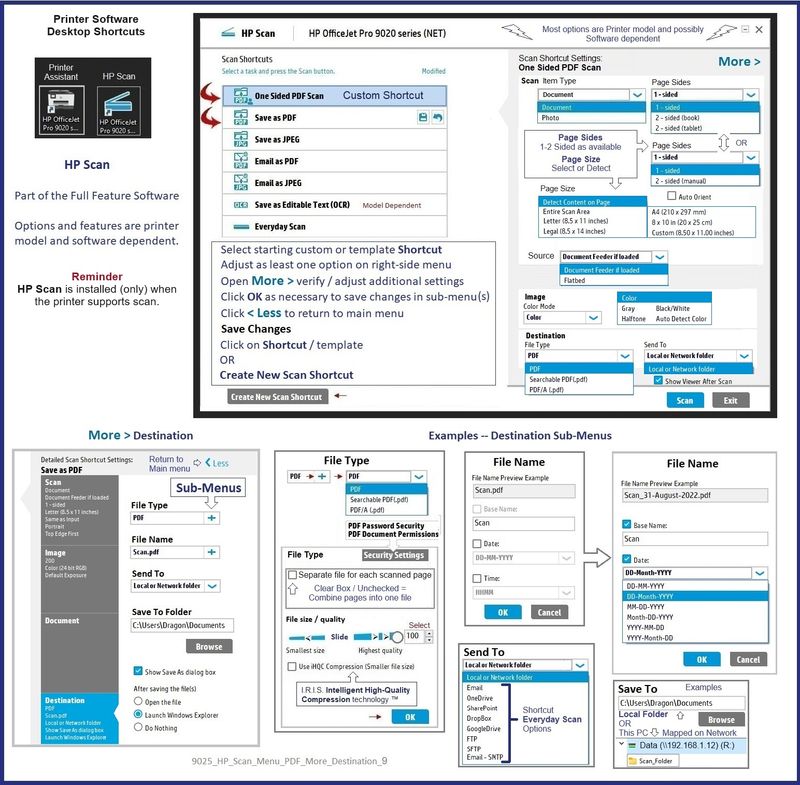
Example - HP Scan - Menu - PDF - More > Destination

9025_HP_Scan_Menu_PDF_More_Destination_99025_HP_Scan_Menu_PDF_More_Destination_9


===================================

Message Content References


Product Specifications for the HP ENVY Photo 6255 All-in-One Printer (K7G18A)


User Guide - HP ENVY Photo 6200 All-in-One series 


============================

HP Smart - Windows - Application


HP Smart is an application that supports print and scan for PDF and Photos / Images.

The app is available in the Microsoft Store

OR (same thing)

Open the Homepage / Support Website for your printer

Category Software & Drivers > Section Install HP Smart app to complete setup and support


Instructions...

>>> How to Use >>> HP printer setup (HP Smart app)

>>> Terms of Use >>>  HP Smart – formally HP Connected – Services Terms of Use


NOTES: 

  • Read the Terms of Use document to understand the conditions of using HP Smart products.  For example, in the HP Smart application, find the link in HP Smart > Settings (gear) > About > Click on the link for Terms of Use
  • Read FAQ - including - What are the requirements to set up a printer using the HP Smart app?
  • If using VPN >>Disconnect from Virtual Private Network (VPN) connection before downloading.
  • Turn on Wi-Fi on your computer or mobile device and connect to your network. If the computer is connected to the network with an Ethernet cable, temporarily disconnect the cable and use the Wi-Fi connection during the setup.
  • Enable Bluetooth for an HP Smart app setup: Enable Bluetooth on your computer or mobile device so that HP Smart can detect the printer during the setup.  Source: How to scan with an HP printer > FAQ > Why can't I connect my wireless printer or scan over the network?
  • HP Smart requires that you sign into the application using your HP Account credentials.
  • When working through a Browser to access HP Smart, be sure you have Cookies enabled.  If cookies are enabled and you are having trouble, clear Cache and Cookies.   And / Or … Try a different Browser – assign that Browser as the Default. (Note:  Chrome not working?  Use / Assign a different default Browser.)
  • Where possible, HP Smart benefits (likes) having the Full Feature Software / full driver printer software installed.  For example, full driver provides access to Shortcuts and Printing Preferences.
  • “Share” to email – Before using Share, add your sender email address to the standard Windows Mail application (not New Outlook).


  • Document includes the HP Smart application download links for Windows and Mobile devices, plus an FAQ section to assist with questions / issues.
    •  FAQ examples
      • What are the requirements to use the HP Smart app?
      • Which printers are compatible with the HP Smart app?
      • Why do I need to sign in or create an account to use the HP Smart app features?
      • Which languages does the HP Smart app support?
    • Older versions of the HP Smart app no longer support the required login feature.
    • Update the application to the latest version to access / use HP Smart


Help Here:  Unable to download and install the HP Smart printer app

and

Check / Update  >> Every device (computer(s) and / or mobile) where HP Smart is installed should be running the latest version of the HP Smart application available for that device platform (Operating System / Version).


================== =====================


=--=--=--=--=--=--=--=--=--=--=--=--=--=--=--=--=--=

References / Resources


HP Printer Home Page - References and Resources

Learn about your Printer - Solve Problems


“Things that are your printer”

When the website support page opens, Select (as available) a Category > Topic > Subtopic

NOTE: Content depends on device type and Operating System


Categories: Warranty Check, Alerts, Troubleshooting, Ink & Paper, HP Software & Drivers / Firmware Updates, Setup & User Guides, Product Specifications, Account & Registration, Warranty & Repair


Open 

 Product Home - Printers

 Enter the device type and model name of your HP product

OR

 Select a saved product from HP Account Dashboard

OR


Thank you for participating in the HP Community --

People who own, use, and support HP devices.

Click Yes to say Thank You

Question / Concern Answered, Click my Post "Accept as Solution"


Dragon-Fur

† The opinions expressed above are the personal opinions of the authors, not of HP. By using this site, you accept the <a href="https://www8.hp.com/us/en/terms-of-use.html" class="udrlinesmall">Terms of Use</a> and <a href="/t5/custom/page/page-id/hp.rulespage" class="udrlinesmall"> Rules of Participation</a>.